Guides

CSI MARKETPLACE · PLATFORM PARTNER GUIDE

Platform Partner Guide

A walkthrough of the Partner (service-provider) portal: how a partner organization lists services, wins and executes engagements, and manages its clients on CSI Marketplace. The platform currently runs in manual settlement mode — escrow/auto-settlement is a built capability, not yet live in production. Eight core workflows are walked step by step; every other Partner area is covered in a shorter breadth tour.

Deep diveServices
Services & templates

A partner's listed services live in one library, each with its own pricing, deliverables, and intake form. Services can be listed publicly, kept internal, or removed entirely. Saving or publishing a service is currently restricted to the org's admin members — a non-admin member can fill out the whole form, but the save itself will be rejected.
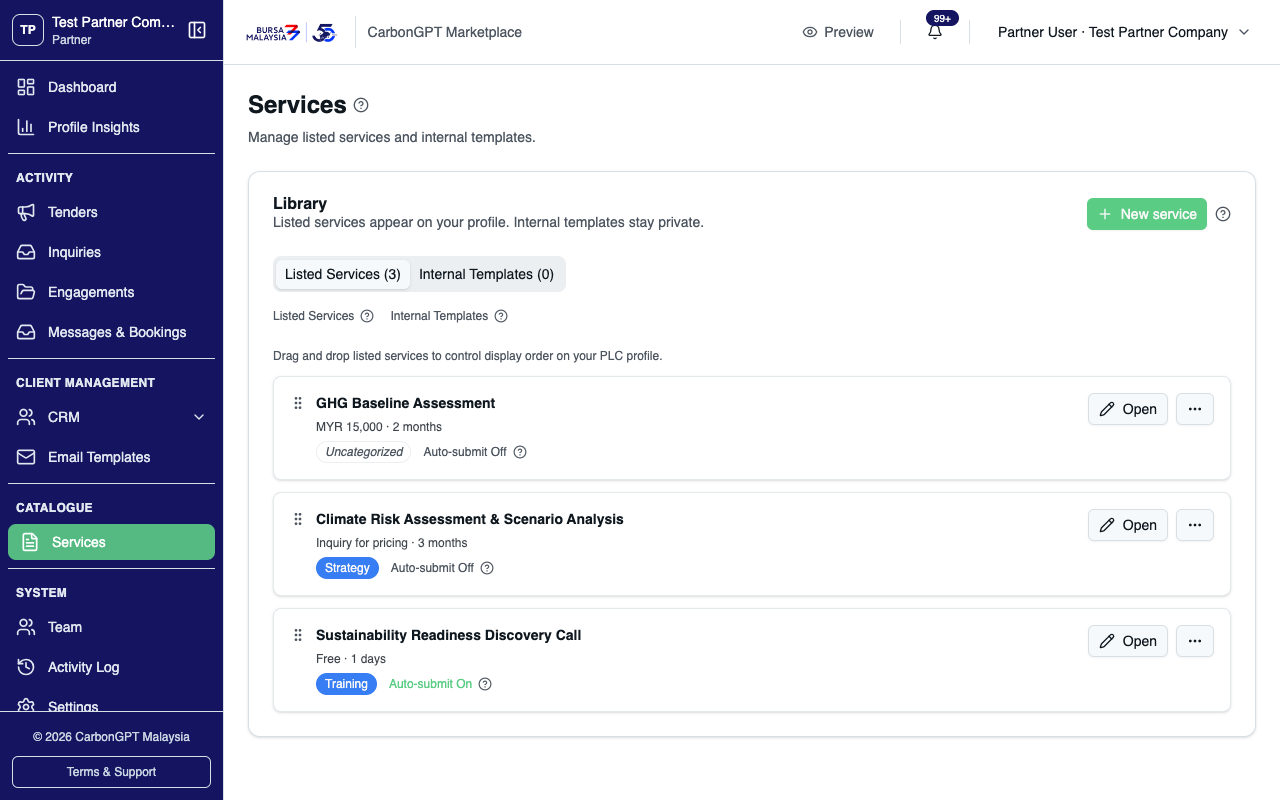
The library separates Listed and Internal services, with drag-to-reorder and a Remove action per template. Services can be fixed-price, inquiry-priced, or free — each shown with its own pricing summary and category.
01 The library separates Listed and Internal services, with drag-to-reorder and a Remove action per template. Services can be fixed-price, inquiry-priced, or free — each shown with its own pricing summary and category.
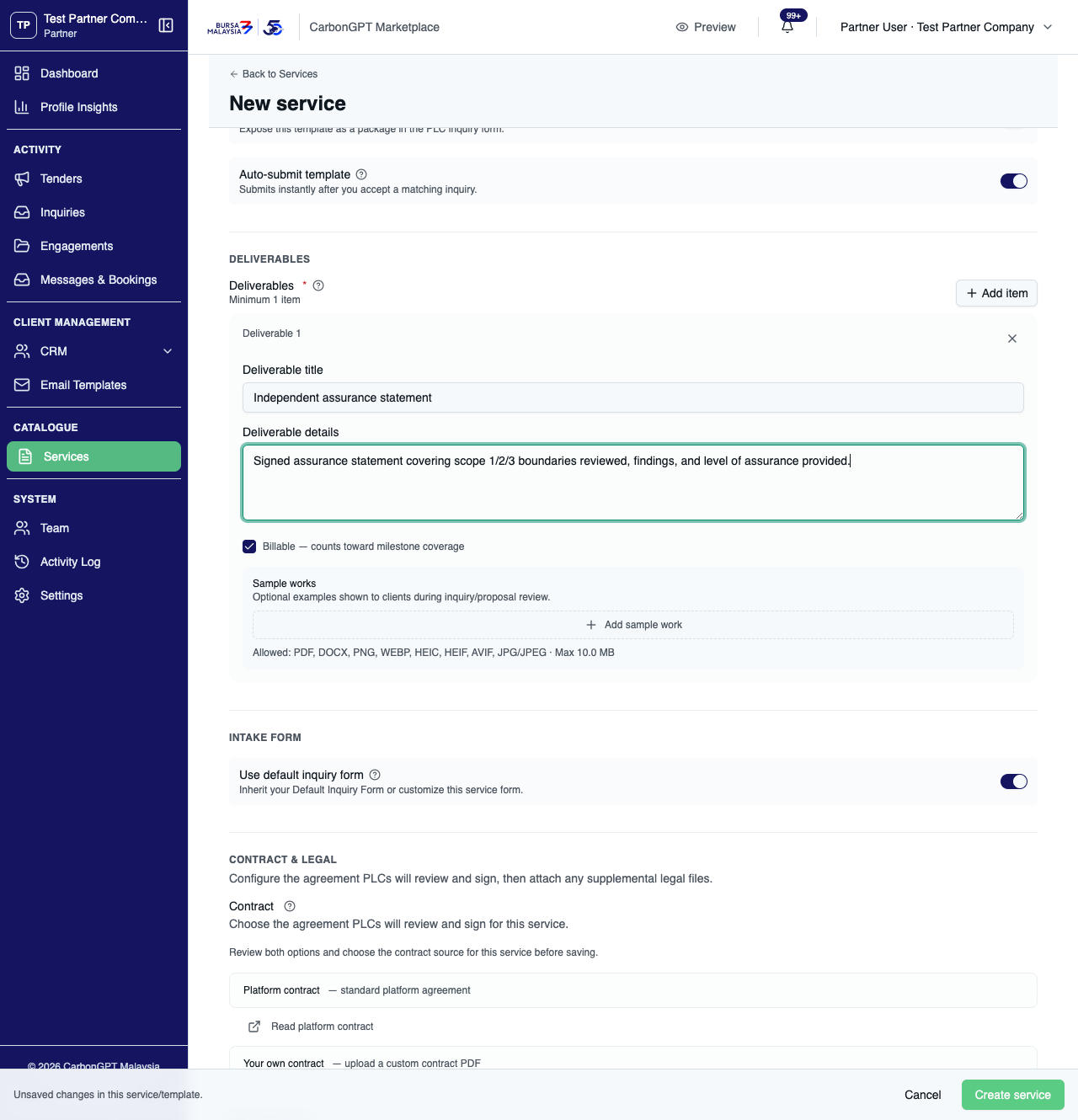
Creating a service is a single-column form: Details & Scope (including a required service category), Deliverables, Intake Form, and Contract & Legal — which requires choosing a contract source (the platform's standard agreement or an uploaded custom contract PDF) before the service can be saved.
02 Creating a service is a single-column form: Details & Scope (including a required service category), Deliverables, Intake Form, and Contract & Legal — which requires choosing a contract source (the platform's standard agreement or an uploaded custom contract PDF) before the service can be saved.
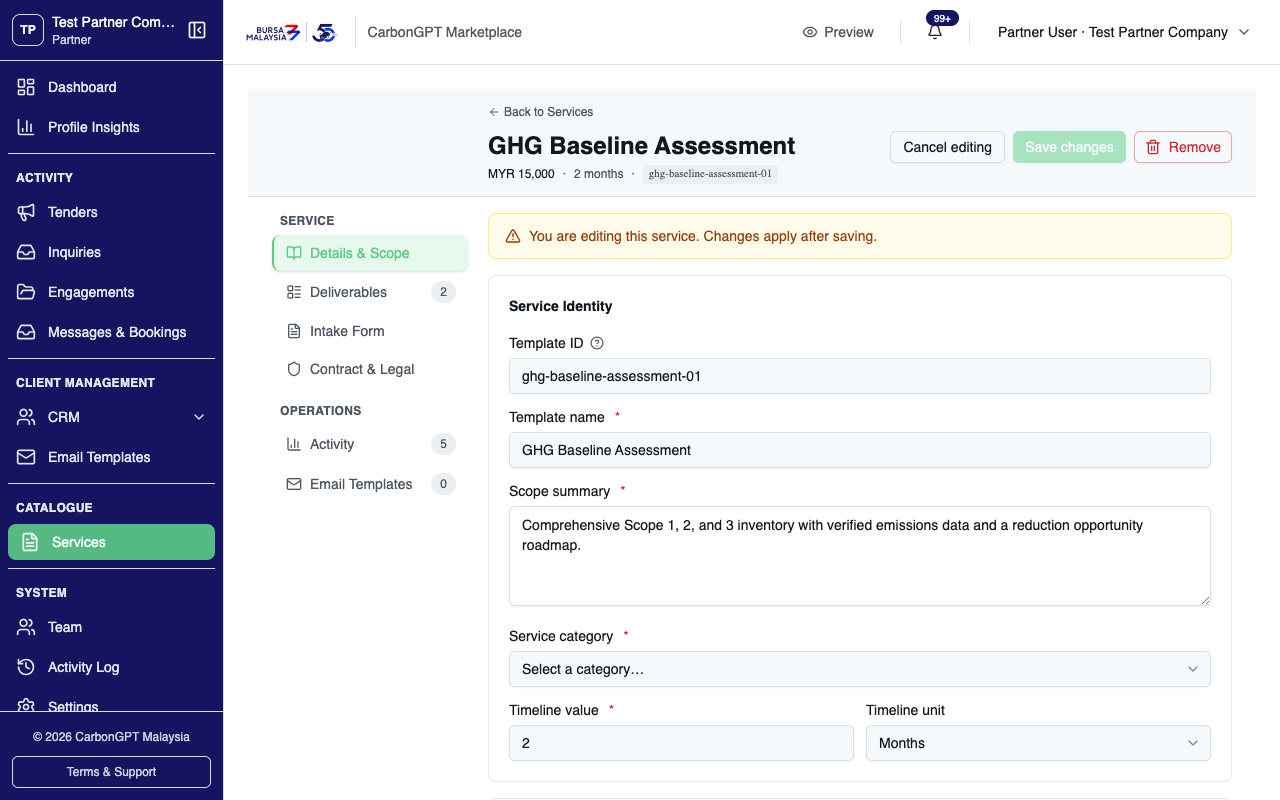
Editing an existing service opens a sidebar with Details & Scope, Deliverables, Intake Form, and Contract & Legal under SERVICE, and Activity and Email Templates — both live, working tabs — under OPERATIONS.
03 Editing an existing service opens a sidebar with Details & Scope, Deliverables, Intake Form, and Contract & Legal under SERVICE, and Activity and Email Templates — both live, working tabs — under OPERATIONS.
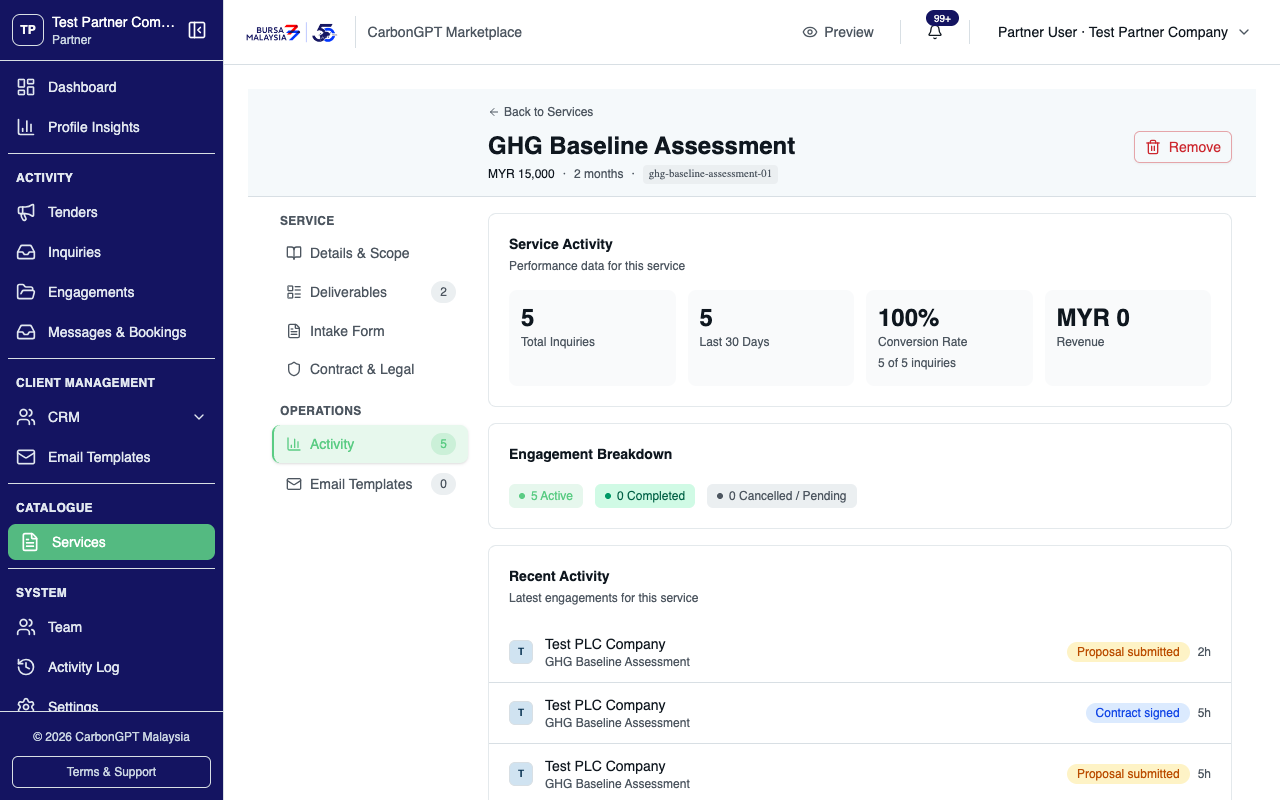
The Activity tab shows real per-service performance: total inquiries, conversion rate, revenue, an active/completed engagement breakdown, and a recent-activity feed linking straight into the engagements it produced.
04 The Activity tab shows real per-service performance: total inquiries, conversion rate, revenue, an active/completed engagement breakdown, and a recent-activity feed linking straight into the engagements it produced.
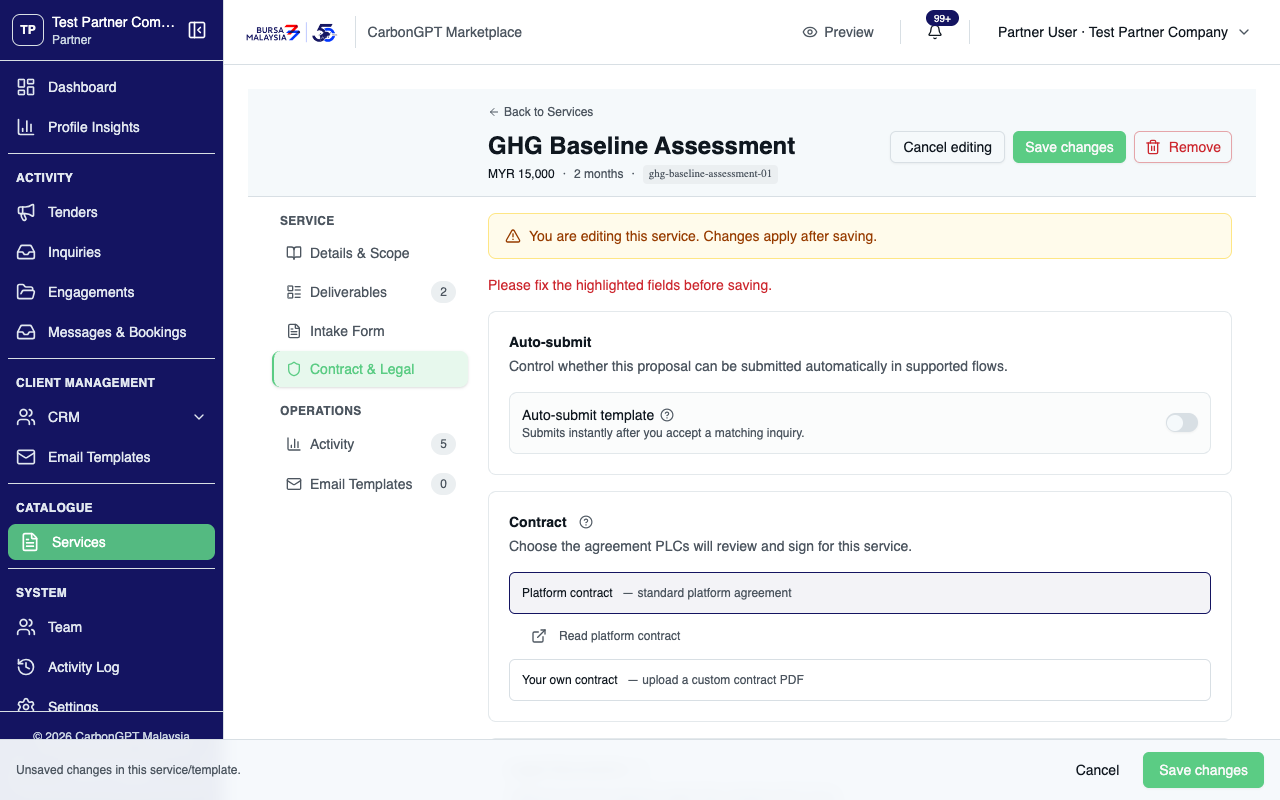
If a required field anywhere in the form is left invalid, Save now shows "Please fix the highlighted fields before saving" even when the invalid field itself is on a different panel — it won't save until every panel is valid, even though it doesn't point to the exact field.
05 If a required field anywhere in the form is left invalid, Save now shows "Please fix the highlighted fields before saving" even when the invalid field itself is on a different panel — it won't save until every panel is valid, even though it doesn't point to the exact field.
Deep diveInquiries
Accepting inquiries and drafting a proposal

Accepting an inquiry moves straight into drafting a proposal (an SOW) for that specific engagement — a separate step from bidding on a tender, even though both are sometimes called "proposals." The partner chooses payment terms for this engagement independently of whatever the service template's own default is.
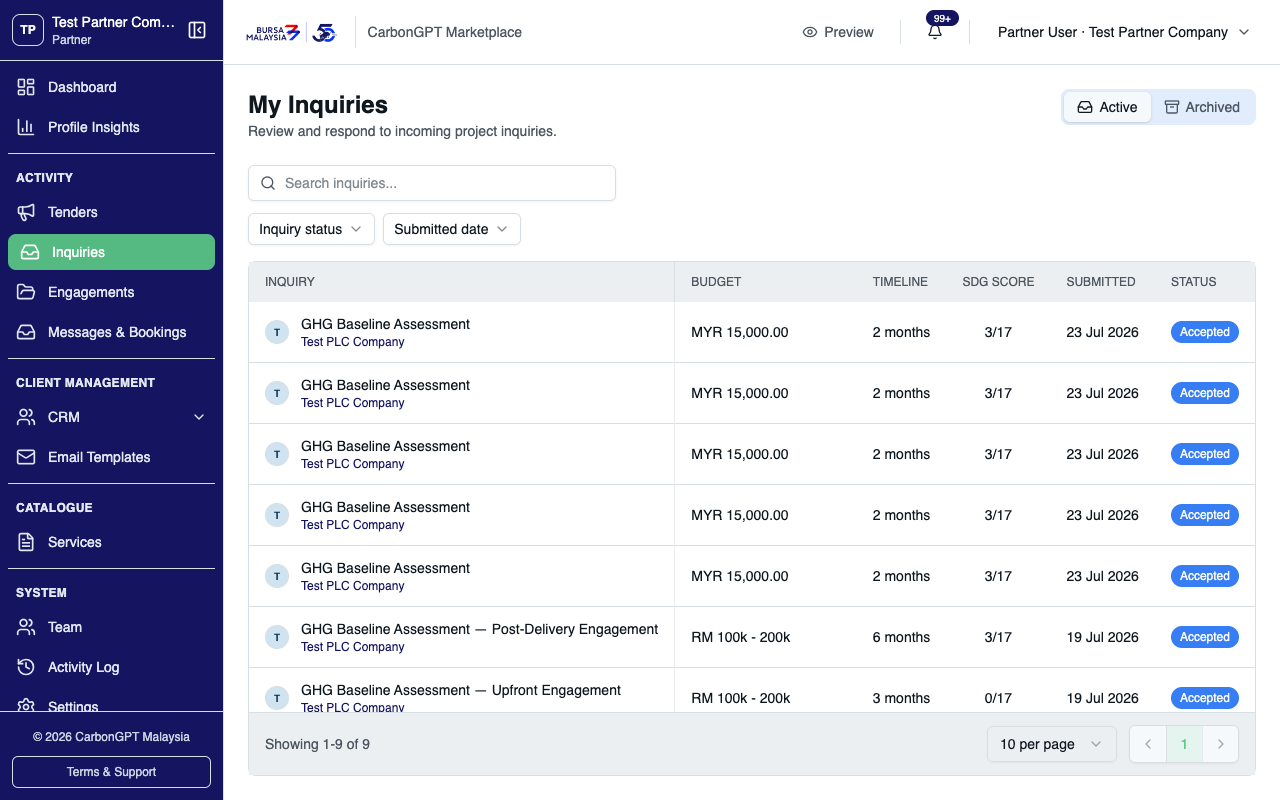
Inquiries are always listed newest-submitted-first; filters narrow by status and date, but there's no manual re-sort.
01 Inquiries are always listed newest-submitted-first; filters narrow by status and date, but there's no manual re-sort.
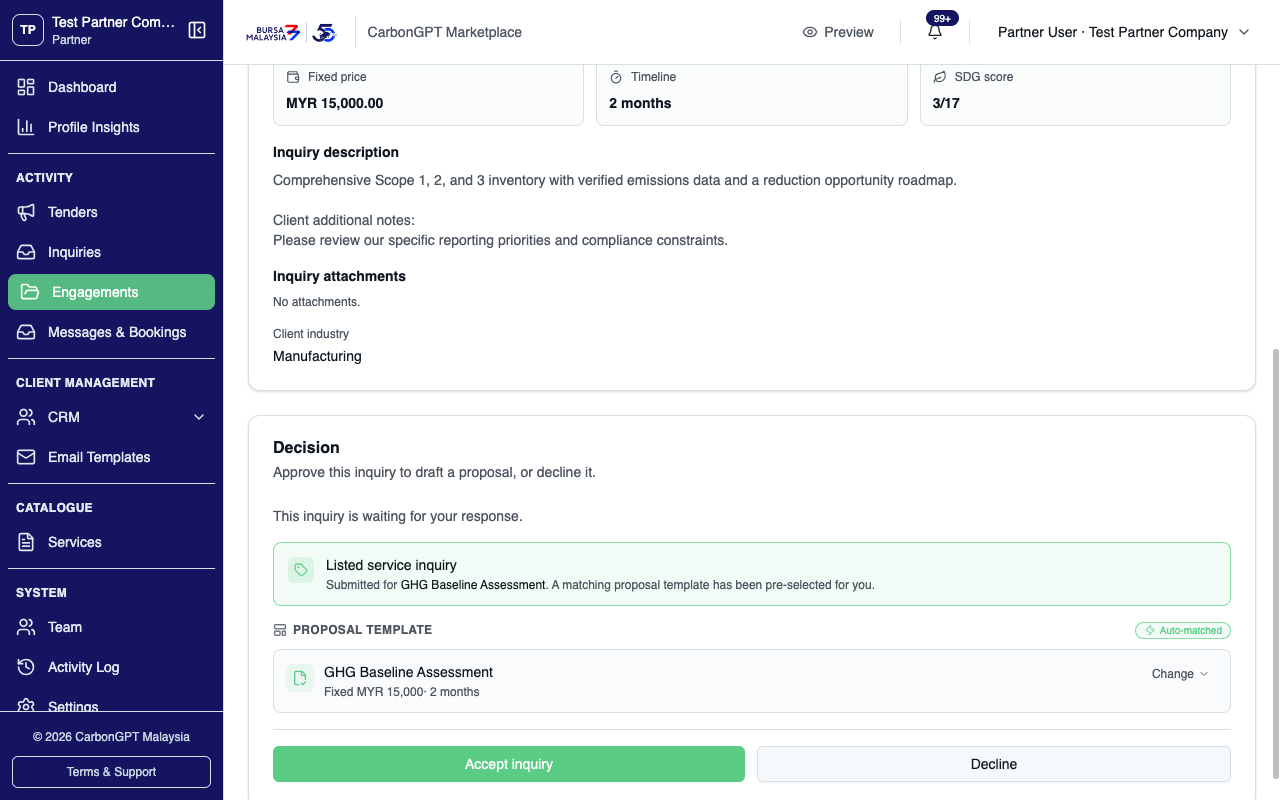
Accepting or declining happens inside the engagement itself, not a separate inquiry screen. Accepting can, for services configured to auto-submit, generate and send a complete proposal immediately — the partner may not see a draft step at all for those services.
02 Accepting or declining happens inside the engagement itself, not a separate inquiry screen. Accepting can, for services configured to auto-submit, generate and send a complete proposal immediately — the partner may not see a draft step at all for those services.
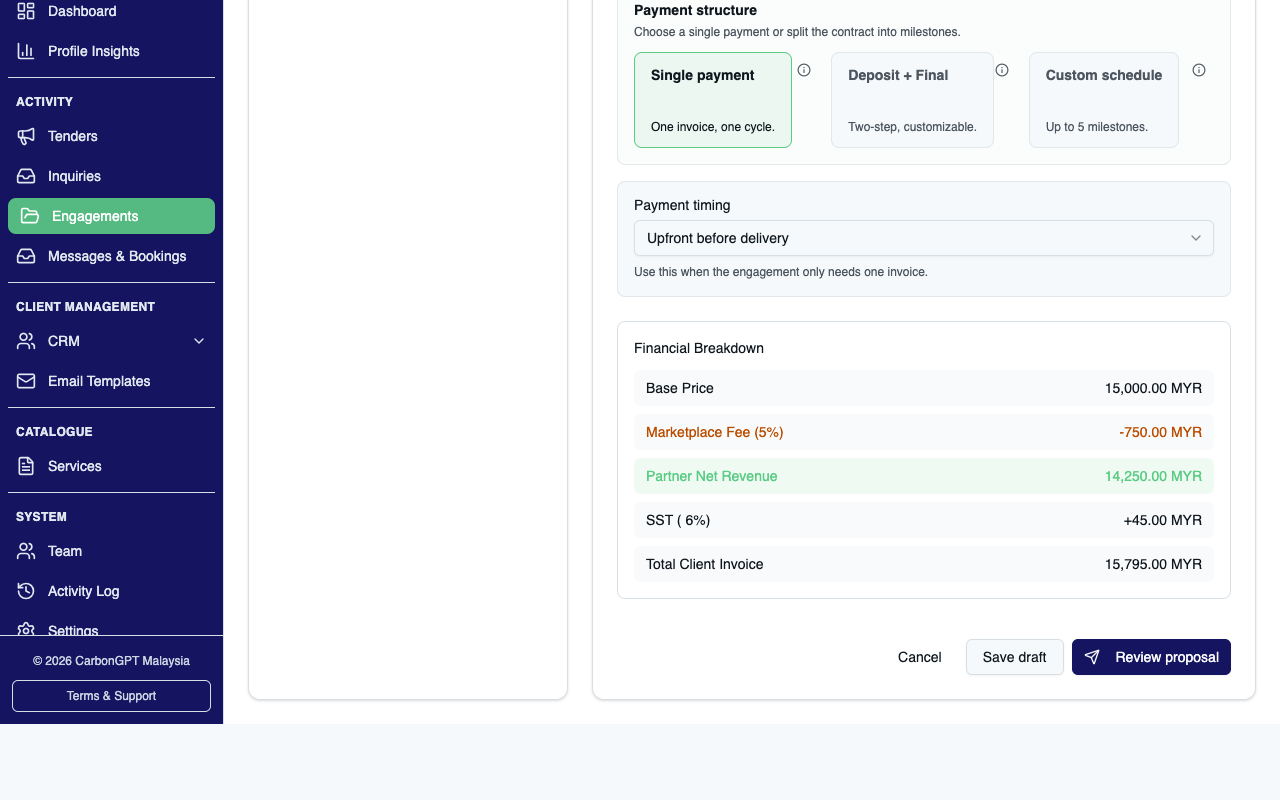
Payment terms are chosen per proposal — inherit the service's own default, or override to Upfront or Post-delivery for this engagement specifically.
03 Payment terms are chosen per proposal — inherit the service's own default, or override to Upfront or Post-delivery for this engagement specifically.
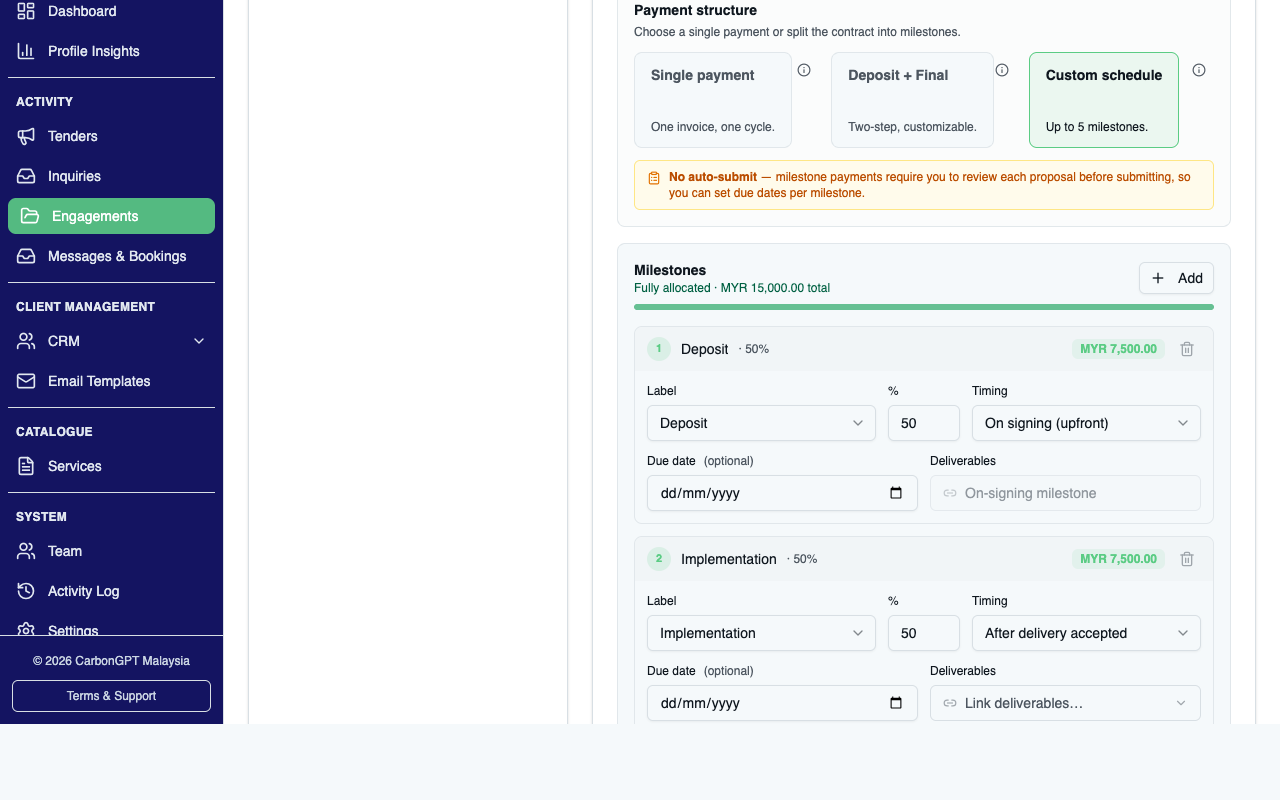
A custom schedule of up to 5 milestones is also available; choosing it (or Deposit + Final) always requires the partner to review the proposal before it's sent, even for services normally configured to auto-submit.
04 A custom schedule of up to 5 milestones is also available; choosing it (or Deposit + Final) always requires the partner to review the proposal before it's sent, even for services normally configured to auto-submit.
Deep diveExecution
Engagement execution

Once a proposal is accepted and a contract is in place, the partner manages three things through the same engagement hub: choosing how the contract itself is sourced, receiving payment, and submitting deliverables. The platform currently runs in manual settlement mode — escrow/auto-settlement is a built capability, not yet live in production. In manual mode, the partner uploads an invoice and confirms receipt directly; nothing runs through an escrow approval step.
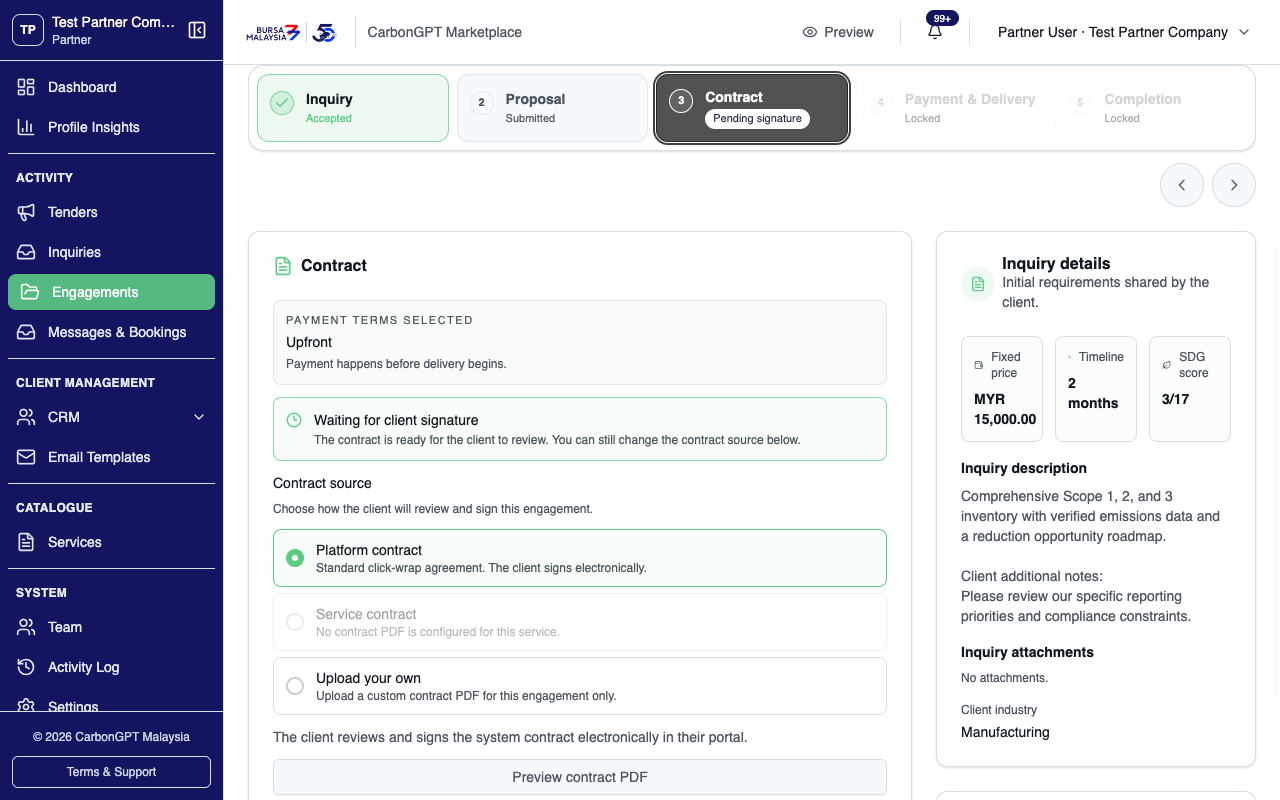
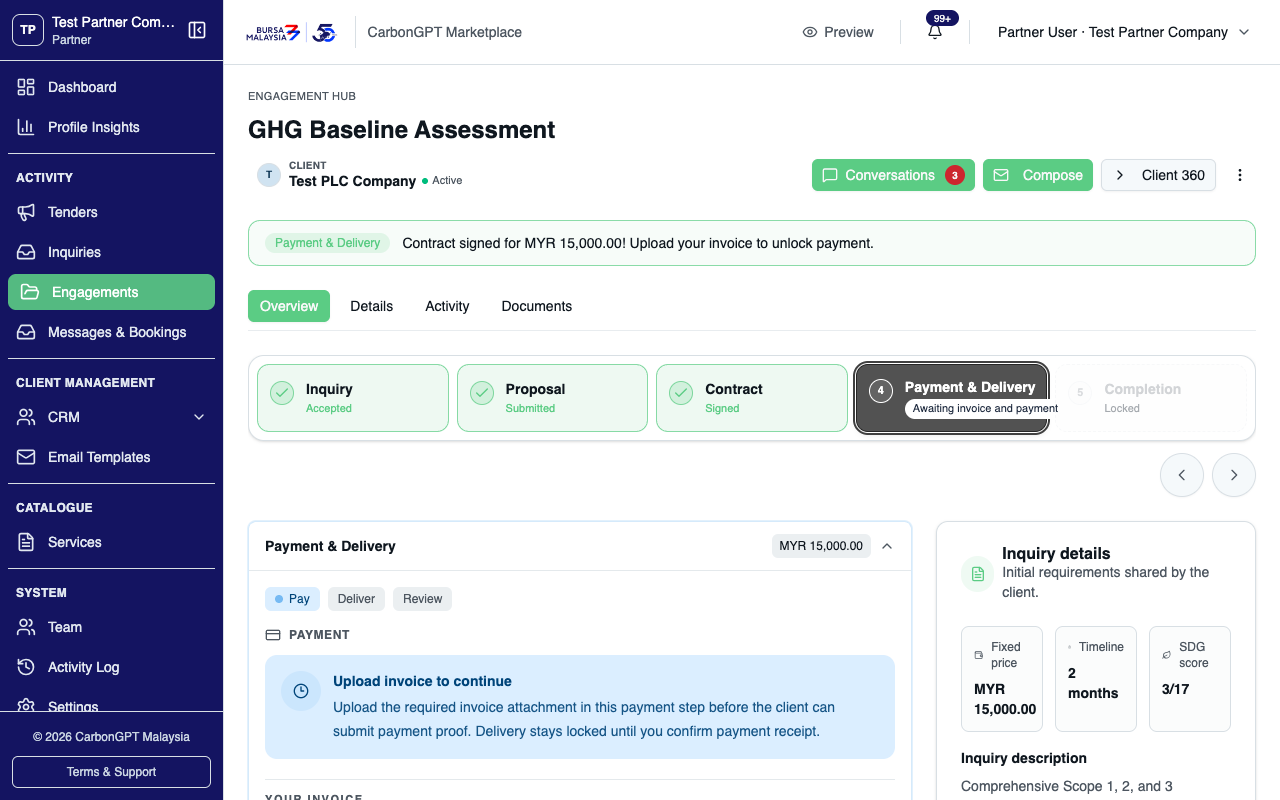
The partner only chooses how the contract is sourced — the platform's own template, the service's own uploaded contract, or a per-engagement upload. The client is the one who reviews and signs it.
01 The partner only chooses how the contract is sourced — the platform's own template, the service's own uploaded contract, or a per-engagement upload. The client is the one who reviews and signs it.
For manual settlement, the partner uploads an invoice — required before the client can submit payment proof; delivery stays locked until the partner confirms receipt.
02 For manual settlement, the partner uploads an invoice — required before the client can submit payment proof; delivery stays locked until the partner confirms receipt.
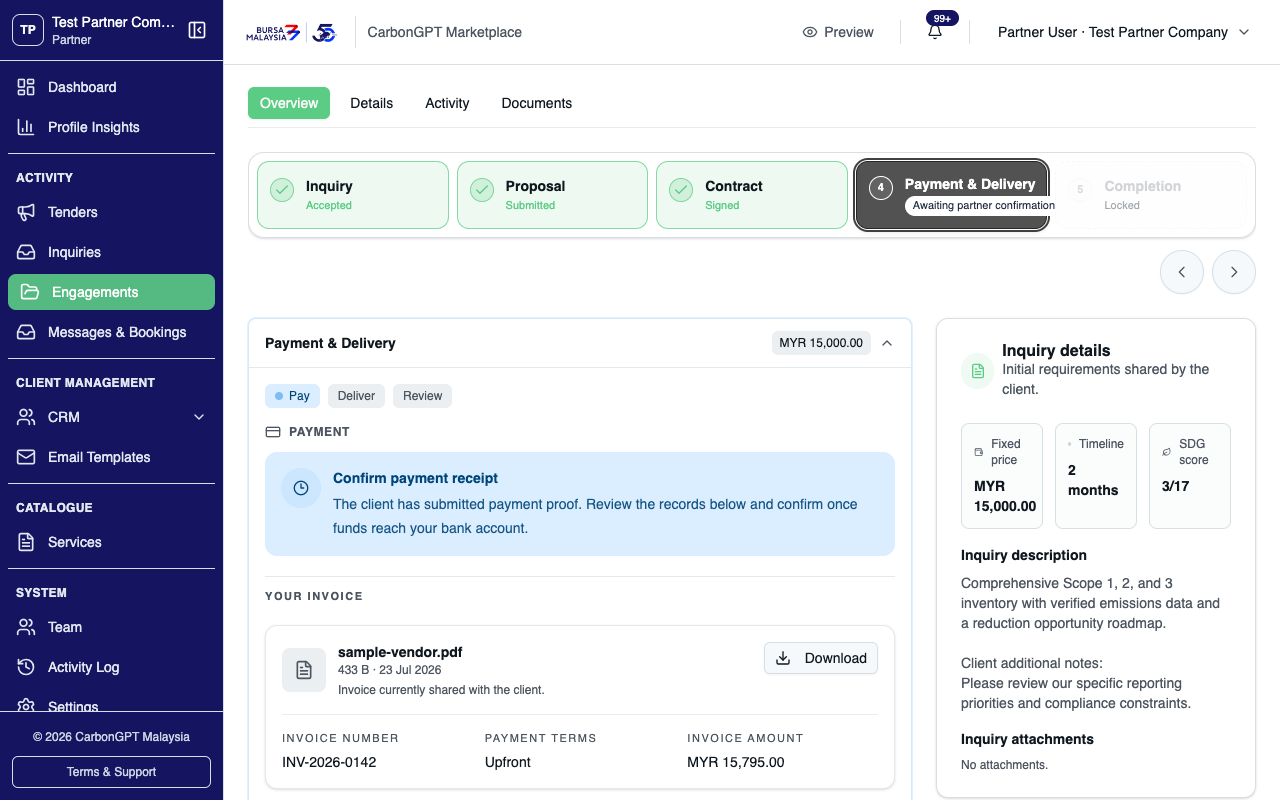
Once the client submits payment proof, the partner confirms receipt or flags an issue — a running progress list tracks Invoice uploaded, Client pays and submits proof, Confirmation, and Delivery begins.
03 Once the client submits payment proof, the partner confirms receipt or flags an issue — a running progress list tracks Invoice uploaded, Client pays and submits proof, Confirmation, and Delivery begins.
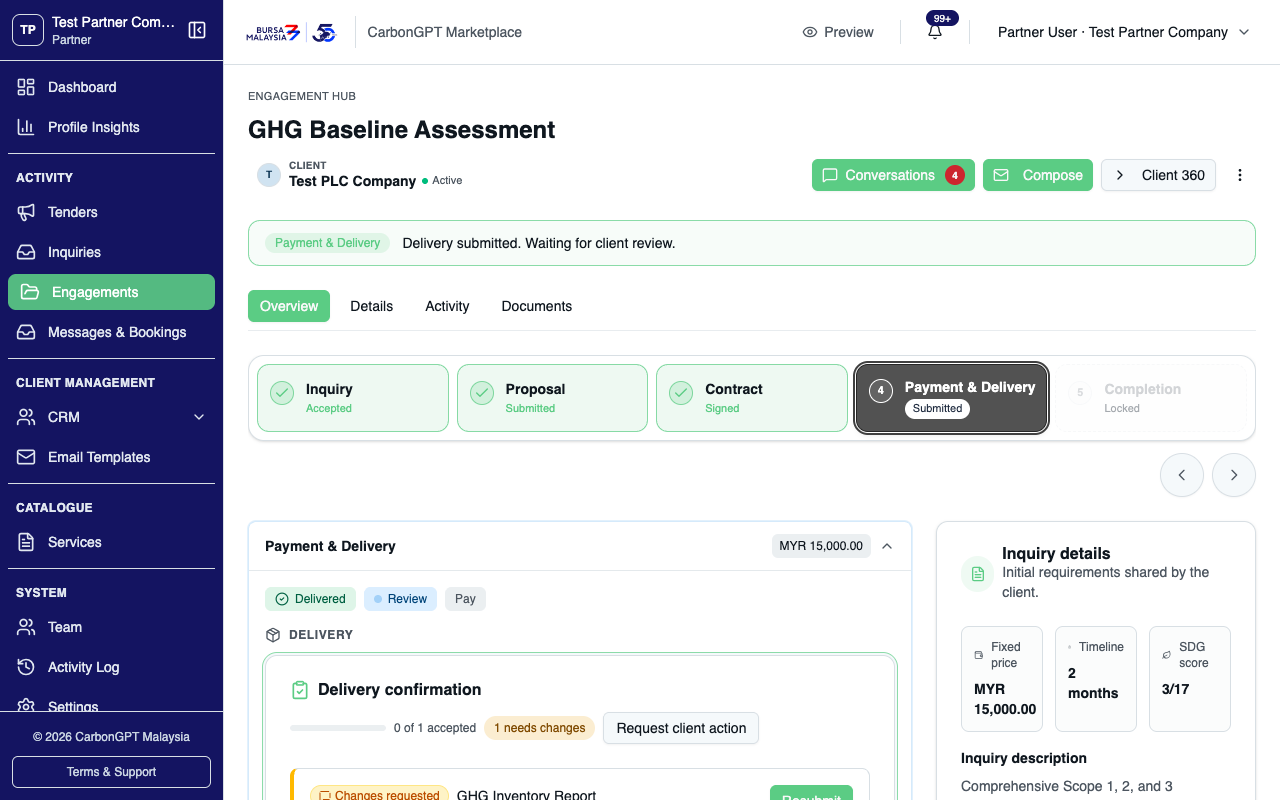
Each deliverable is its own card with an independent status and submission history — the engagement only reaches completion once every deliverable is accepted and the client explicitly marks it complete.
04 Each deliverable is its own card with an independent status and submission history — the engagement only reaches completion once every deliverable is accepted and the client explicitly marks it complete.
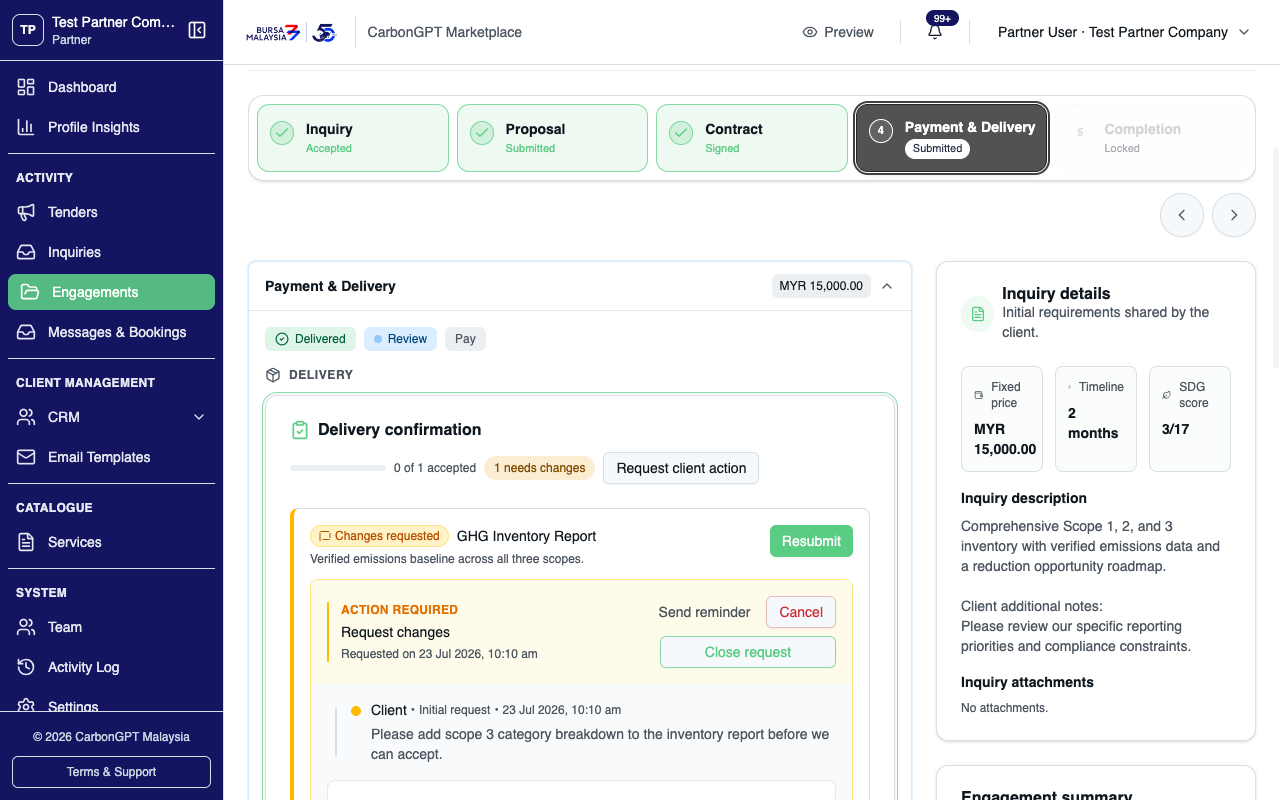
When a client requests changes on a deliverable, the partner can reply, send a reminder, cancel, or close the request directly — but the actual way to resolve it is resubmitting the deliverable itself.
05 When a client requests changes on a deliverable, the partner can reply, send a reminder, cancel, or close the request directly — but the actual way to resolve it is resubmitting the deliverable itself.
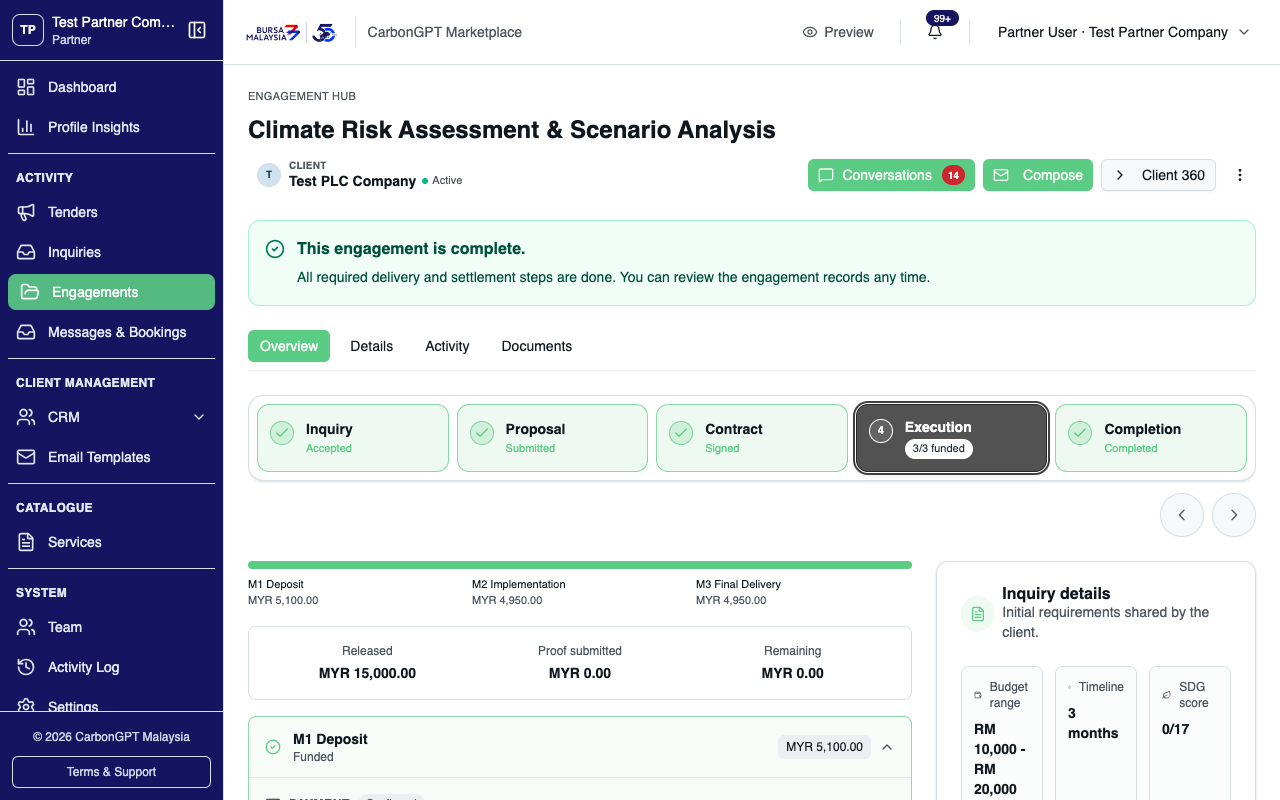
For a milestone payment schedule, each milestone has its own invoice, proof, and confirmation, with a running summary of what's released, submitted, and remaining. This engagement's schedule has fully settled — all milestones funded and confirmed, nothing outstanding.
06 For a milestone payment schedule, each milestone has its own invoice, proof, and confirmation, with a running summary of what's released, submitted, and remaining. This engagement's schedule has fully settled — all milestones funded and confirmed, nothing outstanding.
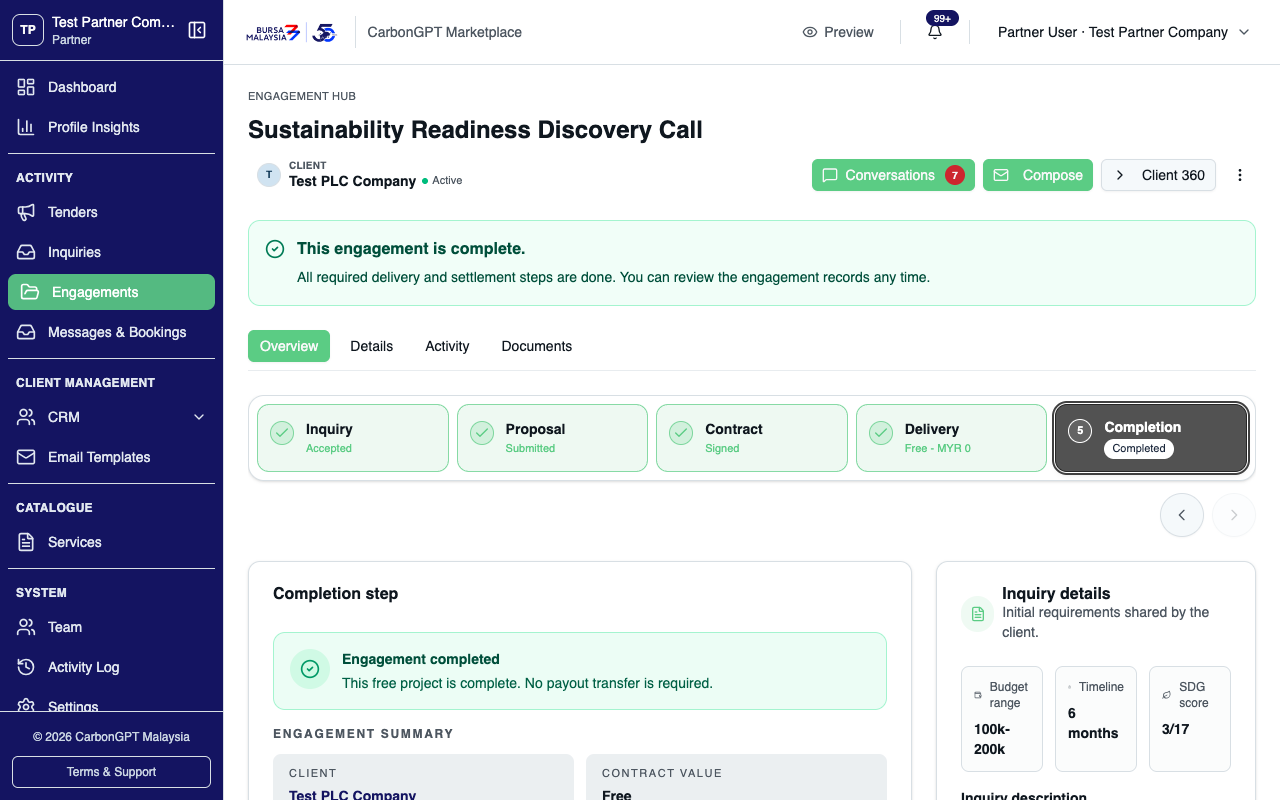
Free engagements skip payment entirely — the step tracker shows a plain "Delivery" step instead of "Payment & Delivery," and the contract step shows a "Free engagement · no payment required" callout instead of any payment-terms copy.
07 Free engagements skip payment entirely — the step tracker shows a plain "Delivery" step instead of "Payment & Delivery," and the contract step shows a "Free engagement · no payment required" callout instead of any payment-terms copy.
Deep diveTenders
Tenders and Quick Match

Beyond direct inquiries, a partner can bid on posted tenders and be ranked as a Quick Match candidate when a client describes a need in free text. Both require the partner's organization to be enabled for participation.
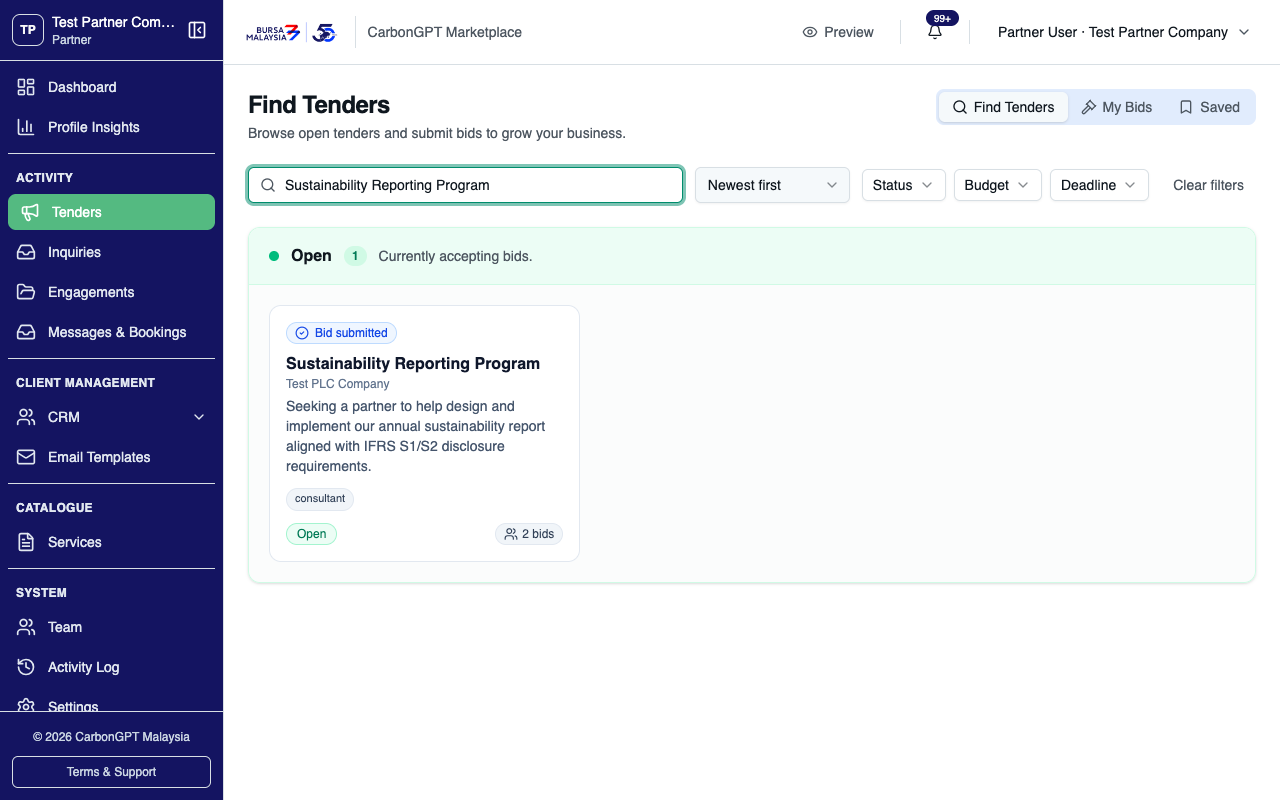
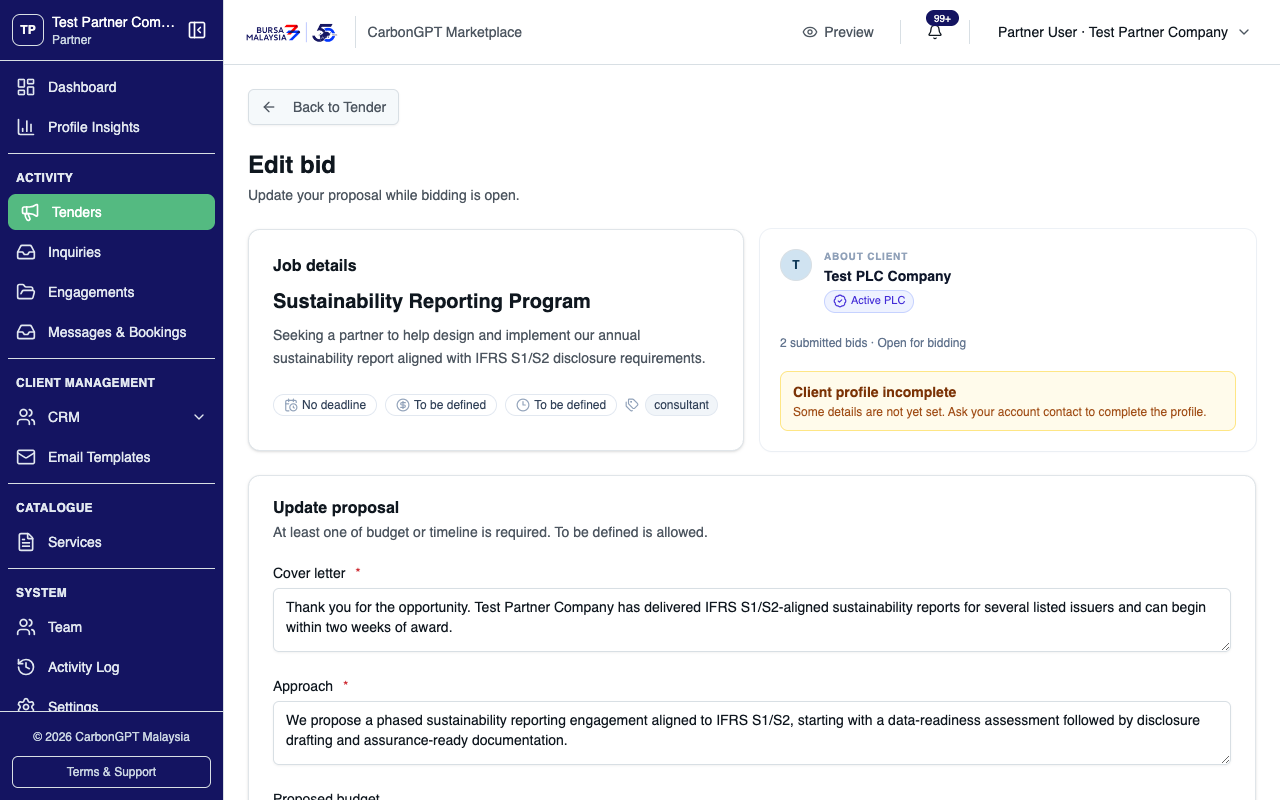
The Tenders feed lists open briefs any eligible partner can bid on, with filters for status, saved tenders, and the partner's own submissions.
01 The Tenders feed lists open briefs any eligible partner can bid on, with filters for status, saved tenders, and the partner's own submissions.
A bid includes budget, timeline, an approach and cover letter, and answers to any screening questions the tender includes.
02 A bid includes budget, timeline, an approach and cover letter, and answers to any screening questions the tender includes.
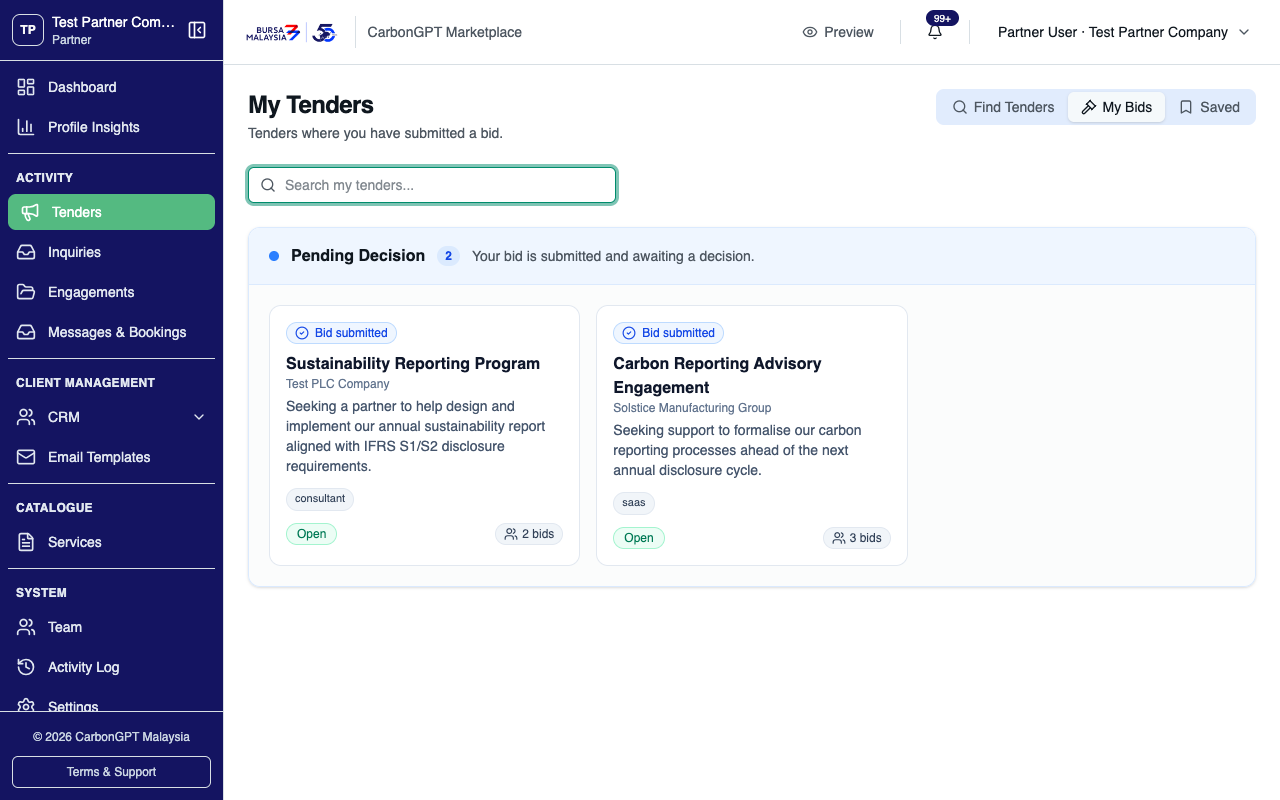
Submitted bids are tracked under My Bids until the client selects a winner or the tender closes.
03 Submitted bids are tracked under My Bids until the client selects a winner or the tender closes.
Deep diveCRM
CRM: client list and pipeline

The CRM is a partner-only workspace for managing every client organization the partner has interacted with — separate from the Marketplace and Partner Directory that PLCs use to find partners.
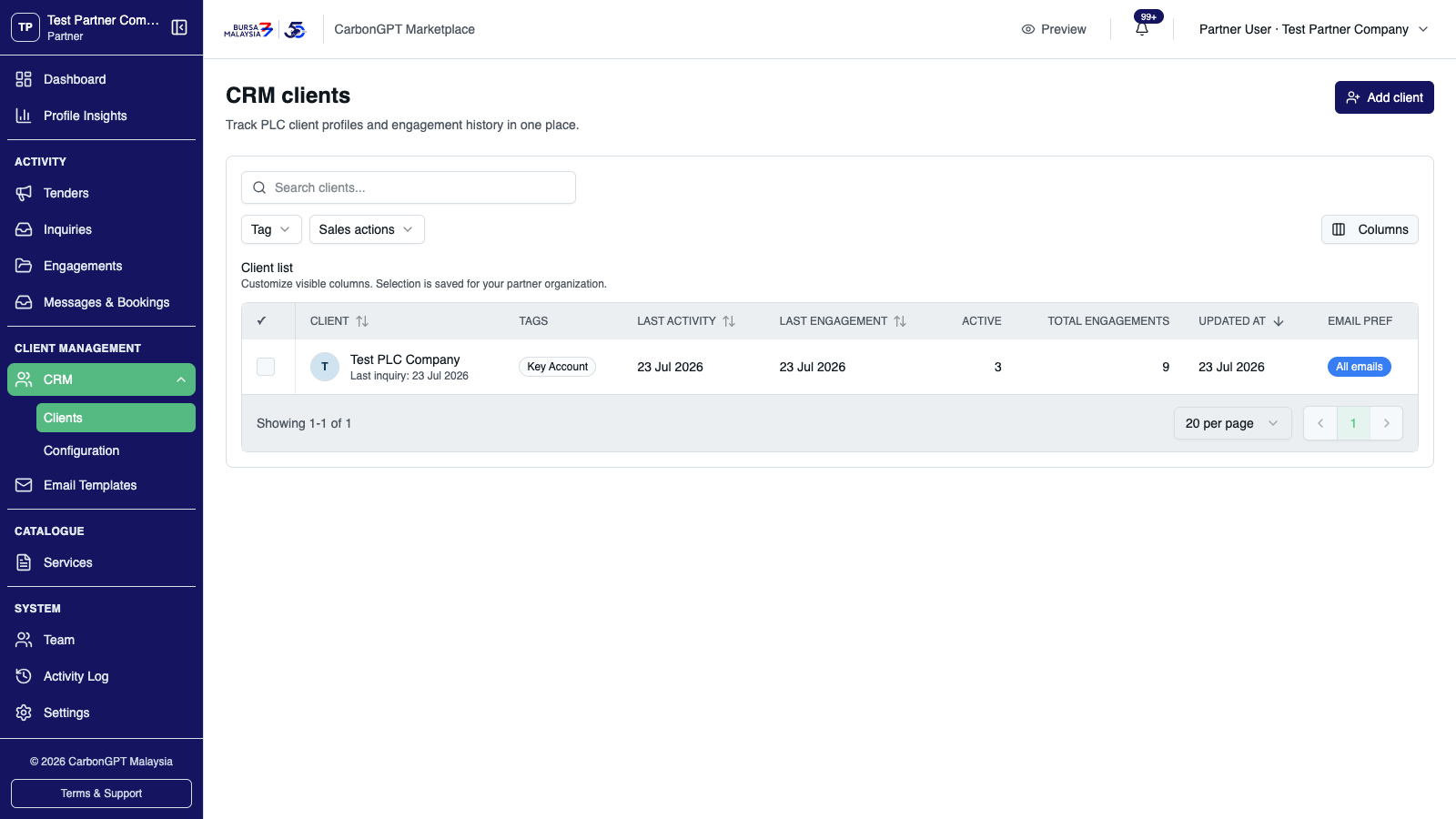
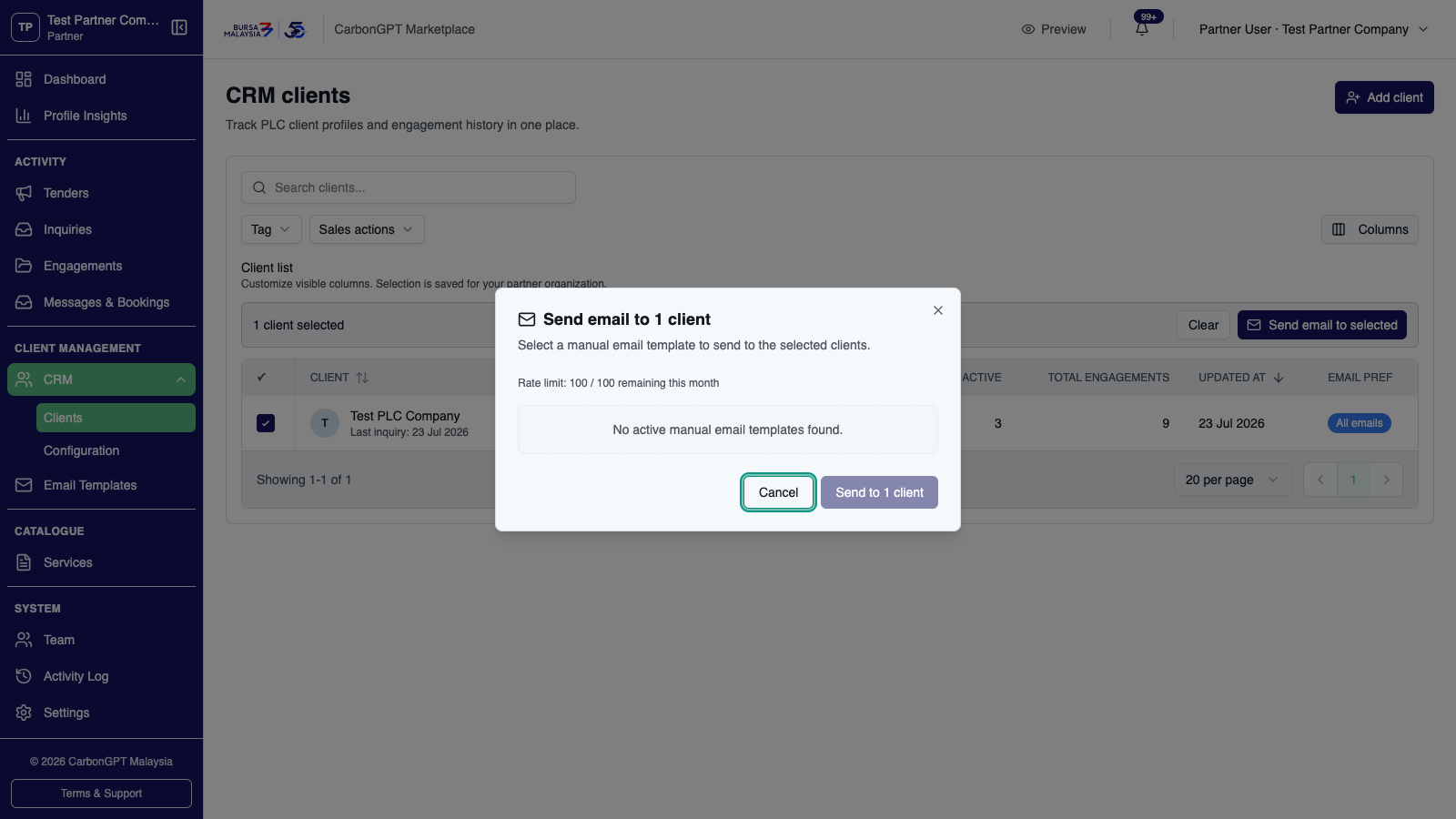
The client list is searchable and filterable by tag and by sales actions (has open task, has pinned note), with a configurable set of columns including each client's real email preference.
01 The client list is searchable and filterable by tag and by sales actions (has open task, has pinned note), with a configurable set of columns including each client's real email preference.
Selecting clients enables a batch email send; the dialog shows a monthly rate-limit counter but no pre-send eligible/blocked breakdown — how many were actually sent versus skipped by preference is only reported after the send completes.
02 Selecting clients enables a batch email send; the dialog shows a monthly rate-limit counter but no pre-send eligible/blocked breakdown — how many were actually sent versus skipped by preference is only reported after the send completes.
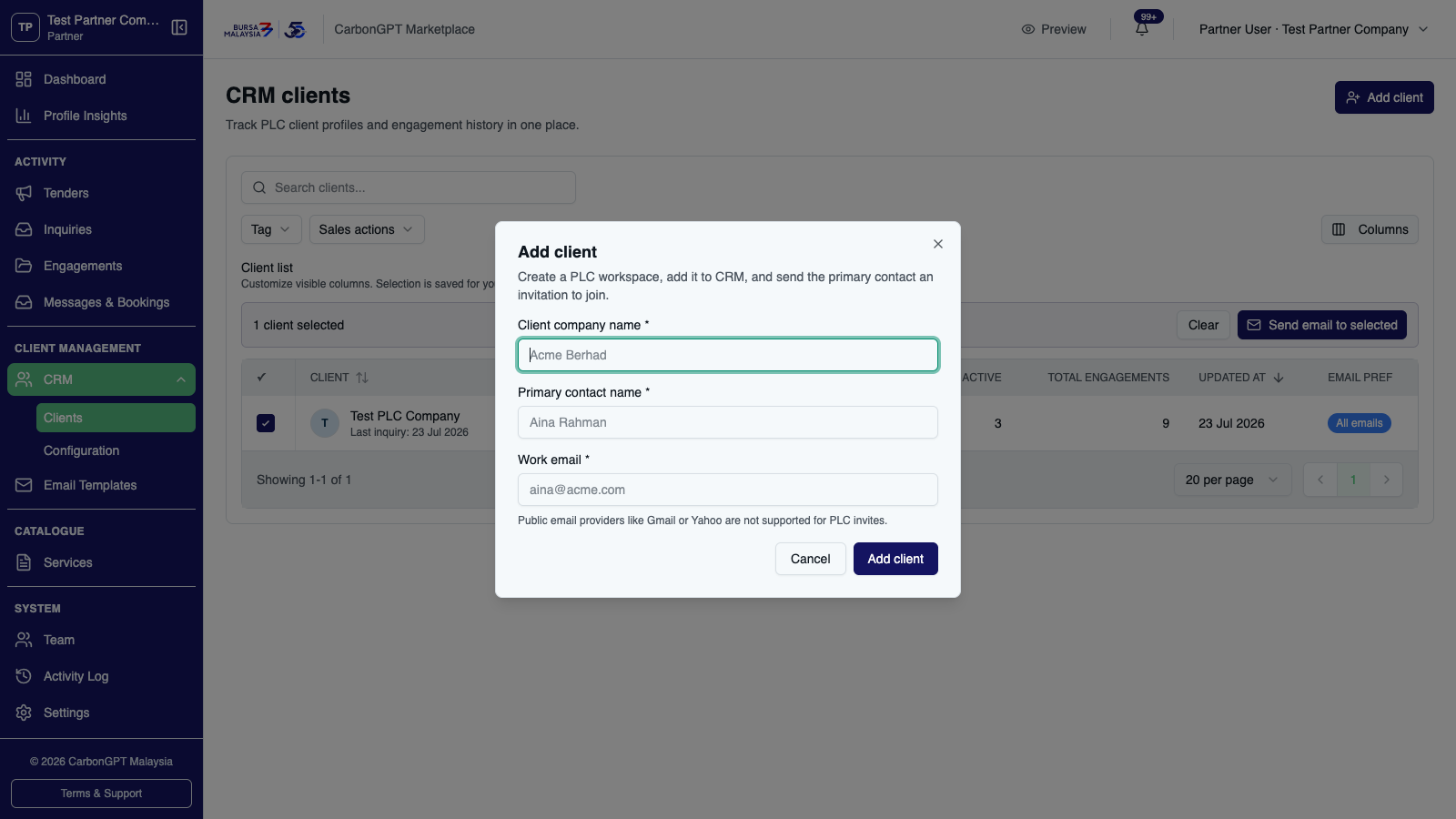
A brand-new client organization can be created directly from the CRM, creating a PLC workspace and inviting its primary contact to join CSI Marketplace.
03 A brand-new client organization can be created directly from the CRM, creating a PLC workspace and inviting its primary contact to join CSI Marketplace.
Deep diveCRM
CRM: the Client 360 workspace

Opening a client from the list gives a single workspace for that relationship — profile, ongoing notes and tasks, and an activity timeline, all in one place.
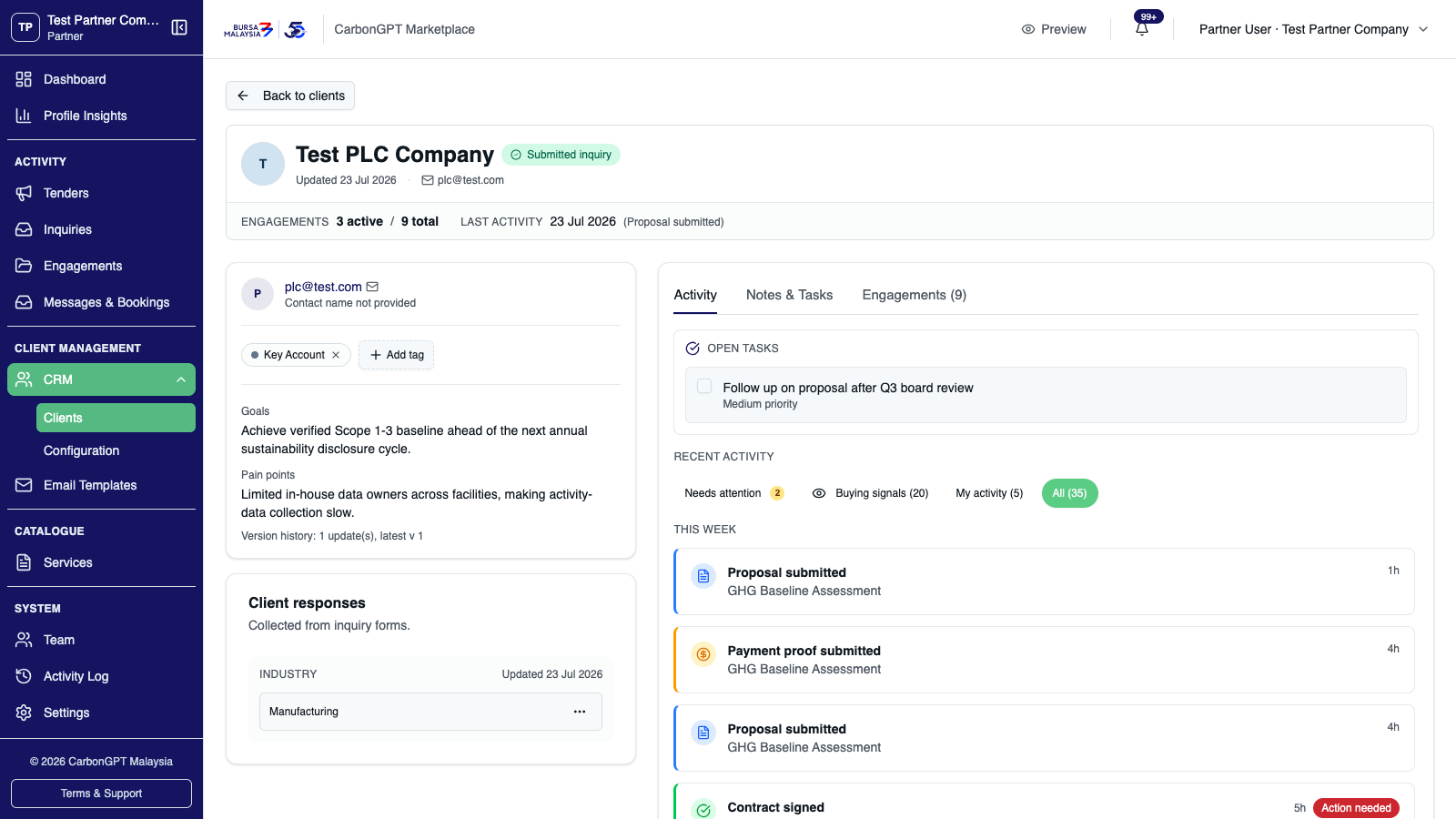
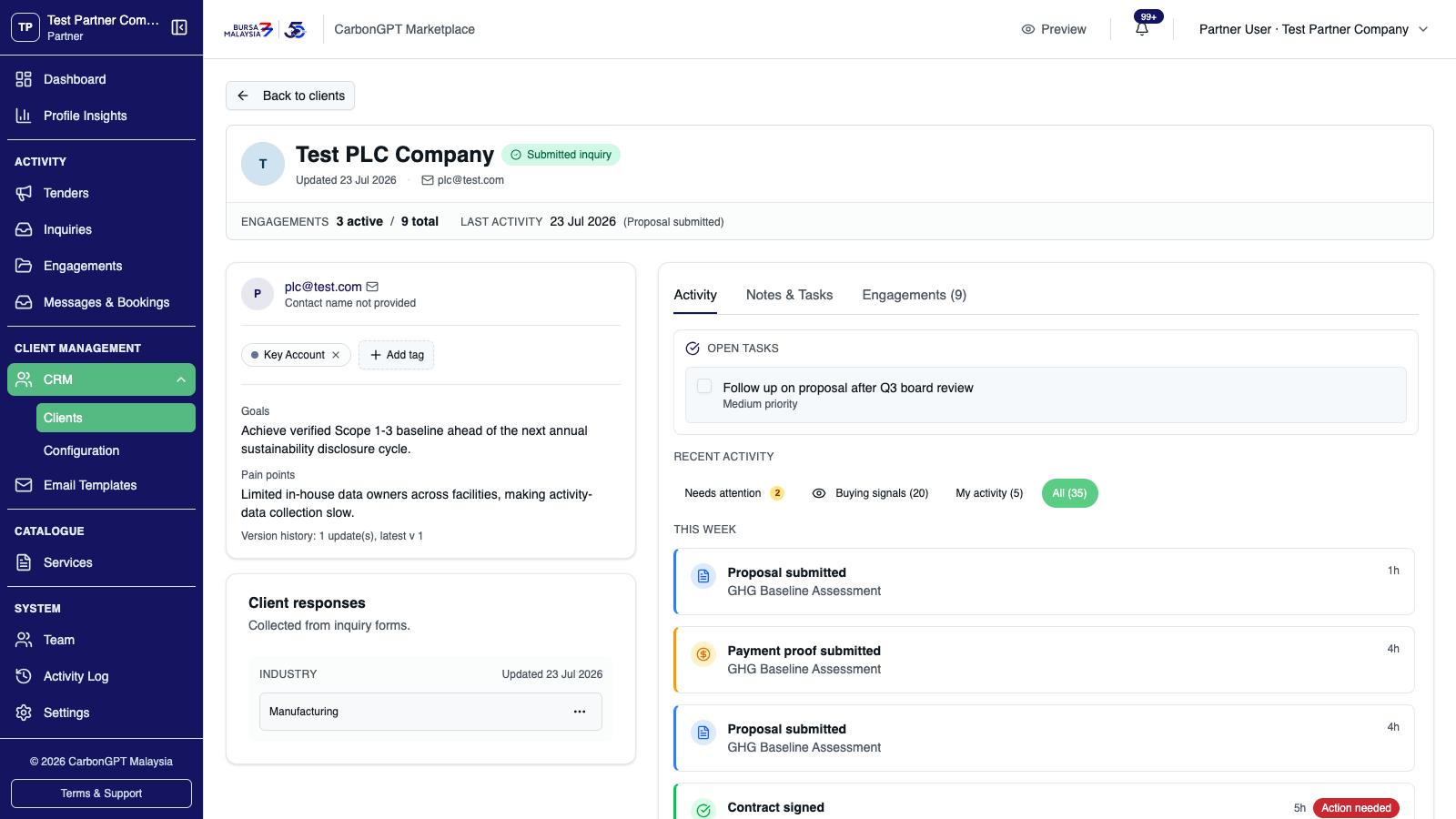
The header summarizes active and total engagements; below it, one card holds tags and a strategic-context section for goals and pain points, while a separate "Client responses" card shows custom-field values collected from inquiry-form answers mapped to that field.
01 The header summarizes active and total engagements; below it, one card holds tags and a strategic-context section for goals and pain points, while a separate "Client responses" card shows custom-field values collected from inquiry-form answers mapped to that field.
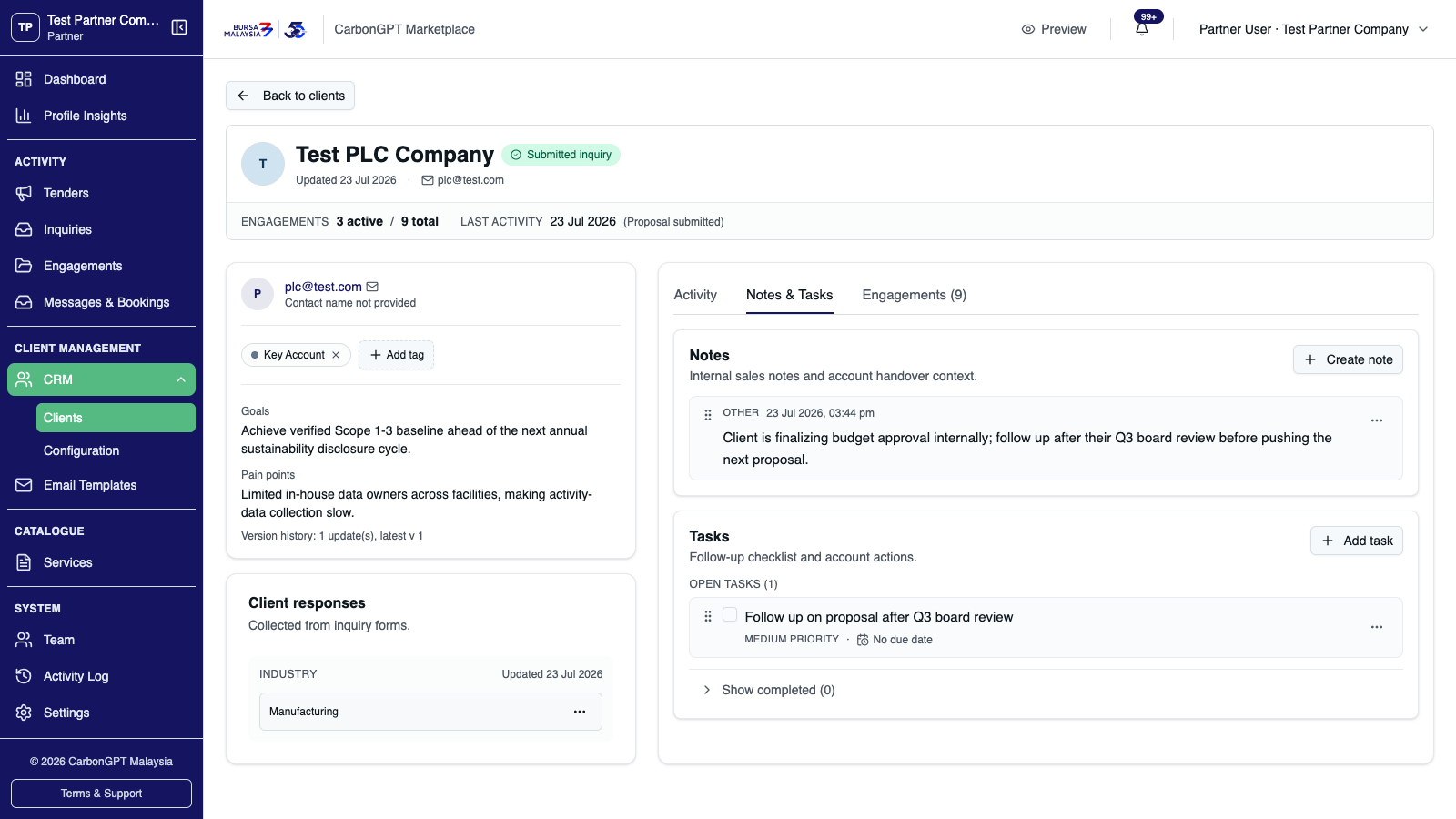
Notes and tasks are tracked side by side — notes are typed (meeting, call, email, handover, other) and can be pinned; tasks carry a priority and an optional due date, with overdue open tasks broken out into their own group.
02 Notes and tasks are tracked side by side — notes are typed (meeting, call, email, handover, other) and can be pinned; tasks carry a priority and an optional due date, with overdue open tasks broken out into their own group.
The activity timeline filters between Needs attention, Buying signals, My activity, and All.
03 The activity timeline filters between Needs attention, Buying signals, My activity, and All.
CRMSettings
CRM configuration

One-time setup for how the CRM is organized: which custom profile fields exist, whether overdue-task reminders are emailed, and what tag presets are available.
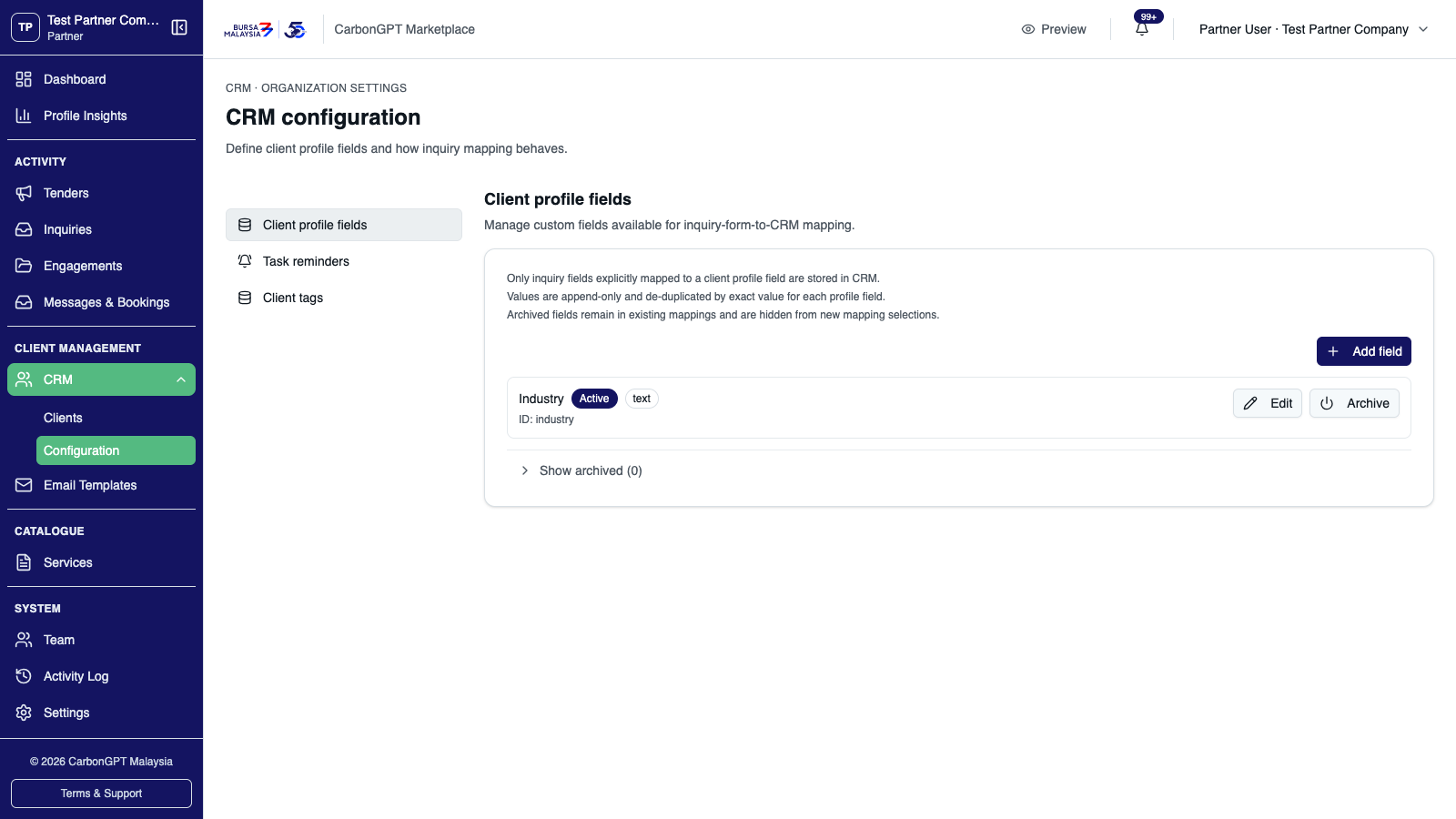
The left-hand list holds the three configuration sections — Client profile fields, Task reminders, and Client tags. Client profile fields is open, with rules for how inquiry fields map into the CRM above one configured field, Industry, listed as an active text field.
01 The left-hand list holds the three configuration sections — Client profile fields, Task reminders, and Client tags. Client profile fields is open, with rules for how inquiry fields map into the CRM above one configured field, Industry, listed as an active text field.
Deep diveEmail
Email communications

Partners can email their clients three ways: automatically on an engagement milestone, manually one at a time or in batch, or on a delayed follow-up schedule (for example, a reminder sent a few days after delivery if the client hasn't yet responded). Each client's own email preference — receive everything, milestone emails only, or platform notifications only — is enforced on every send.
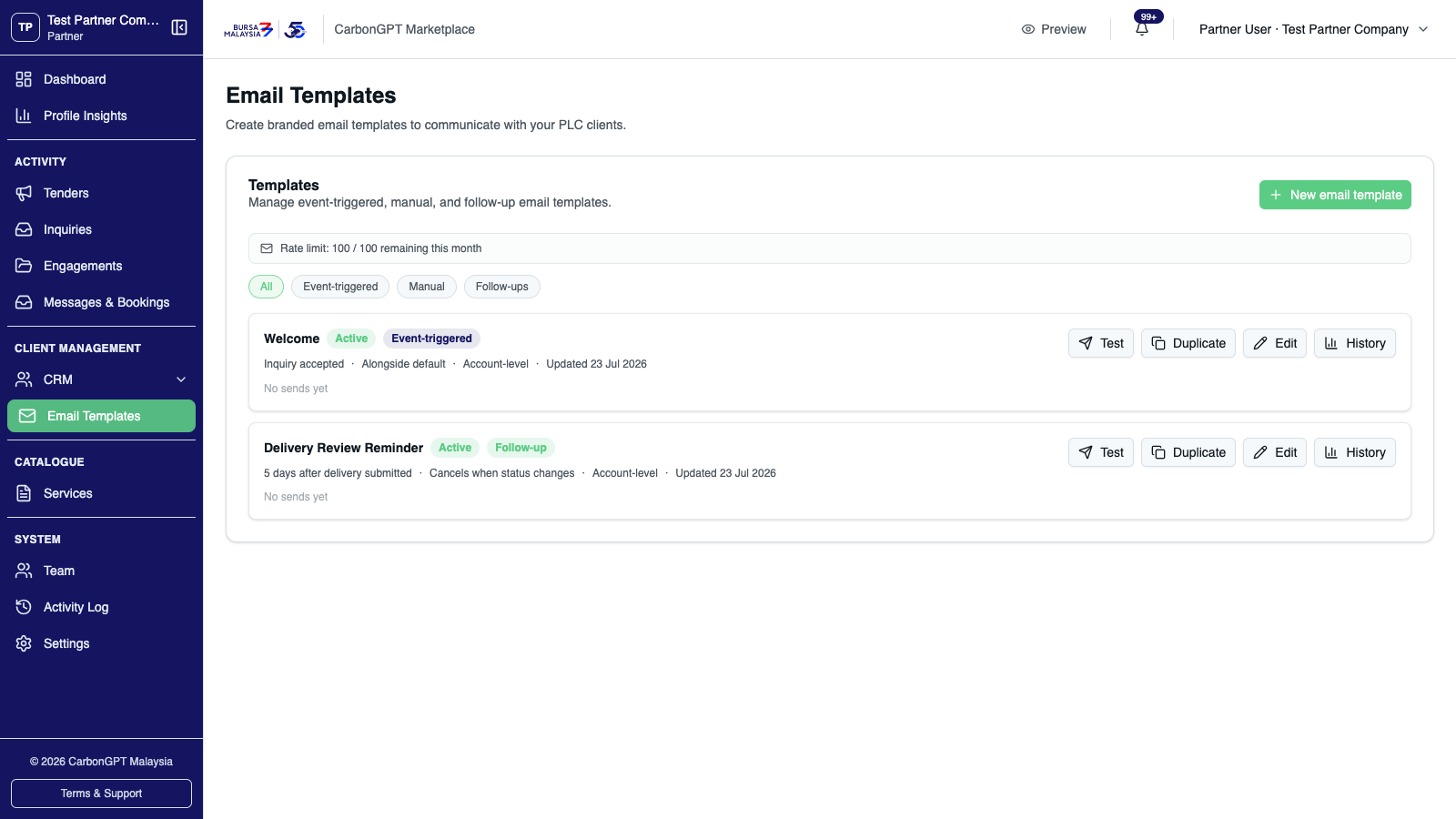
Templates are typed by when they send — automatically on a milestone, manually on demand, or as a delayed follow-up. Your monthly sending limit may be customized for your account and can differ from the platform default.
01 Templates are typed by when they send — automatically on a milestone, manually on demand, or as a delayed follow-up. Your monthly sending limit may be customized for your account and can differ from the platform default.
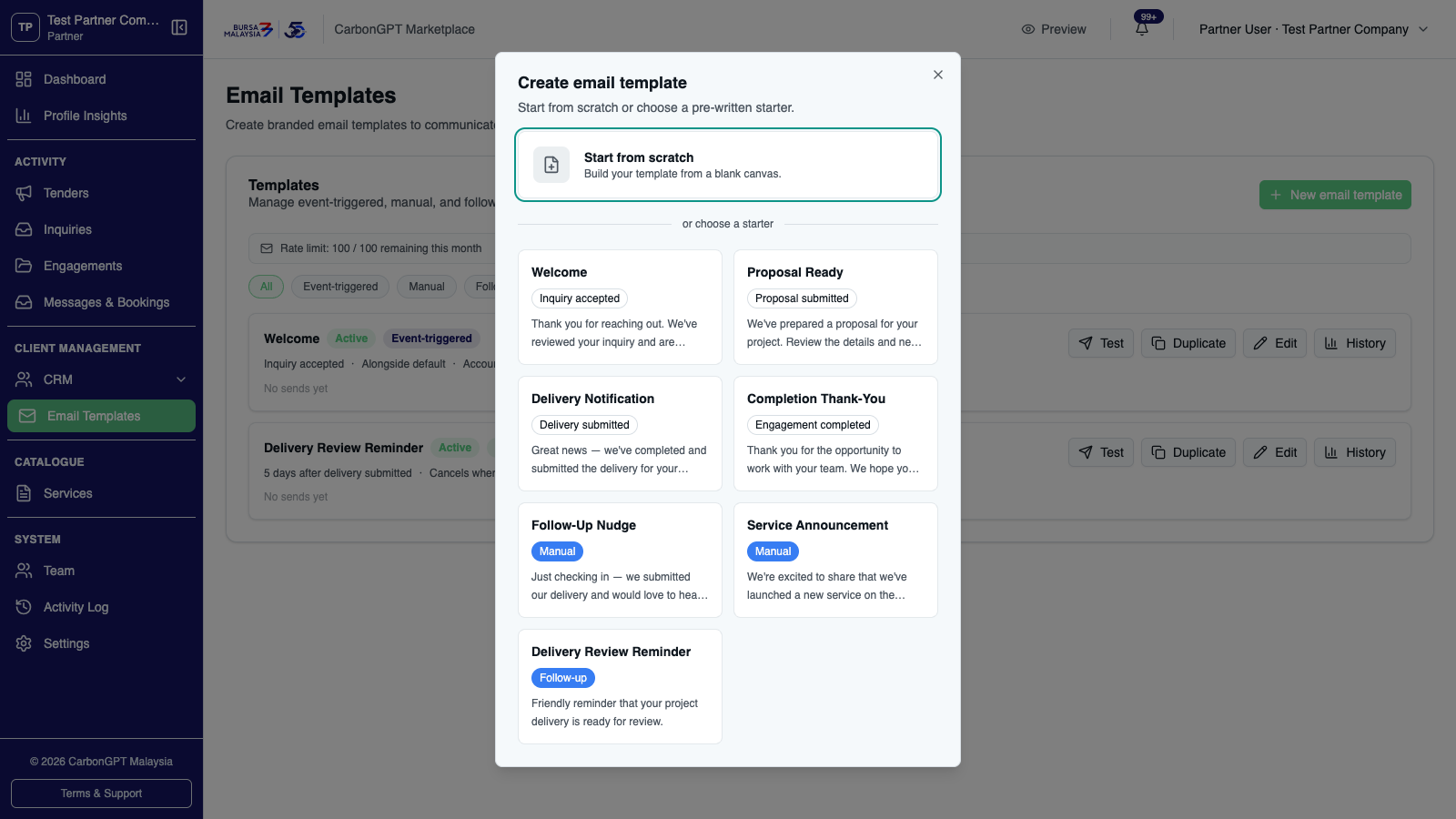
Seven starter templates are available to begin from, including "Delivery Review Reminder" — a follow-up that sends automatically five days after delivery unless the client has already responded. The chooser badges it "Follow-up," matching the template's own tag once created.
02 Seven starter templates are available to begin from, including "Delivery Review Reminder" — a follow-up that sends automatically five days after delivery unless the client has already responded. The chooser badges it "Follow-up," matching the template's own tag once created.
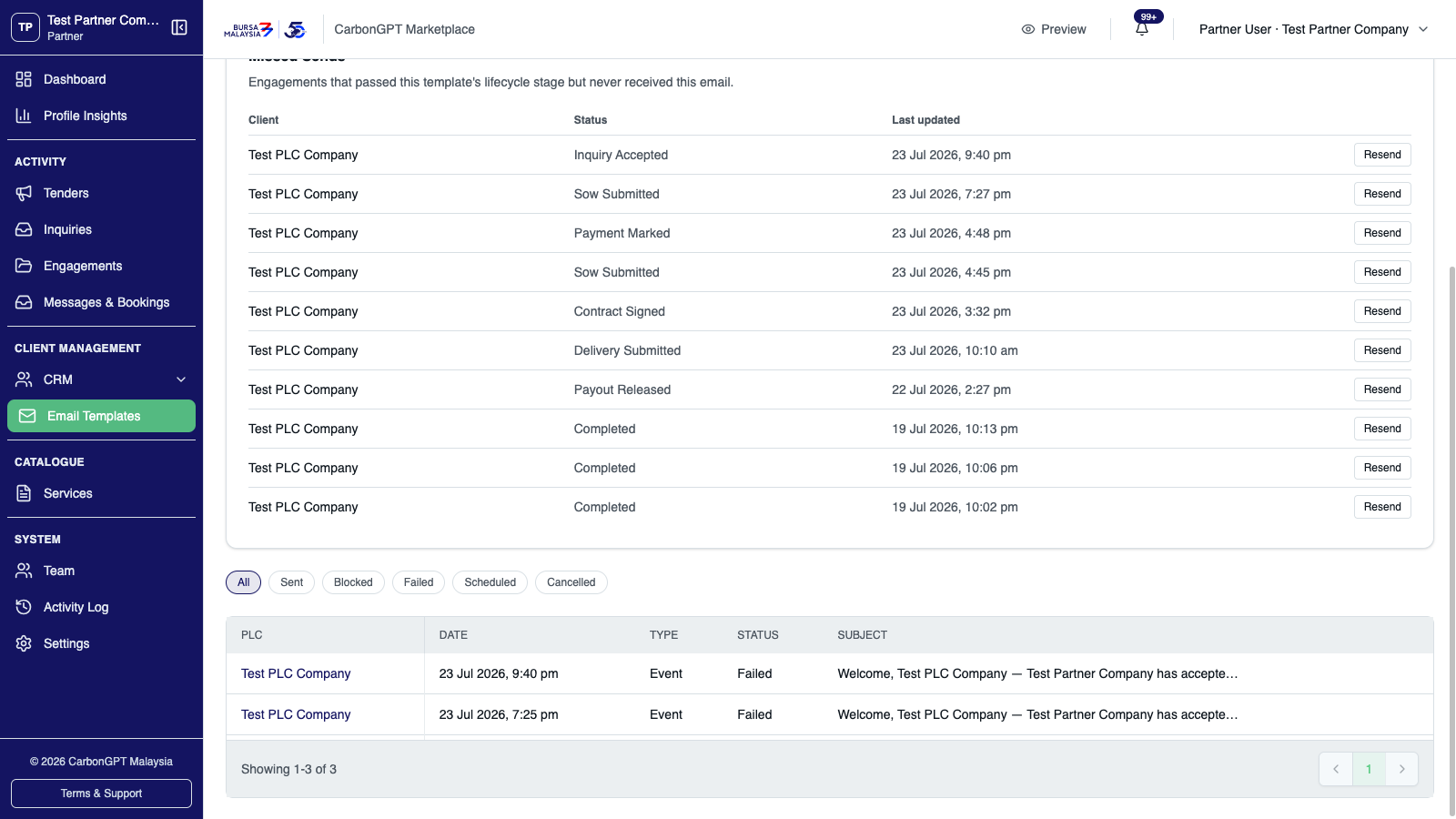
Every send is logged with a status — Sent, Blocked, Failed, Scheduled, or Cancelled — shown here for a real accepted-inquiry email that failed to deliver. This tracks delivery status only, not whether the email was opened or clicked.
03 Every send is logged with a status — Sent, Blocked, Failed, Scheduled, or Cancelled — shown here for a real accepted-inquiry email that failed to deliver. This tracks delivery status only, not whether the email was opened or clicked.
Overview
Dashboard

The Dashboard is the daily landing page — inquiry and project counts, revenue and payout figures, activity charts, and a one-time setup checklist for new partners.
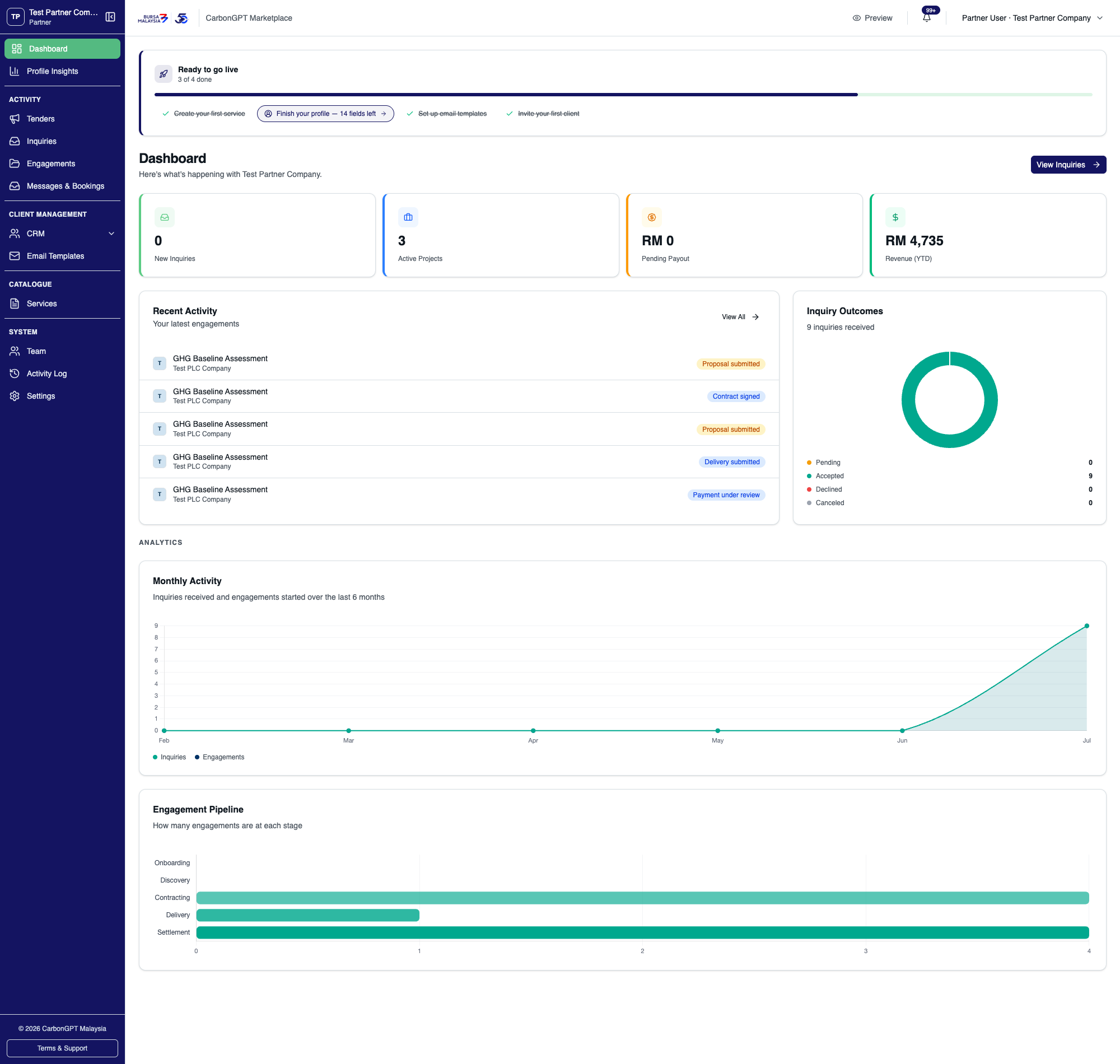
Stat cards for new inquiries, active projects, pending payout, and year-to-date revenue, plus recent activity and three charts covering inquiry outcomes, monthly activity, and the engagement pipeline.
01 Stat cards for new inquiries, active projects, pending payout, and year-to-date revenue, plus recent activity and three charts covering inquiry outcomes, monthly activity, and the engagement pipeline.
Team
Team

Manage organization members and pending invitations.
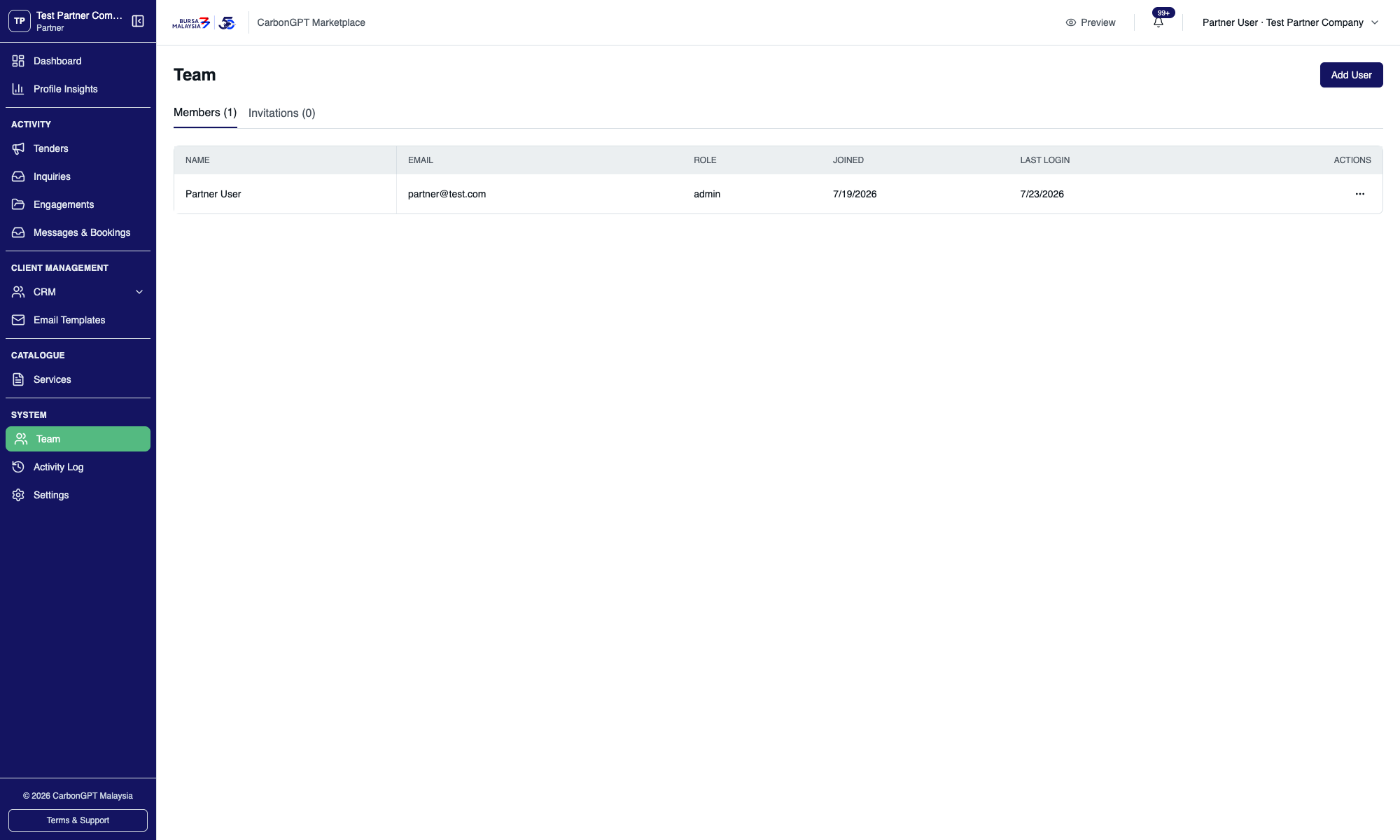
Only org admins can invite, edit, or remove members; other members see a read-only list. The last remaining admin can't be removed or demoted.
01 Only org admins can invite, edit, or remove members; other members see a read-only list. The last remaining admin can't be removed or demoted.
Settings
Settings

Organization-wide configuration — restricted to org admins.

Seven sections cover general information, marketplace listing, the inquiry intake form, email routing, call booking, service terms, and security.
01 Seven sections cover general information, marketplace listing, the inquiry intake form, email routing, call booking, service terms, and security.
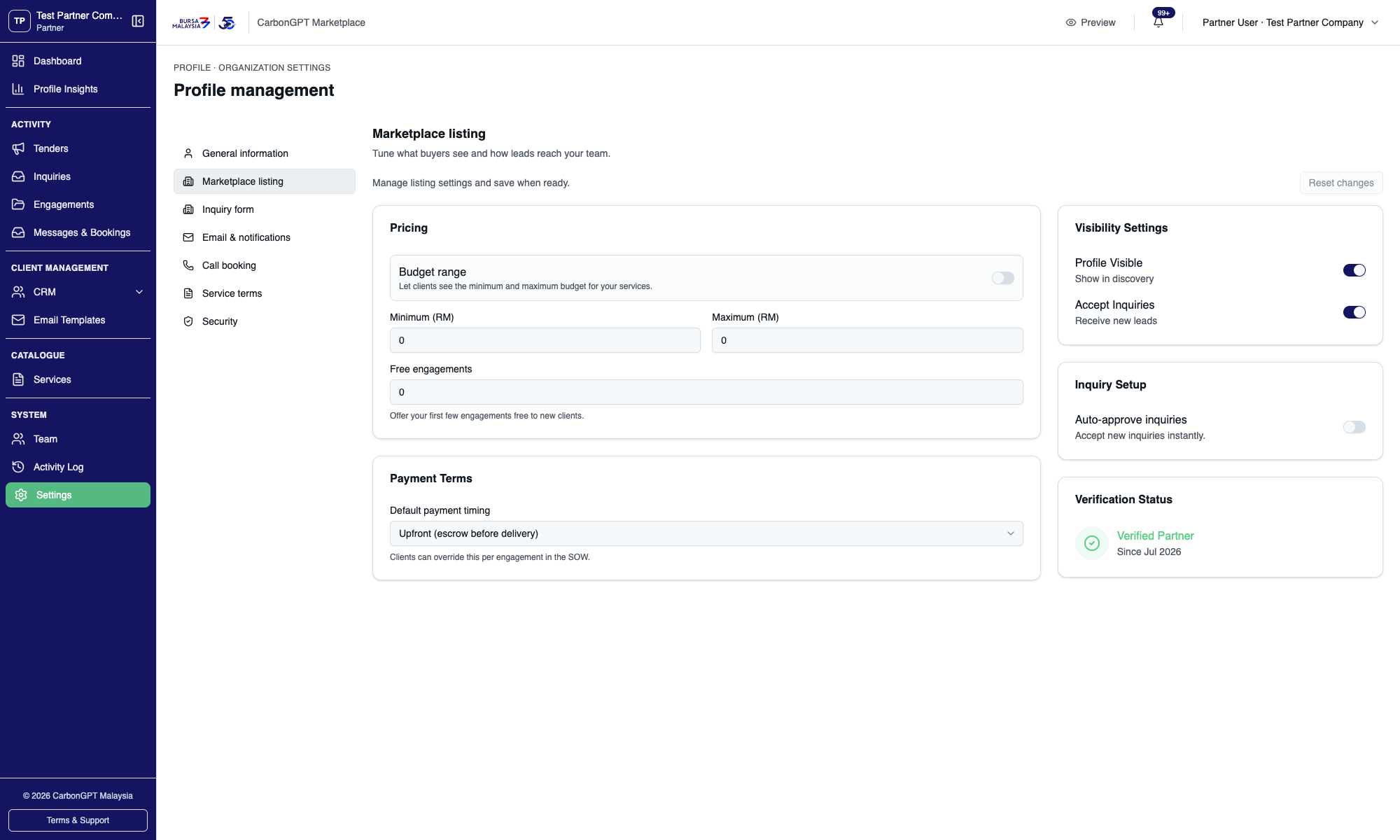
Marketplace listing controls buyer-facing visibility (profile shown in discovery, accepting inquiries), lead intake (auto-approve inquiries), pricing display (budget range and free-engagement offers), and the default payment timing shown to clients.
02 Marketplace listing controls buyer-facing visibility (profile shown in discovery, accepting inquiries), lead intake (auto-approve inquiries), pricing display (budget range and free-engagement offers), and the default payment timing shown to clients.
Overview
Callbacks

A log of booked calls with clients — this is where the partner records what happened after a call.
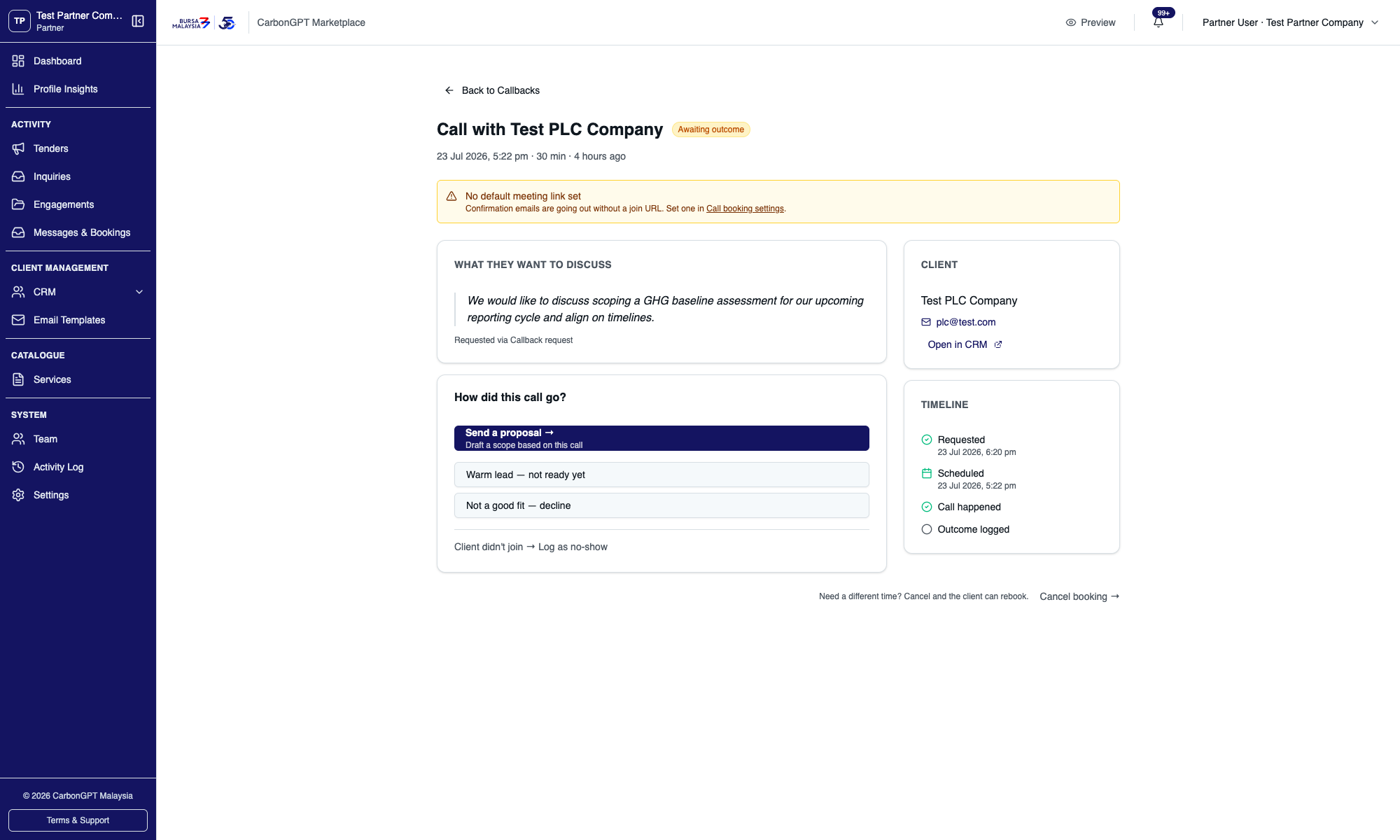
Opening a call once it's underway shows every outcome action in one place: Send a proposal, Warm lead — not ready yet, Not a good fit — decline, Client didn't join — Log as no-show, and Cancel booking.
01 Opening a call once it's underway shows every outcome action in one place: Send a proposal, Warm lead — not ready yet, Not a good fit — decline, Client didn't join — Log as no-show, and Cancel booking.
Overview
Audit Log

A read-only feed of the organization's own actions on the platform.
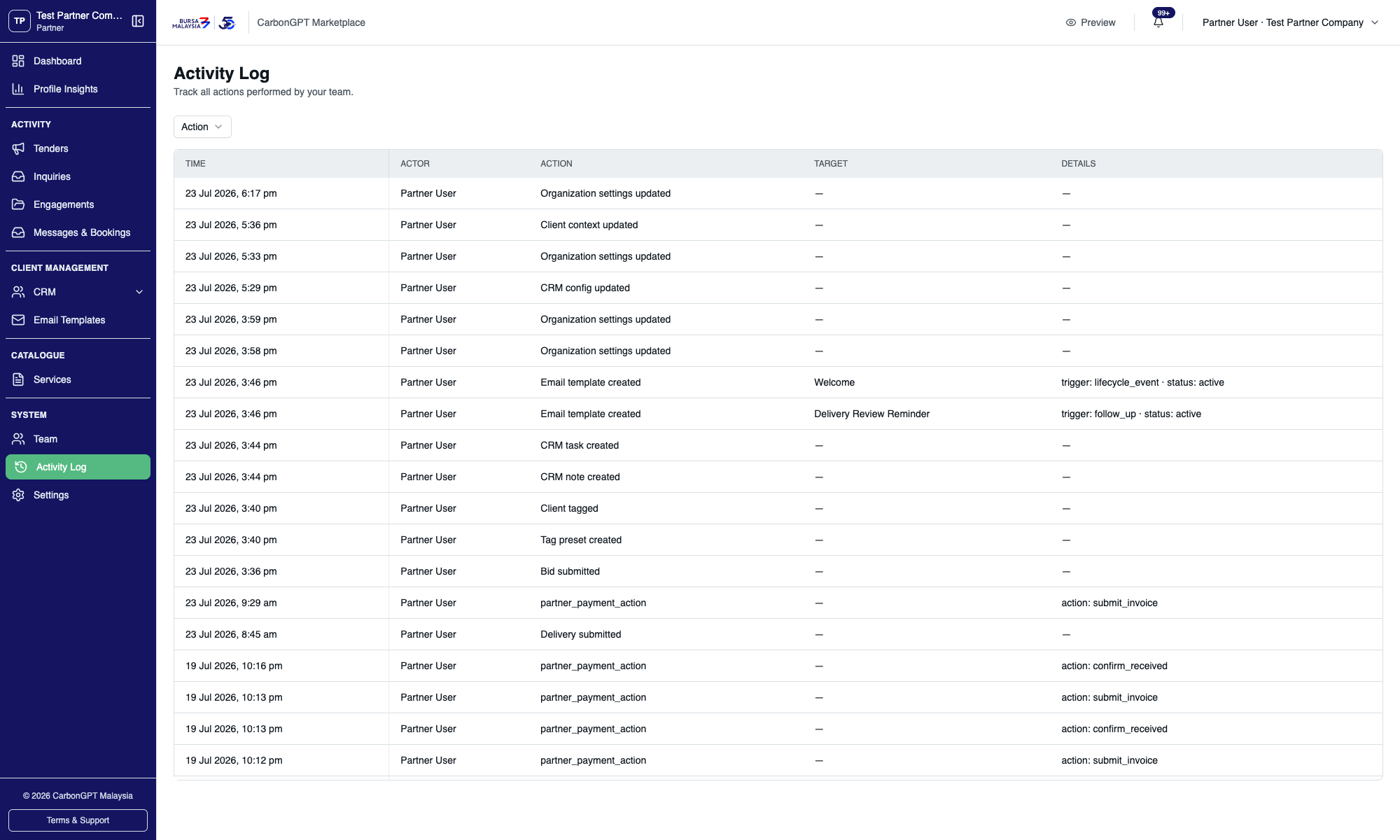
Entries here are weighted toward CRM and email-template activity — email templates created, a client tagged, CRM notes and tasks logged, CRM config updated — reflecting the day-to-day work of running the account.
01 Entries here are weighted toward CRM and email-template activity — email templates created, a client tagged, CRM notes and tasks logged, CRM config updated — reflecting the day-to-day work of running the account.
Overview
Notifications

The organization's notification inbox.
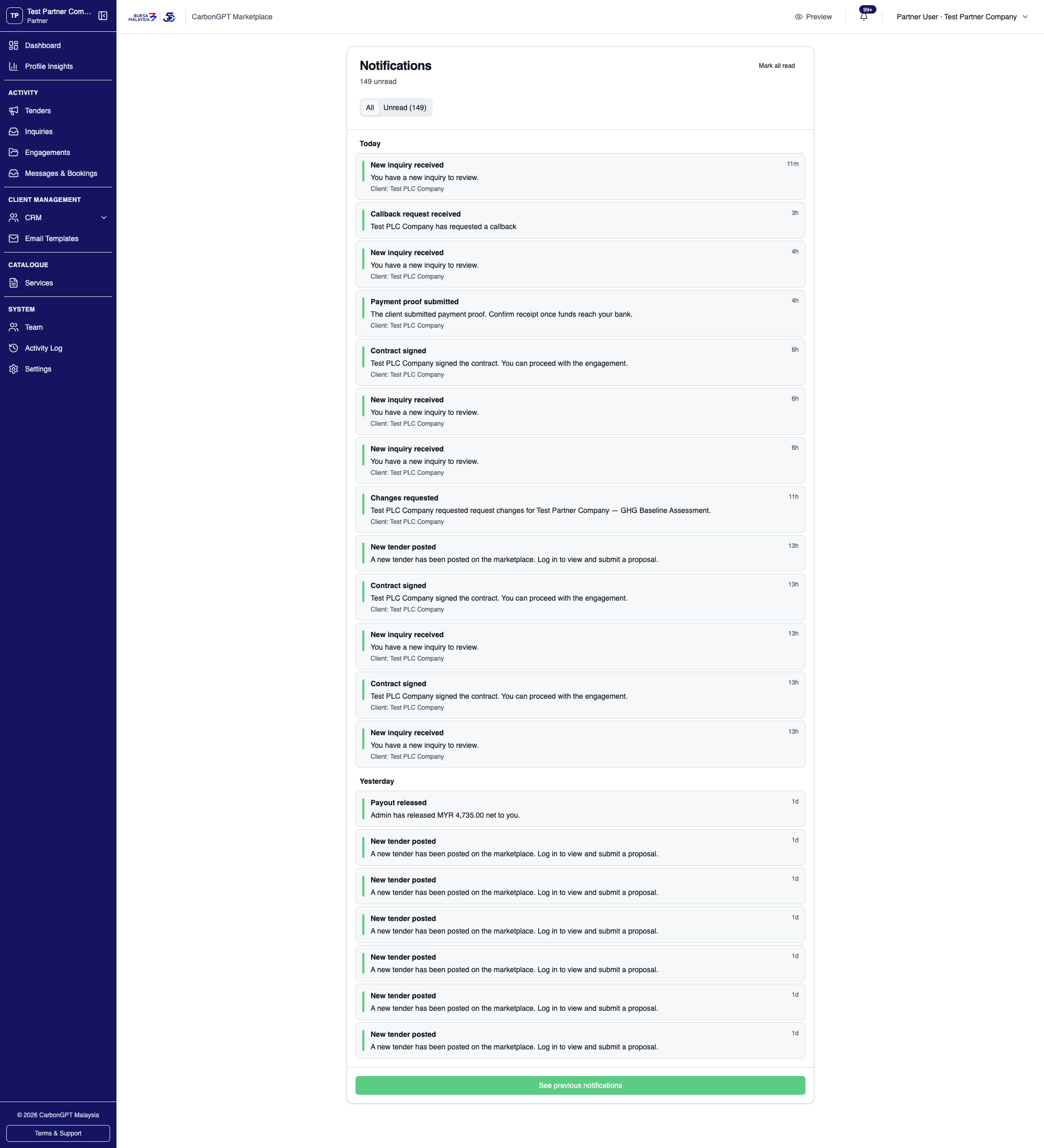
Notifications are grouped by day, with a mark-all-read action and paging for older ones.
01 Notifications are grouped by day, with a mark-all-read action and paging for older ones.
Appendix
Glossary

Proposal: used for two different things in this product — a bid on a posted tender, and the SOW a partner drafts after accepting a direct inquiry. Context makes clear which is meant.

Tender: a posted brief that any eligible partner can bid on (also called "Opportunity" in some older docs).

Quick Match: an AI-assisted alternative to browsing — a client describes a need in free text and gets ranked partner recommendations. Only partners enabled for Quick Match participation are eligible to be ranked.

Manual settlement: the partner and client confirm payment directly with each other by bank transfer.

Escrow: a built but not-yet-active settlement mode where payment proof is verified before funds are released.

Free engagement: price = 0, skips the payment step entirely.

Follow-up email: a template that sends automatically after a delay (for example, days after delivery) unless a specific event — like the client accepting the delivery — happens first.