Guides

CSI MARKETPLACE · PLATFORM PLC GUIDE

Platform PLC Guide

A walkthrough of the PLC (buyer) portal: how a client organization finds partners, runs an engagement, and manages its account on CSI Marketplace. The platform currently runs in manual settlement mode — escrow/auto-settlement is a built capability, not yet live in production. Four core workflows are walked step by step; every other PLC area is covered in a shorter breadth tour.

Deep diveDiscovery
Finding a partner & submitting an inquiry

PLCs can find a partner two ways: browsing individually-listed services in the Marketplace, or browsing partner profiles directly in the Partner Directory. Both lead to the same inquiry form.
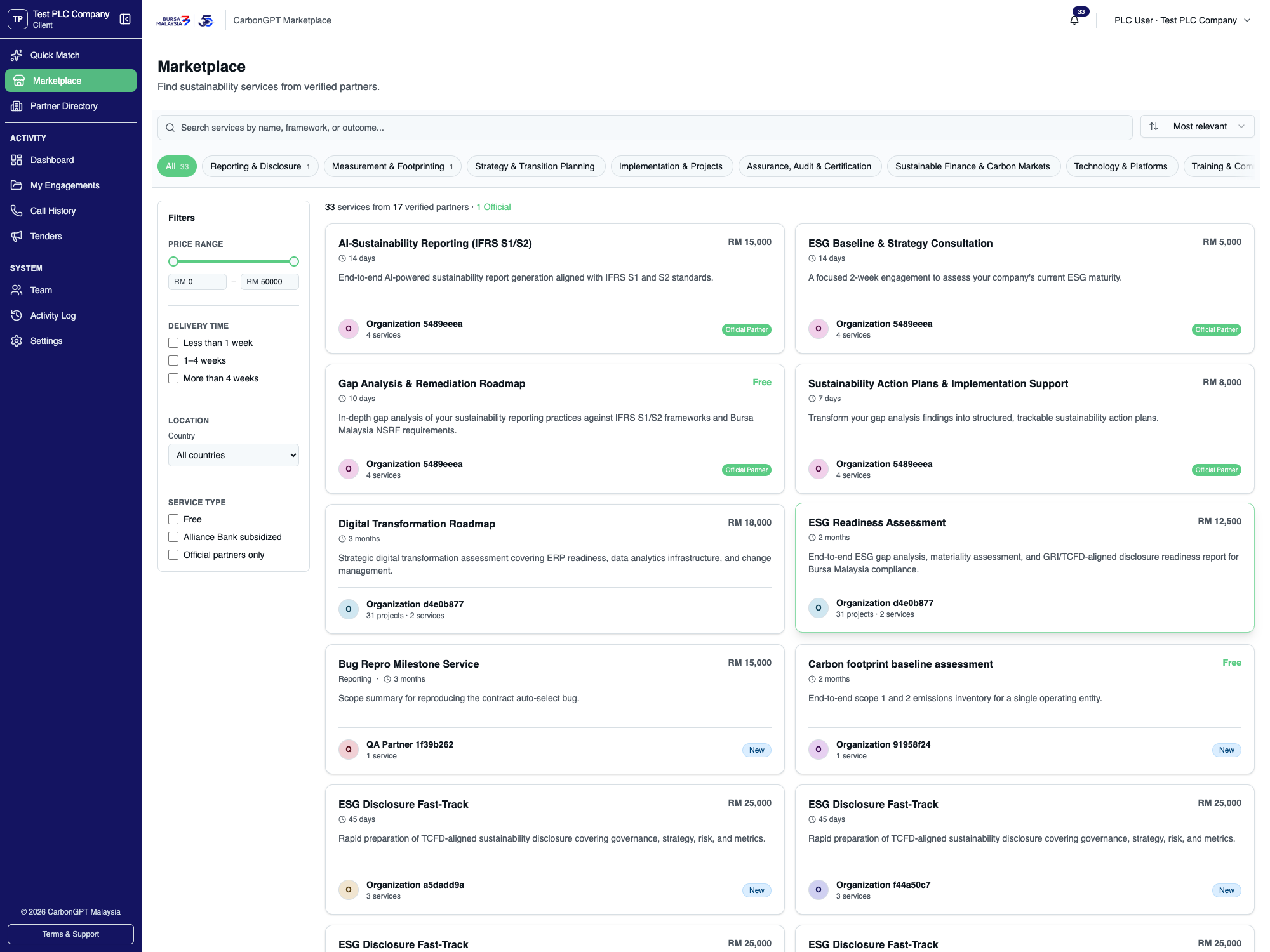
The Marketplace lists individually-listed services from approved partners, filterable by category, price, delivery timeline, and location.
01 The Marketplace lists individually-listed services from approved partners, filterable by category, price, delivery timeline, and location.
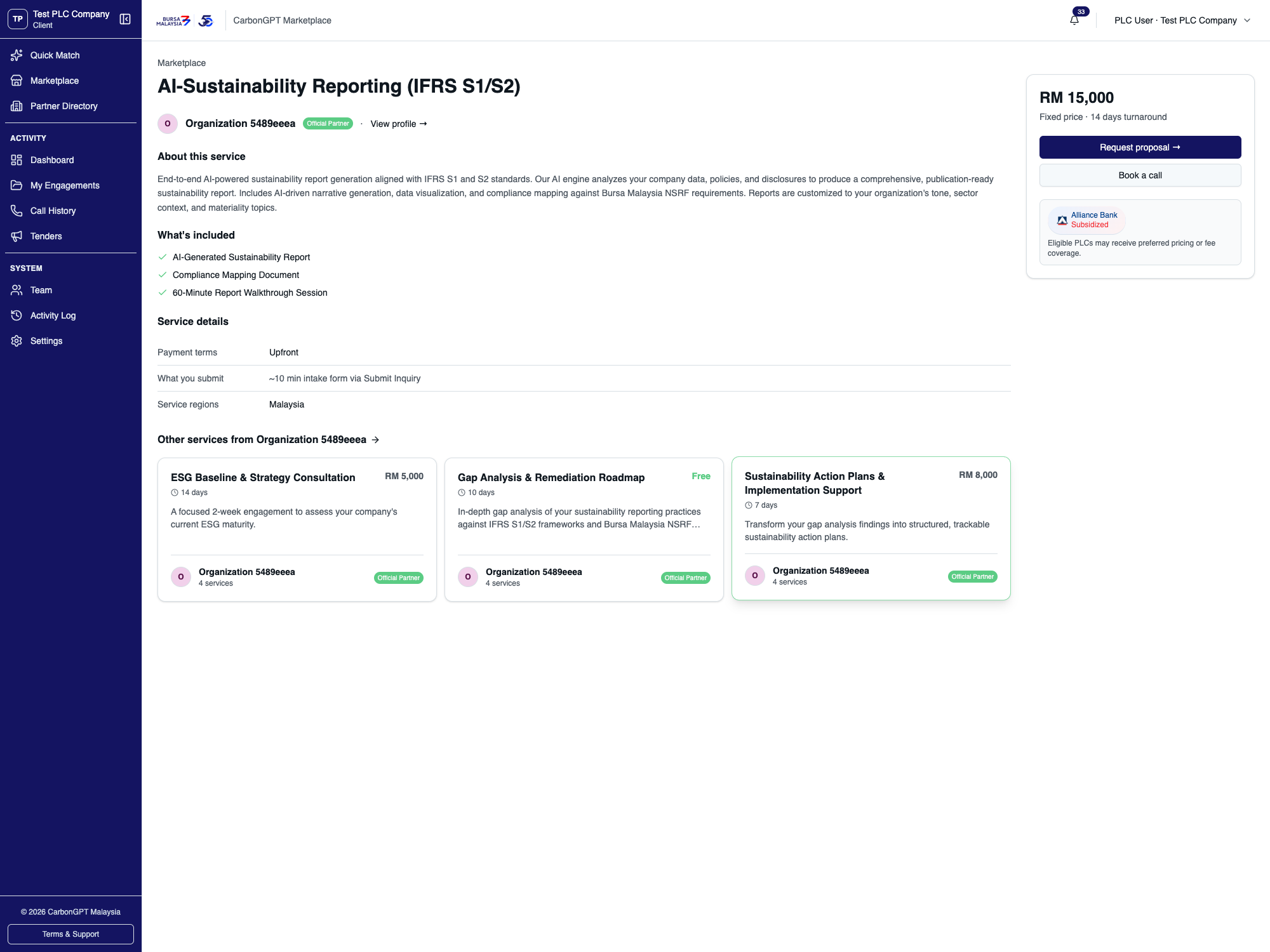
Opening a service shows its scope, what's included, service details, and a primary call-to-action that adapts to how the service is priced — inquiry-based, free, or a fixed rate.
02 Opening a service shows its scope, what's included, service details, and a primary call-to-action that adapts to how the service is priced — inquiry-based, free, or a fixed rate.
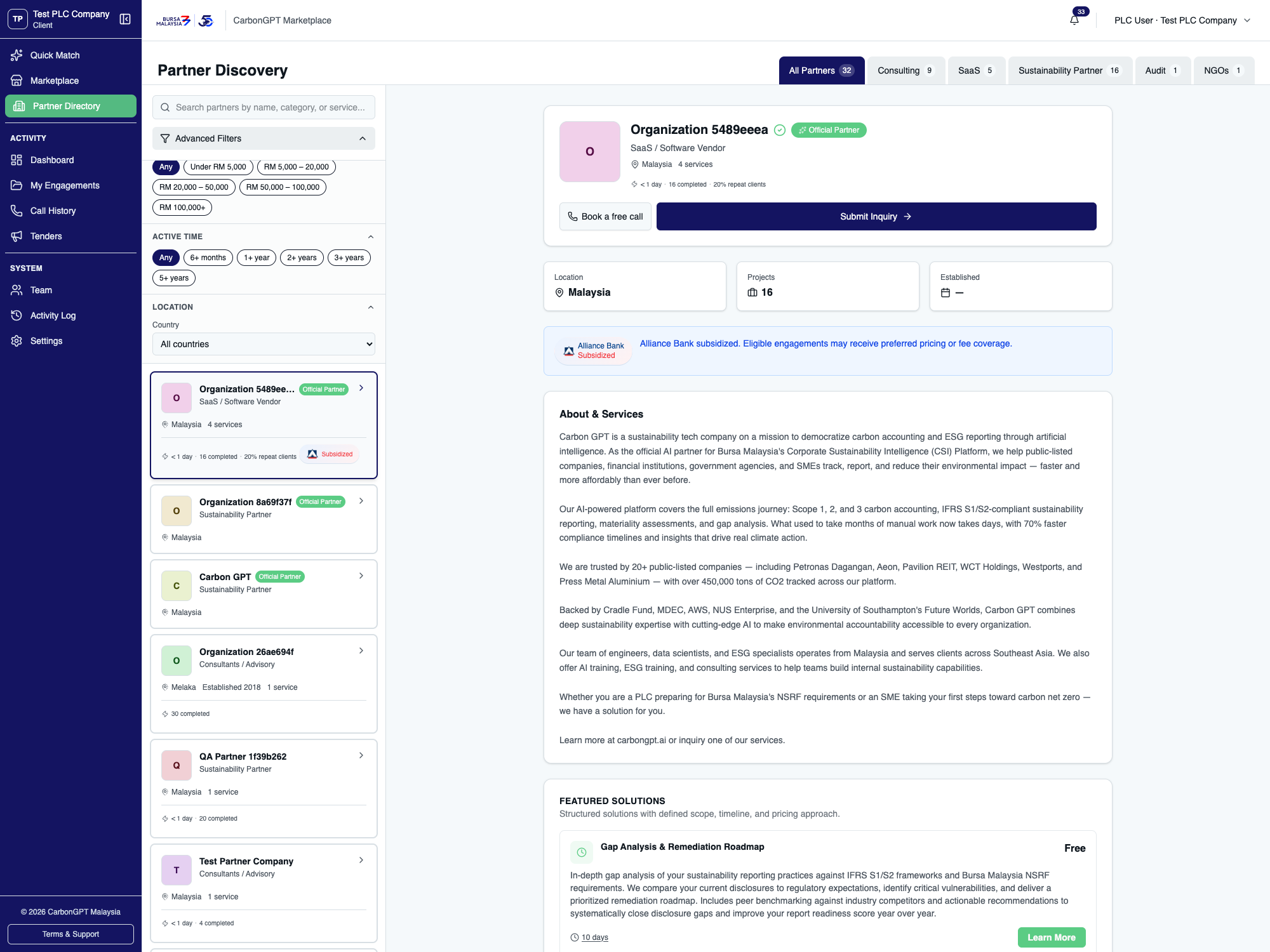
The Partner Directory is a separate way to browse — by partner profile rather than by individual service — with its own filters (category, budget range, years active, location).
03 The Partner Directory is a separate way to browse — by partner profile rather than by individual service — with its own filters (category, budget range, years active, location).
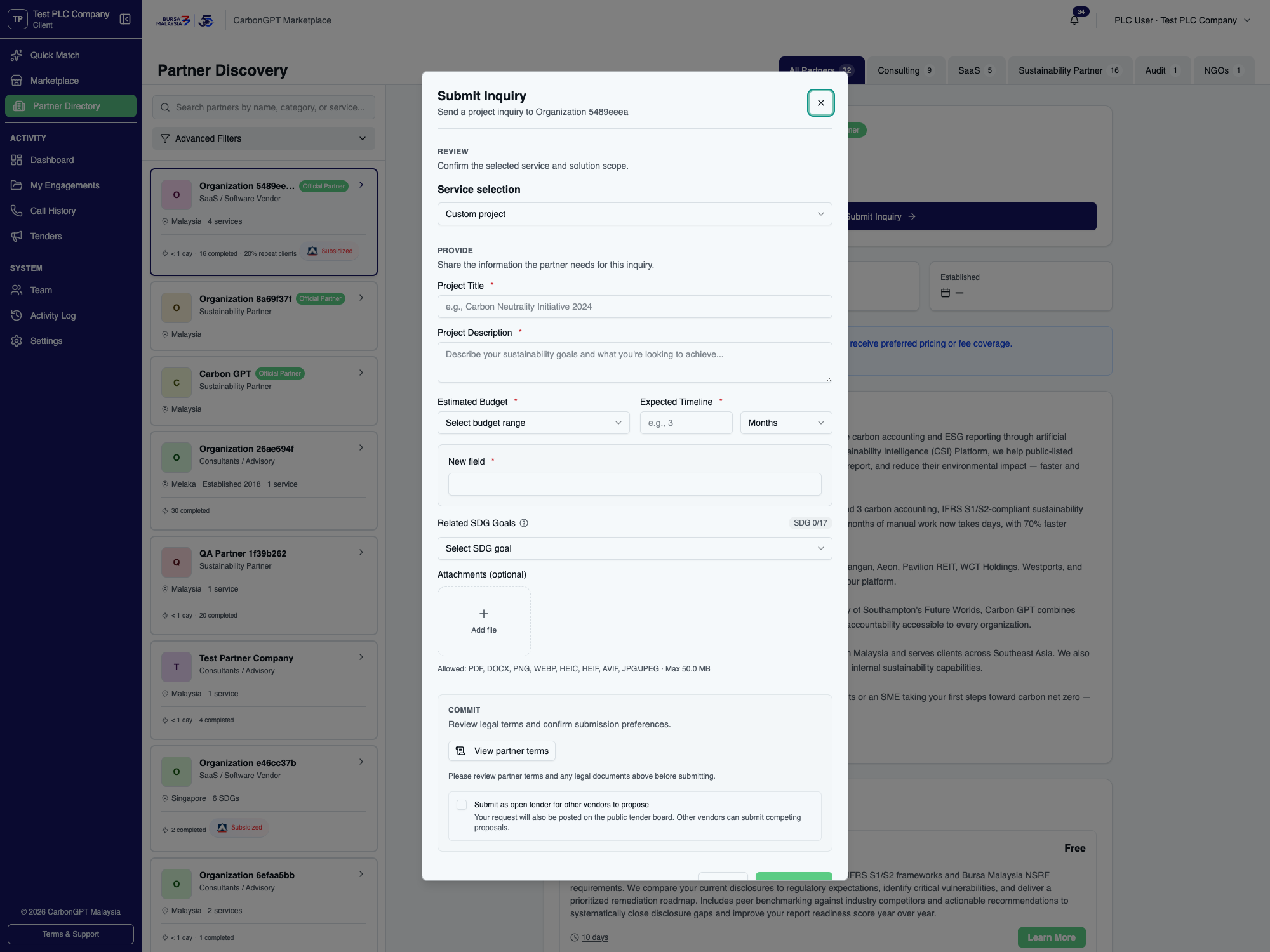
Submitting an inquiry against a service with no fixed price requires a budget indication; inquiries built from a fixed-price service skip that field entirely.
04 Submitting an inquiry against a service with no fixed price requires a budget indication; inquiries built from a fixed-price service skip that field entirely.
Deep diveExecution
Engagement execution

Once a contract is agreed, the Execution step manages payment and delivery together. The platform currently runs in manual settlement mode — escrow/auto-settlement is a built capability, not yet live in production. In manual mode, the PLC pays the partner directly by bank transfer and the partner confirms receipt.
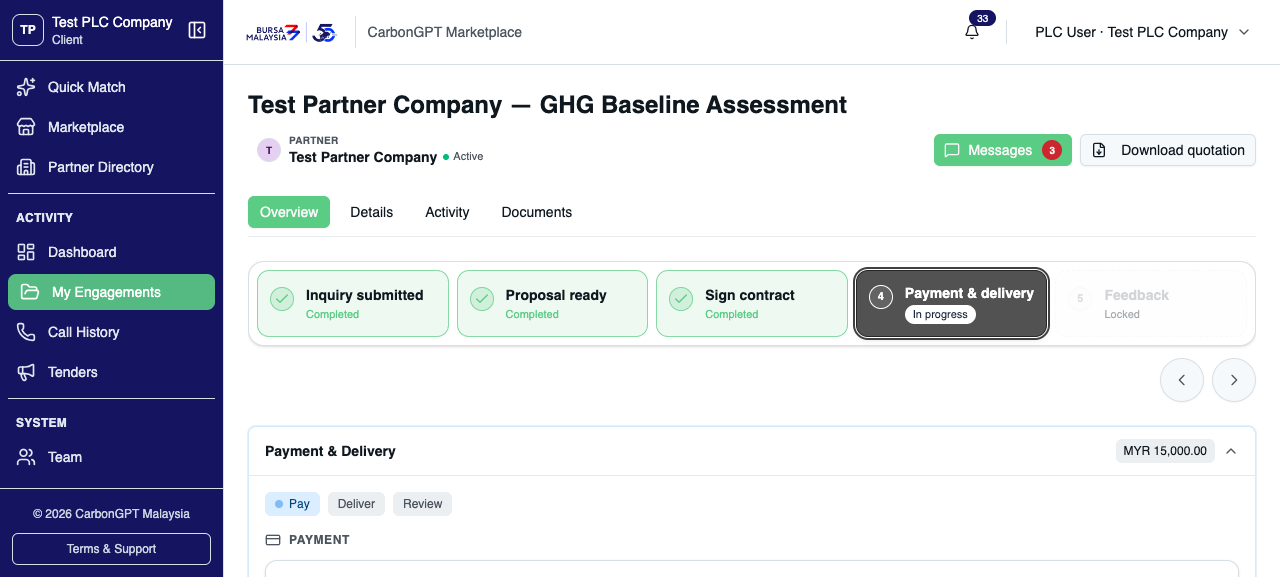
Every engagement follows the same five steps — Inquiry submitted, Proposal ready, Sign contract, Payment & delivery, Feedback. The current step is highlighted, and later steps stay locked until it's done.
01 Every engagement follows the same five steps — Inquiry submitted, Proposal ready, Sign contract, Payment & delivery, Feedback. The current step is highlighted, and later steps stay locked until it's done.
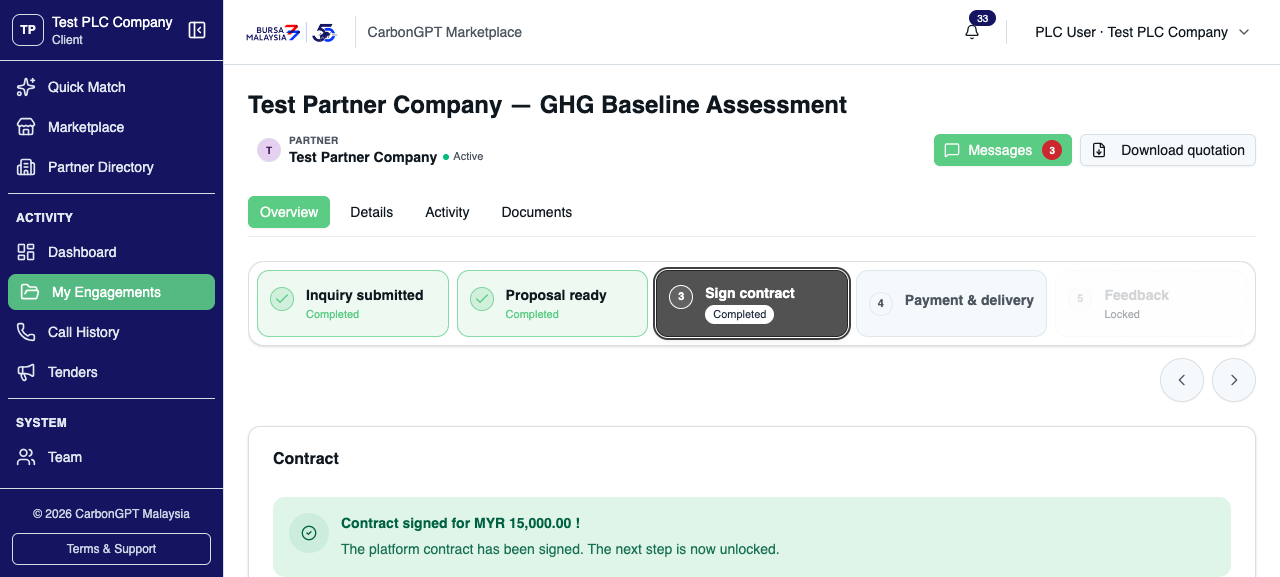
This engagement's contract has already been signed, so this shows the completed state rather than the pending signing screen — the platform confirms the signed amount and unlocks the next step automatically.
02 This engagement's contract has already been signed, so this shows the completed state rather than the pending signing screen — the platform confirms the signed amount and unlocks the next step automatically.
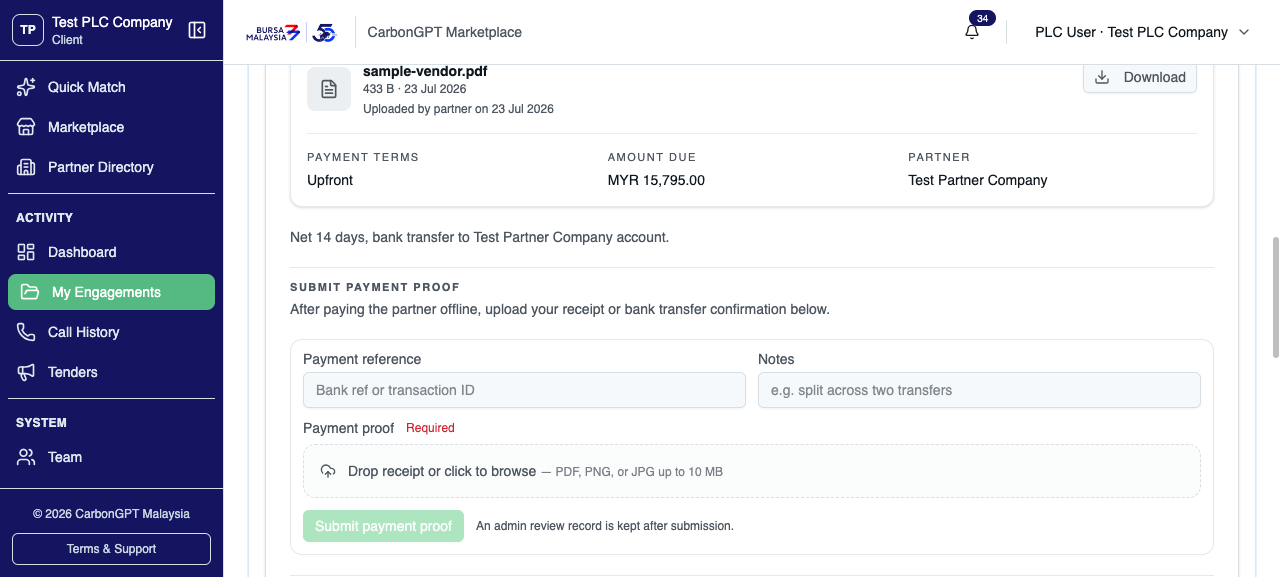
For an upfront payment term, the PLC pays the partner directly against the partner's uploaded invoice and submits proof here — a payment reference and notes are optional, but the payment proof file itself is required.
03 For an upfront payment term, the PLC pays the partner directly against the partner's uploaded invoice and submits proof here — a payment reference and notes are optional, but the payment proof file itself is required.
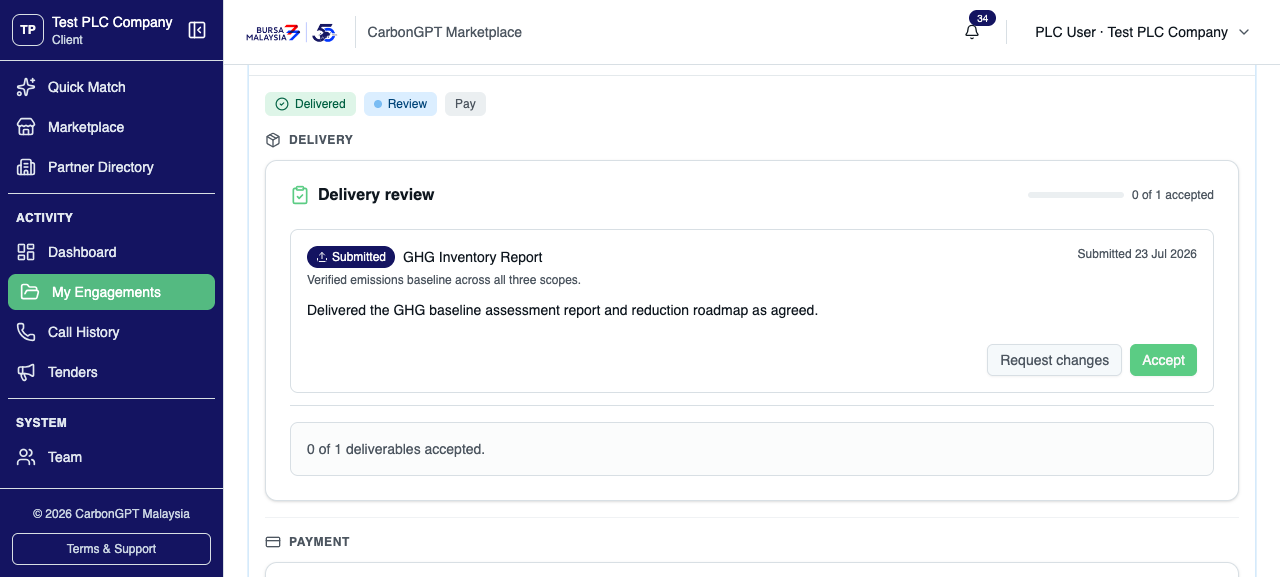
For a post-delivery payment term, the order reverses: the partner delivers first, and the PLC reviews each deliverable with Accept or Request changes before payment is due.
04 For a post-delivery payment term, the order reverses: the partner delivers first, and the PLC reviews each deliverable with Accept or Request changes before payment is due.
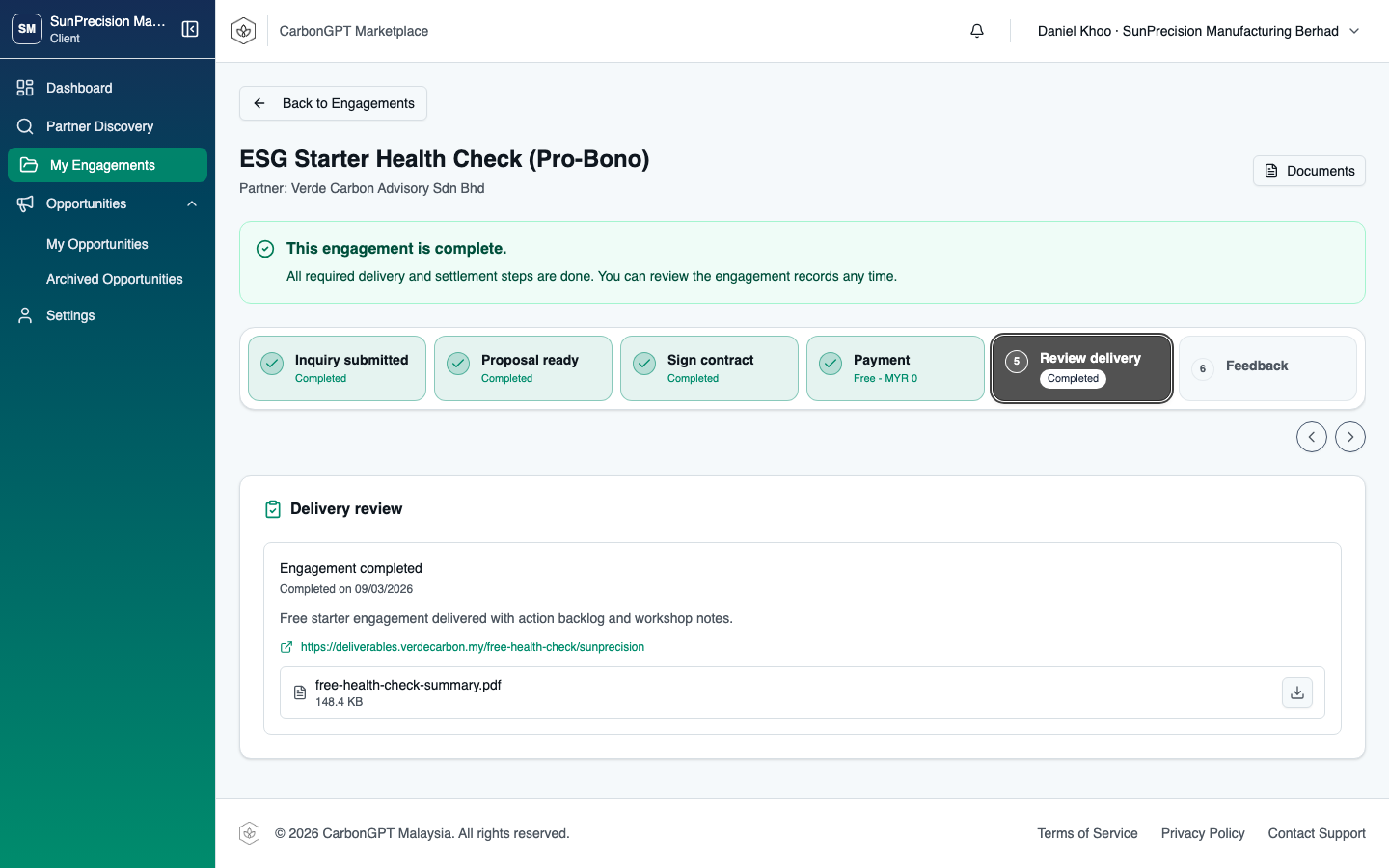
Free engagements (price = 0) skip the payment card entirely — only a Deliver and a Review phase apply, with no Pay tab anywhere on the page.
05 Free engagements (price = 0) skip the payment card entirely — only a Deliver and a Review phase apply, with no Pay tab anywhere on the page.
Deep diveTenders
Posting and awarding a tender

Tenders (labeled "Opportunities" in some older docs) let a PLC post a brief that any matching partner can bid on, instead of approaching one partner directly.
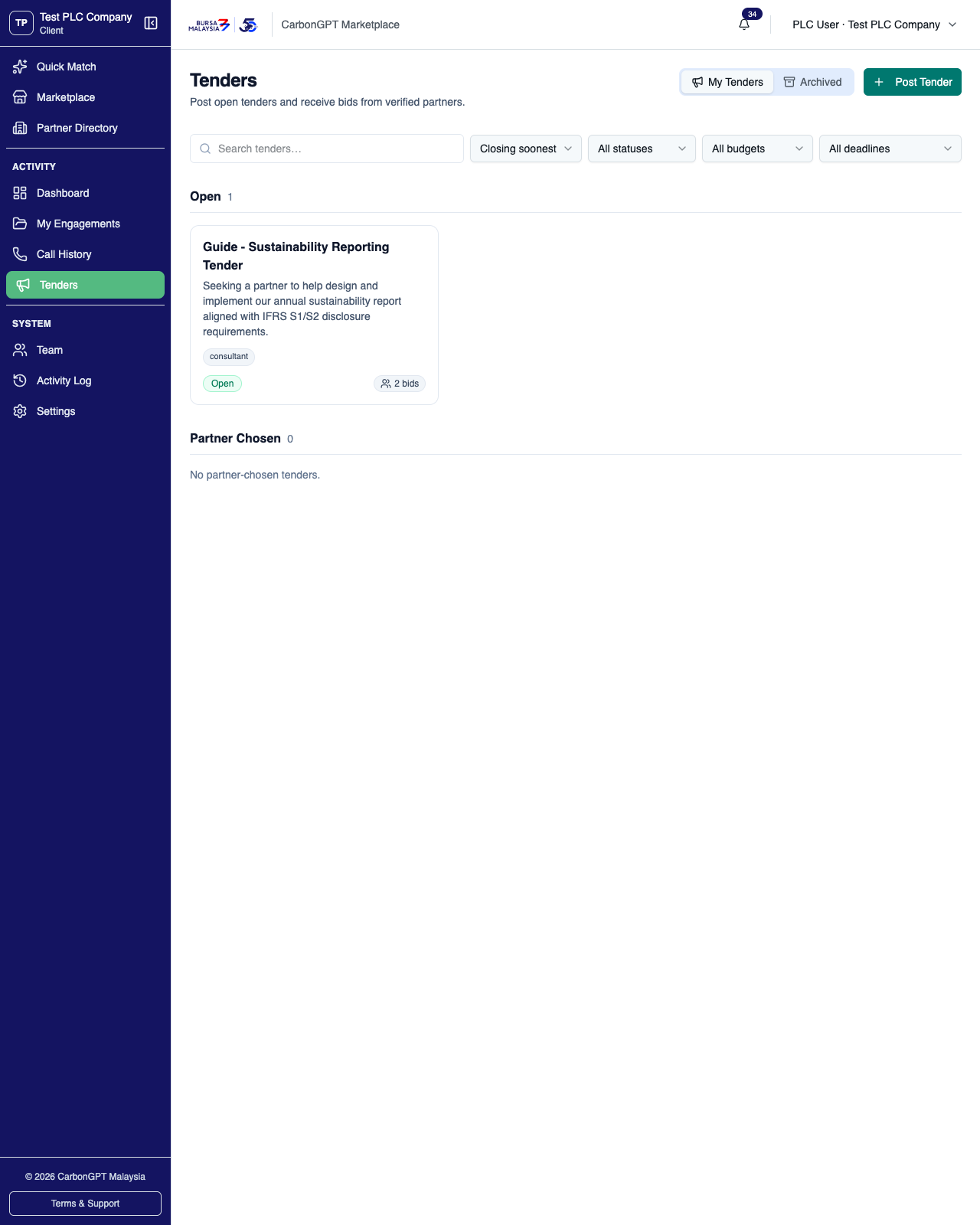
Tenders are organized by status — this view shows Open and Partner Chosen sections; a Closed section appears once a tender's bidding closes, and Archived tenders have their own separate view.
01 Tenders are organized by status — this view shows Open and Partner Chosen sections; a Closed section appears once a tender's bidding closes, and Archived tenders have their own separate view.
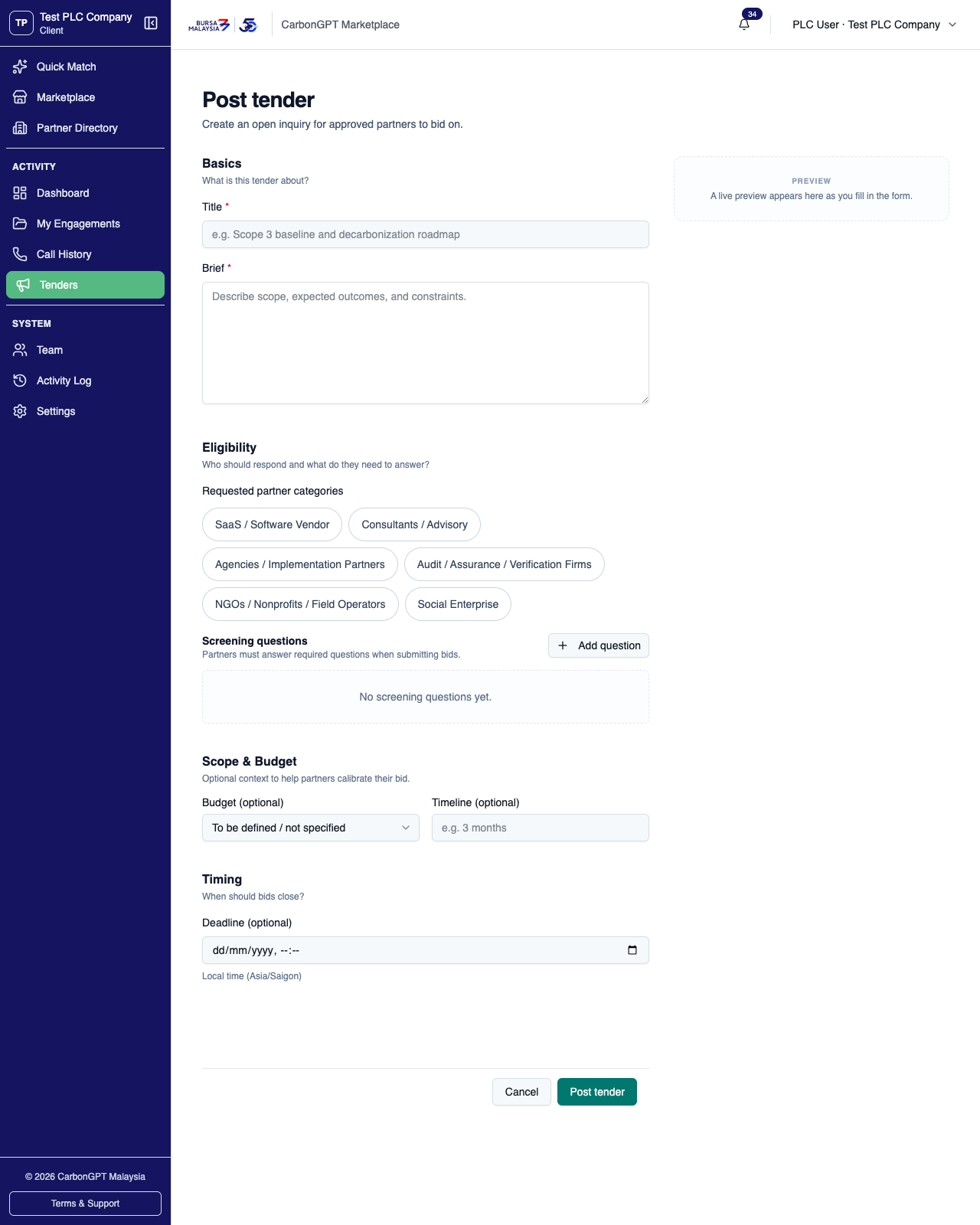
Posting a tender requires a title, a brief, and at least one partner category; budget, timeline, deadline, and screening questions are all optional.
02 Posting a tender requires a title, a brief, and at least one partner category; budget, timeline, deadline, and screening questions are all optional.
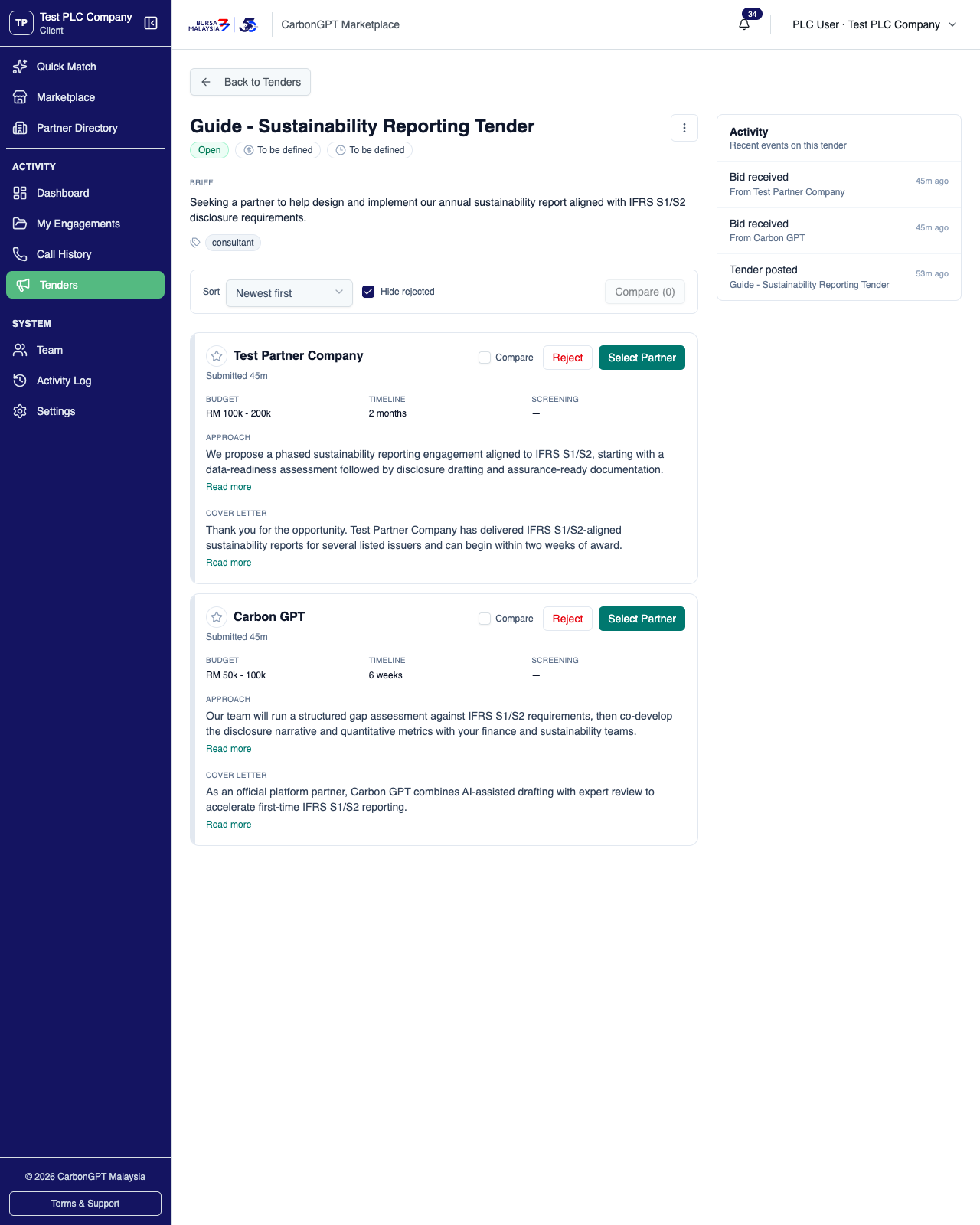
Bids can be shortlisted and compared side by side; choosing Select Partner on a bid creates a real inquiry pre-filled from the tender and that bid — the tender does not need to be closed first to select a bid.
03 Bids can be shortlisted and compared side by side; choosing Select Partner on a bid creates a real inquiry pre-filled from the tender and that bid — the tender does not need to be closed first to select a bid.
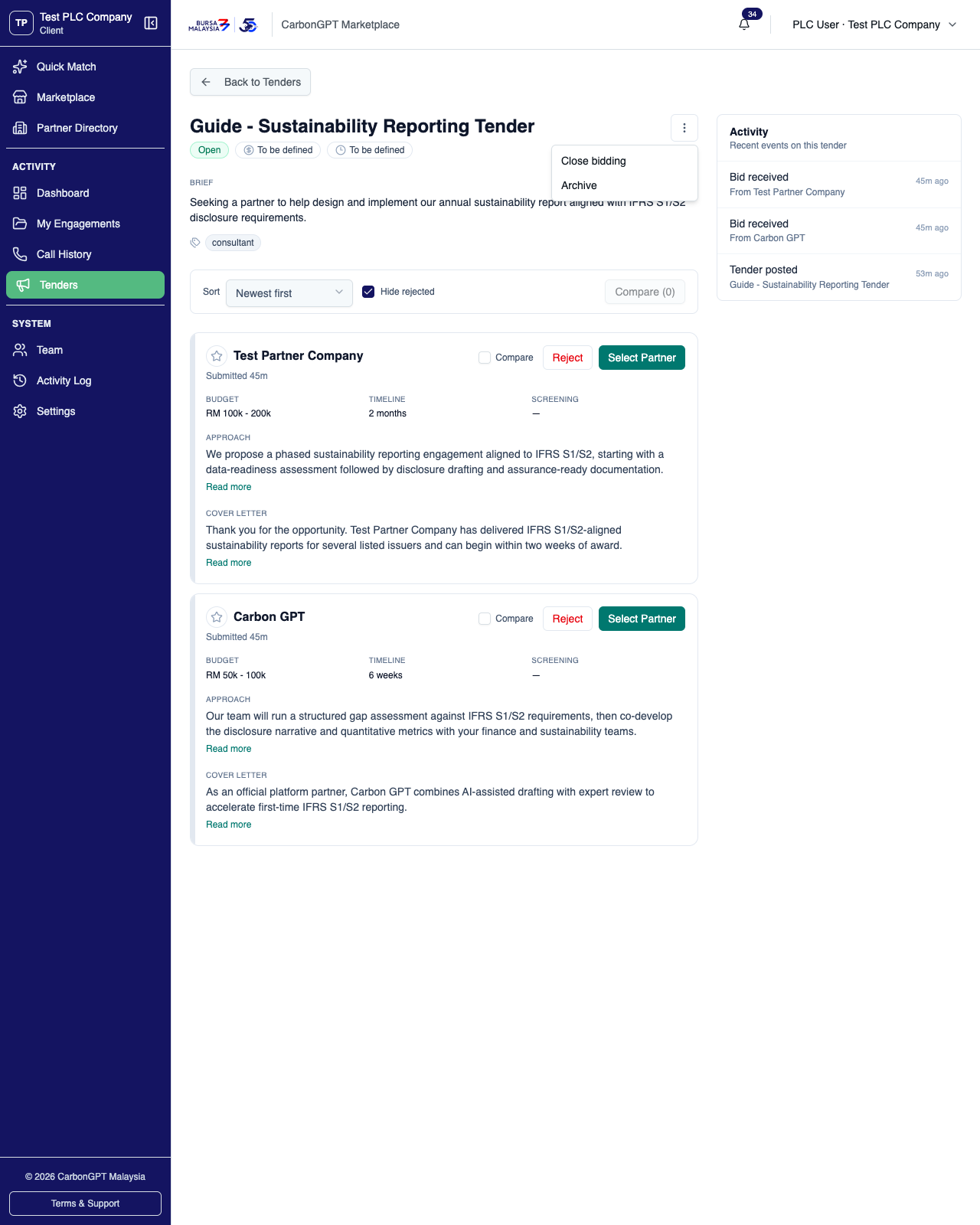
Once a tender has received any bid, it can no longer be edited — this restriction is enforced, not merely hidden from view.
04 Once a tender has received any bid, it can no longer be edited — this restriction is enforced, not merely hidden from view.
Deep diveQuick Match
Quick Match

Quick Match is an AI-assisted alternative to browsing manually — describe what's needed in a free-text brief, and the platform ranks partner recommendations against it. Recommendations render as soon as the brief is submitted, with no separate approval step to wait on before starting an inquiry.
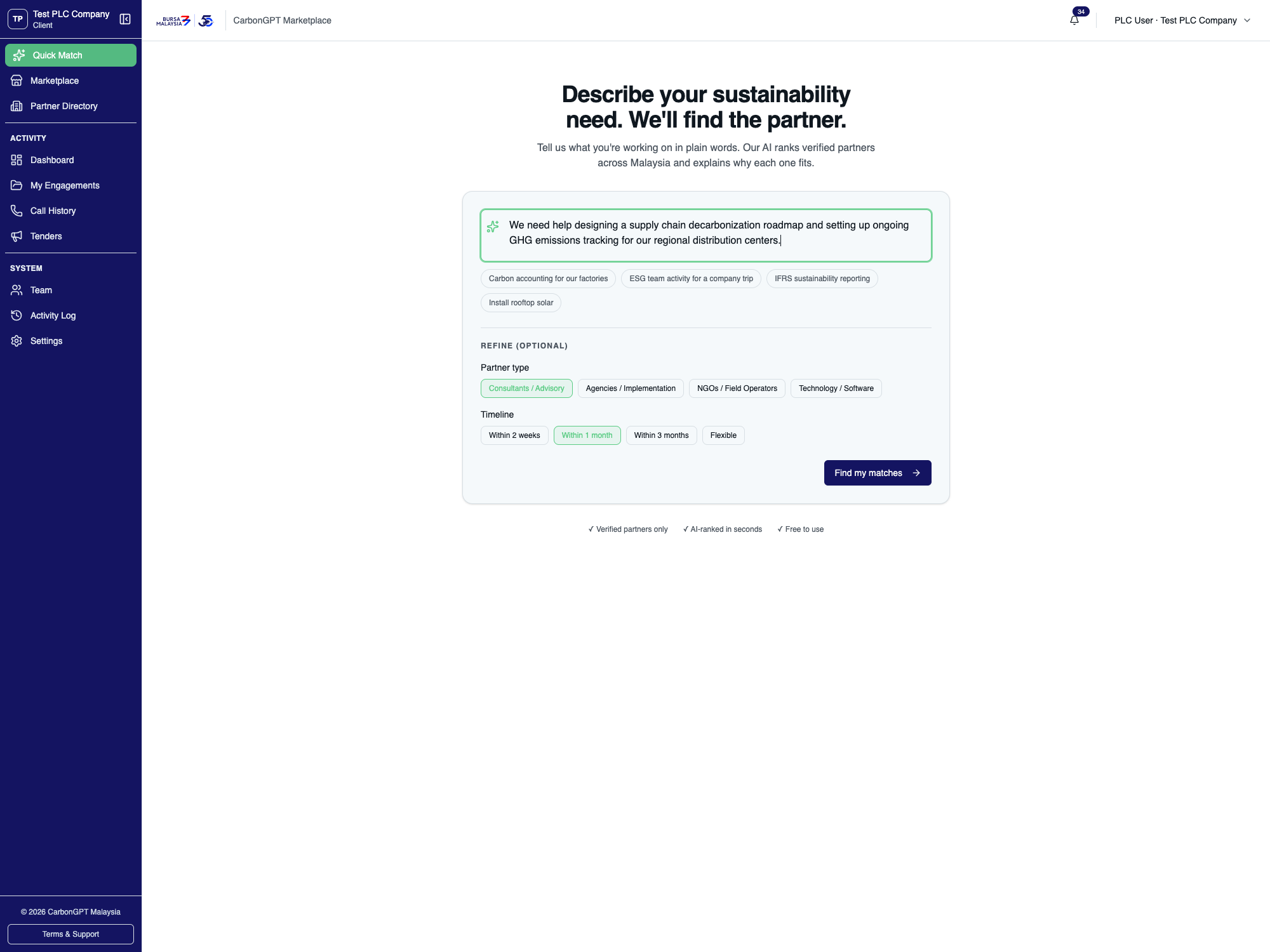
A brief is a free-text description of the need, with optional partner-type and timeline filters — no waiting for anything before submitting.
01 A brief is a free-text description of the need, with optional partner-type and timeline filters — no waiting for anything before submitting.
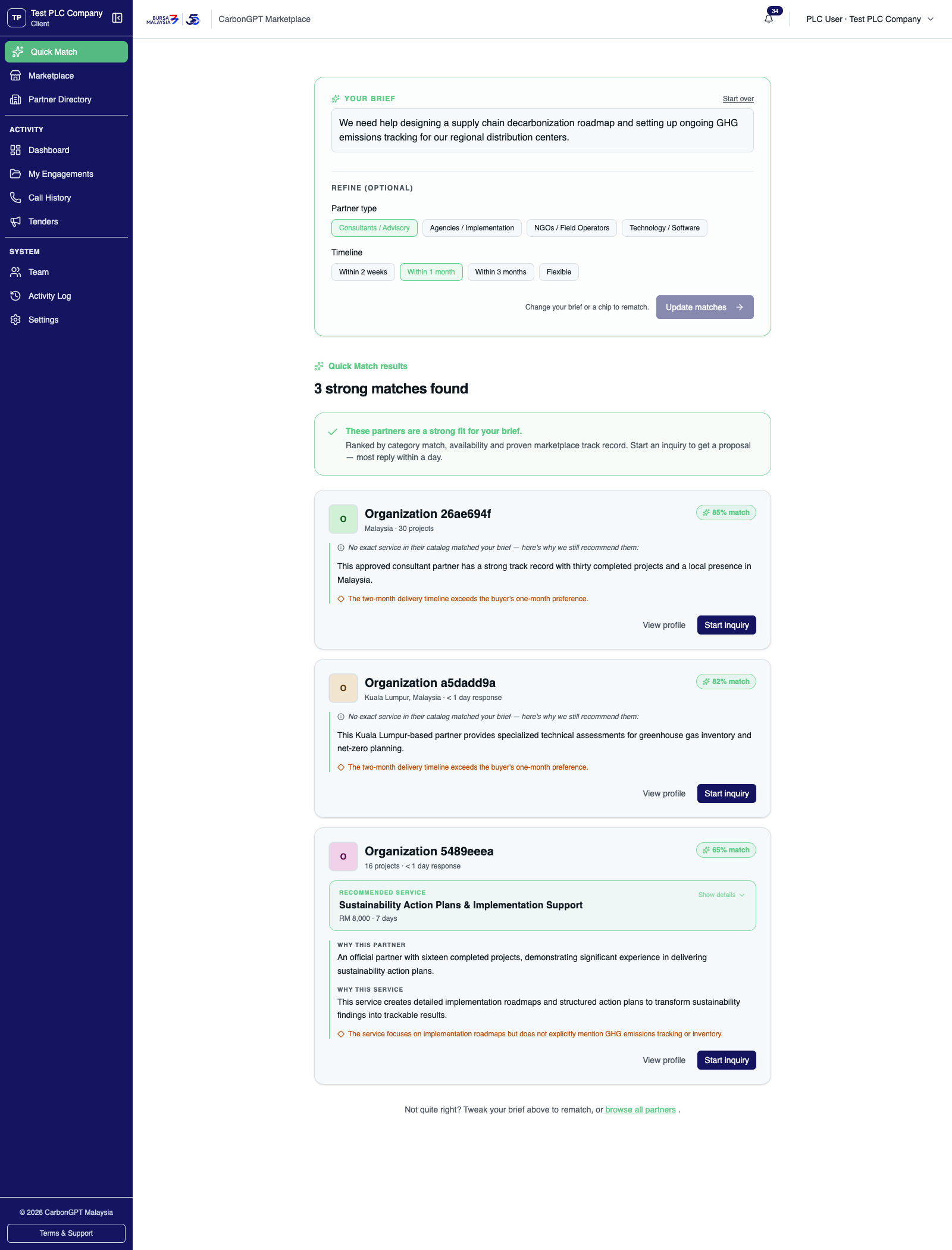
Recommendations appear immediately, ranked by match score, each with the reasoning behind the match and a service suggestion where one fits.
02 Recommendations appear immediately, ranked by match score, each with the reasoning behind the match and a service suggestion where one fits.
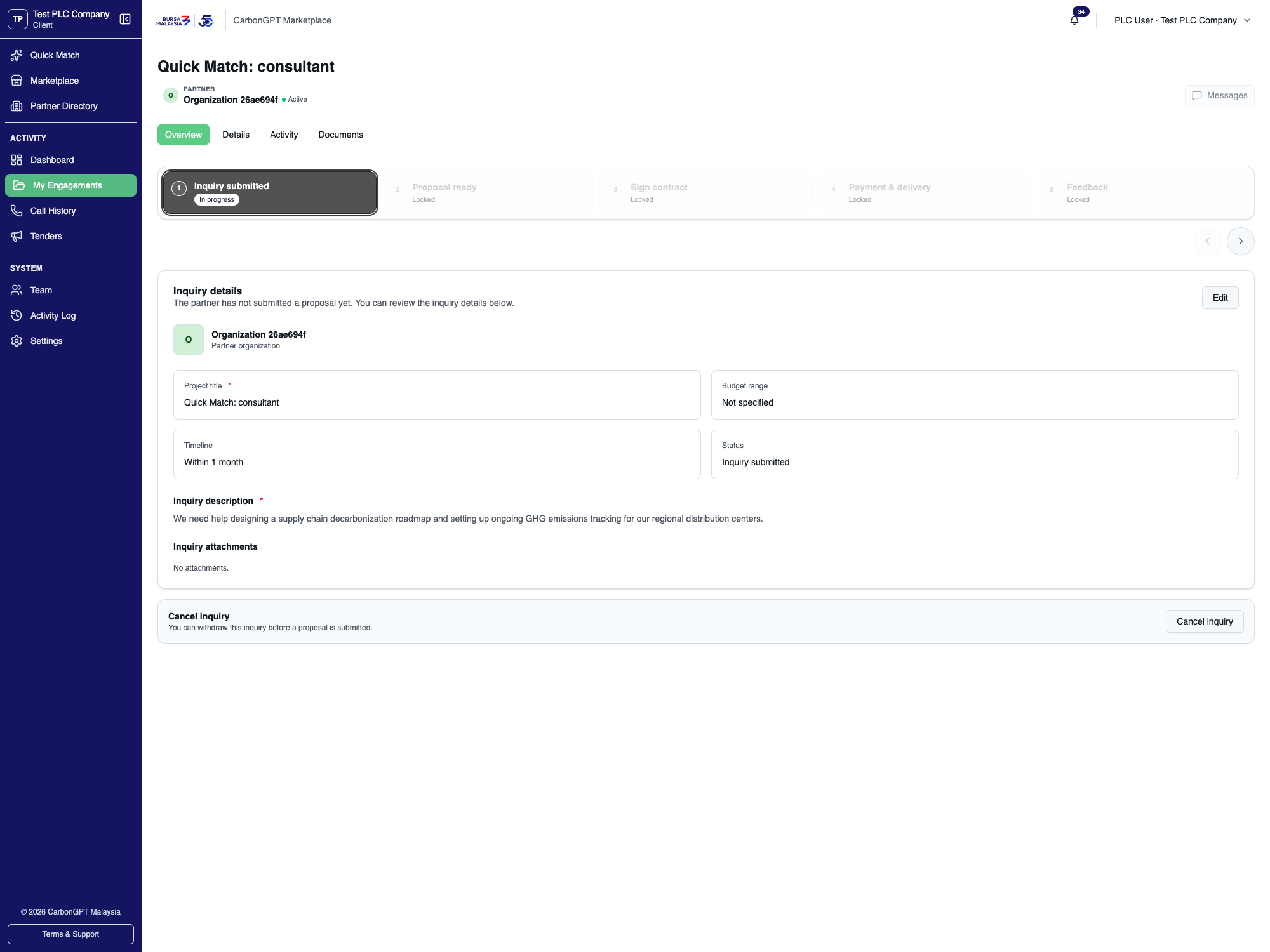
Clicking "Start inquiry" immediately creates the engagement and opens its page under My Engagements, already at the Inquiry submitted stage while the partner's proposal is pending — the original request details stay visible and can be edited or withdrawn from here.
03 Clicking "Start inquiry" immediately creates the engagement and opens its page under My Engagements, already at the Inquiry submitted stage while the partner's proposal is pending — the original request details stay visible and can be edited or withdrawn from here.
Overview
Dashboard

The Dashboard is the daily landing page — engagement/inquiry counts and a platform-wide activity pulse, all read-only.
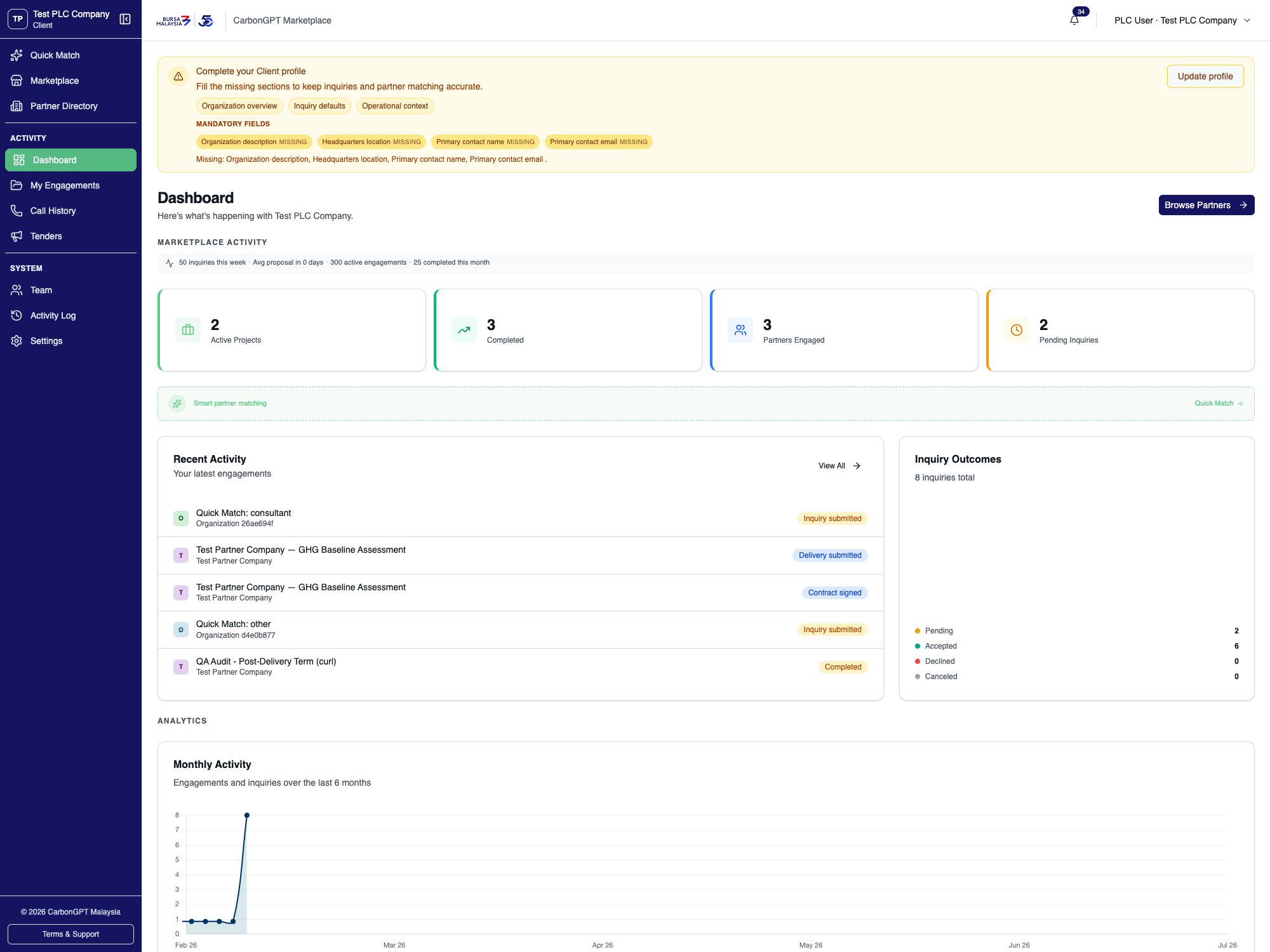
Stat cards, recent activity, and a platform-wide (not org-specific) activity pulse strip. The pulse strip is supplementary — if it has nothing to show, it's simply absent rather than showing an error.
01 Stat cards, recent activity, and a platform-wide (not org-specific) activity pulse strip. The pulse strip is supplementary — if it has nothing to show, it's simply absent rather than showing an error.
Team
Team

Manage organization members and pending invitations — available once enabled for the organization.
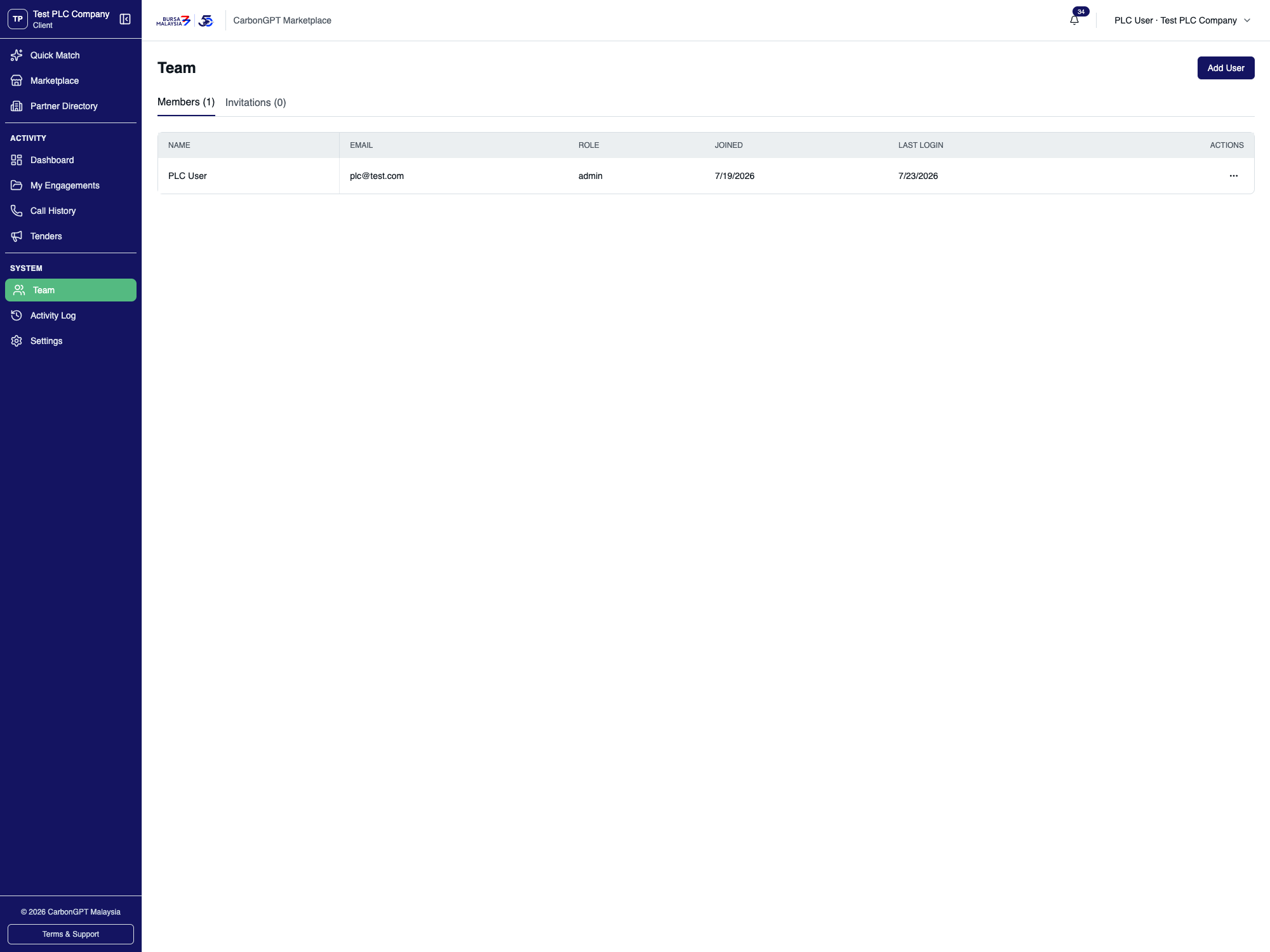
Only org admins can invite, edit, or remove members; other members see a read-only list. The last remaining admin can't be removed or demoted.
01 Only org admins can invite, edit, or remove members; other members see a read-only list. The last remaining admin can't be removed or demoted.
Settings
Settings

Organization-wide profile and configuration — restricted to org admins.
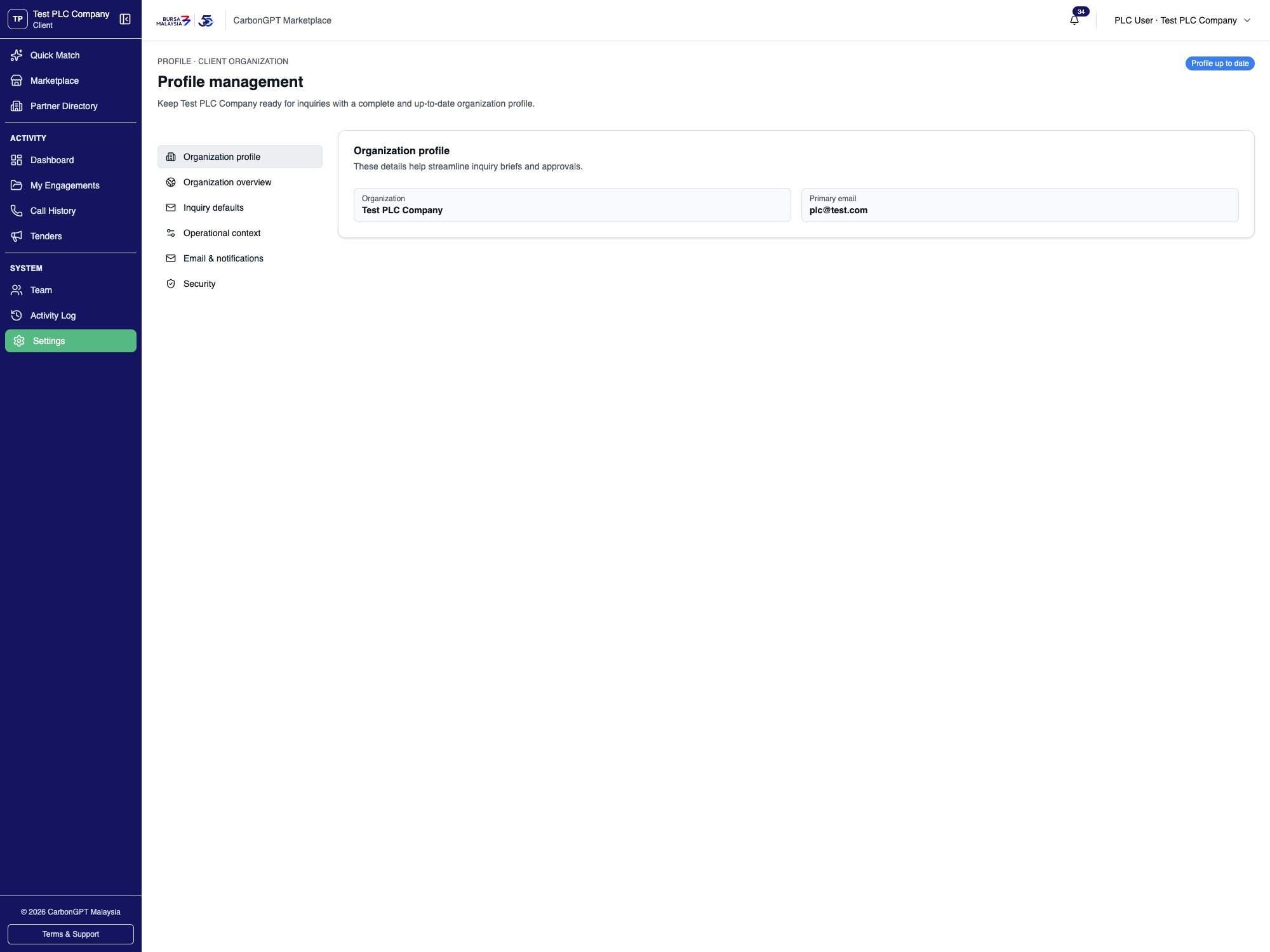
The section list on the left covers six areas — Organization profile, Organization overview, Inquiry defaults, Operational context, Email & notifications, and Security. This view shows the Organization profile section, with the organization name and primary contact email already on file.
01 The section list on the left covers six areas — Organization profile, Organization overview, Inquiry defaults, Operational context, Email & notifications, and Security. This view shows the Organization profile section, with the organization name and primary contact email already on file.
Settings
Email preferences

Under Settings, a PLC can choose how much email a partner is allowed to send them outside of standard marketplace notifications.
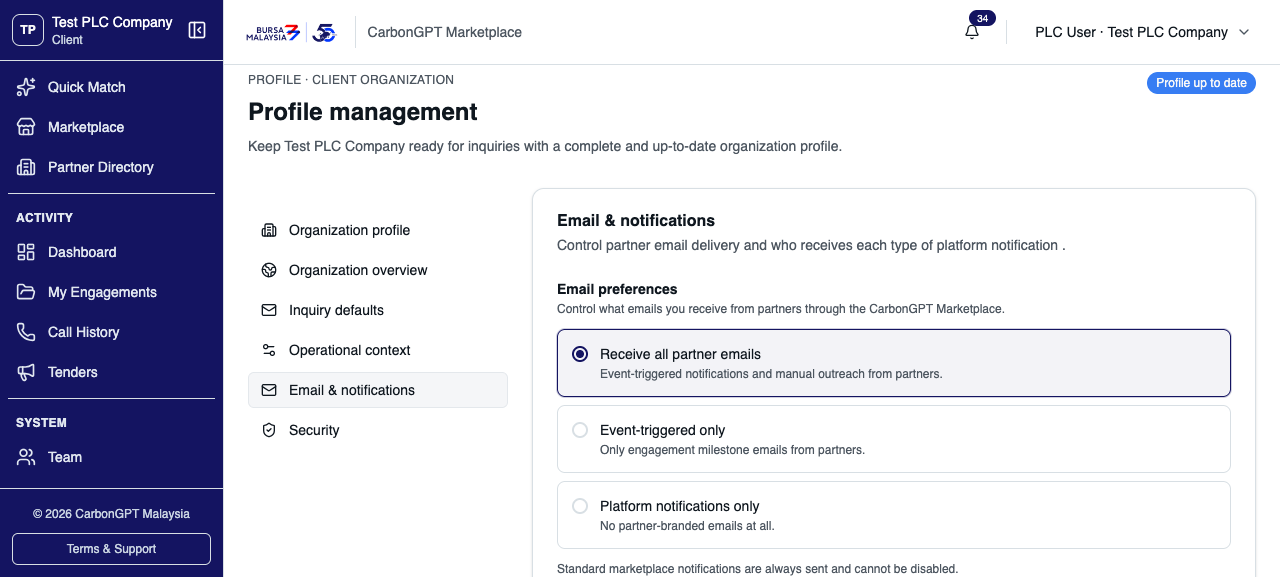
Three levels are available — receive all partner emails, event-triggered only, or platform notifications only. Standard marketplace notifications are always sent and cannot be disabled.
01 Three levels are available — receive all partner emails, event-triggered only, or platform notifications only. Standard marketplace notifications are always sent and cannot be disabled.
Overview
Callbacks

A log of booked calls and callback requests with partners.
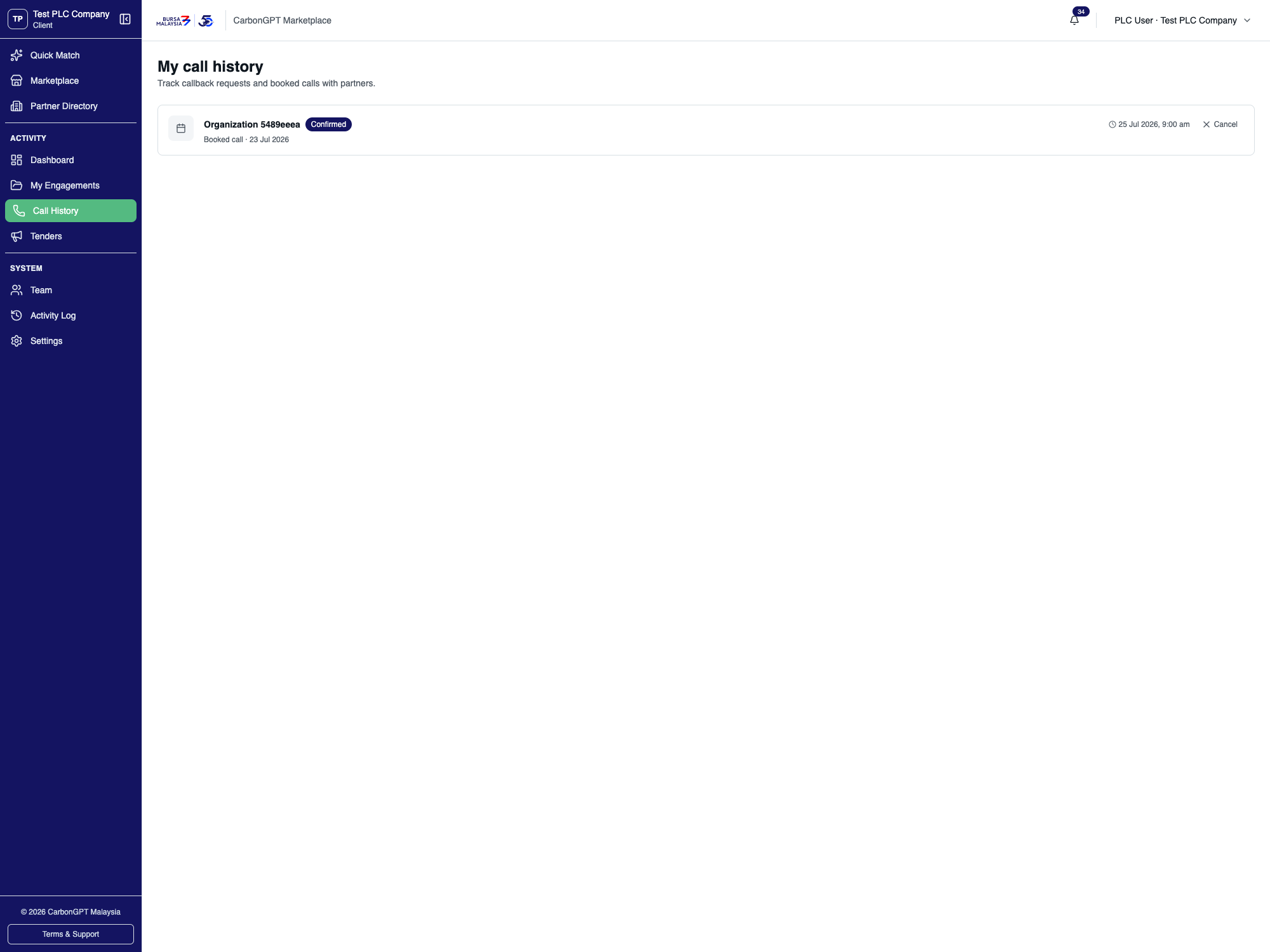
The only action available here is cancelling a pending or confirmed call — everything else (confirming, completing, marking a no-show) is set from the partner's side.
01 The only action available here is cancelling a pending or confirmed call — everything else (confirming, completing, marking a no-show) is set from the partner's side.
Overview
Audit Log

A read-only feed of the organization's own actions on the platform.
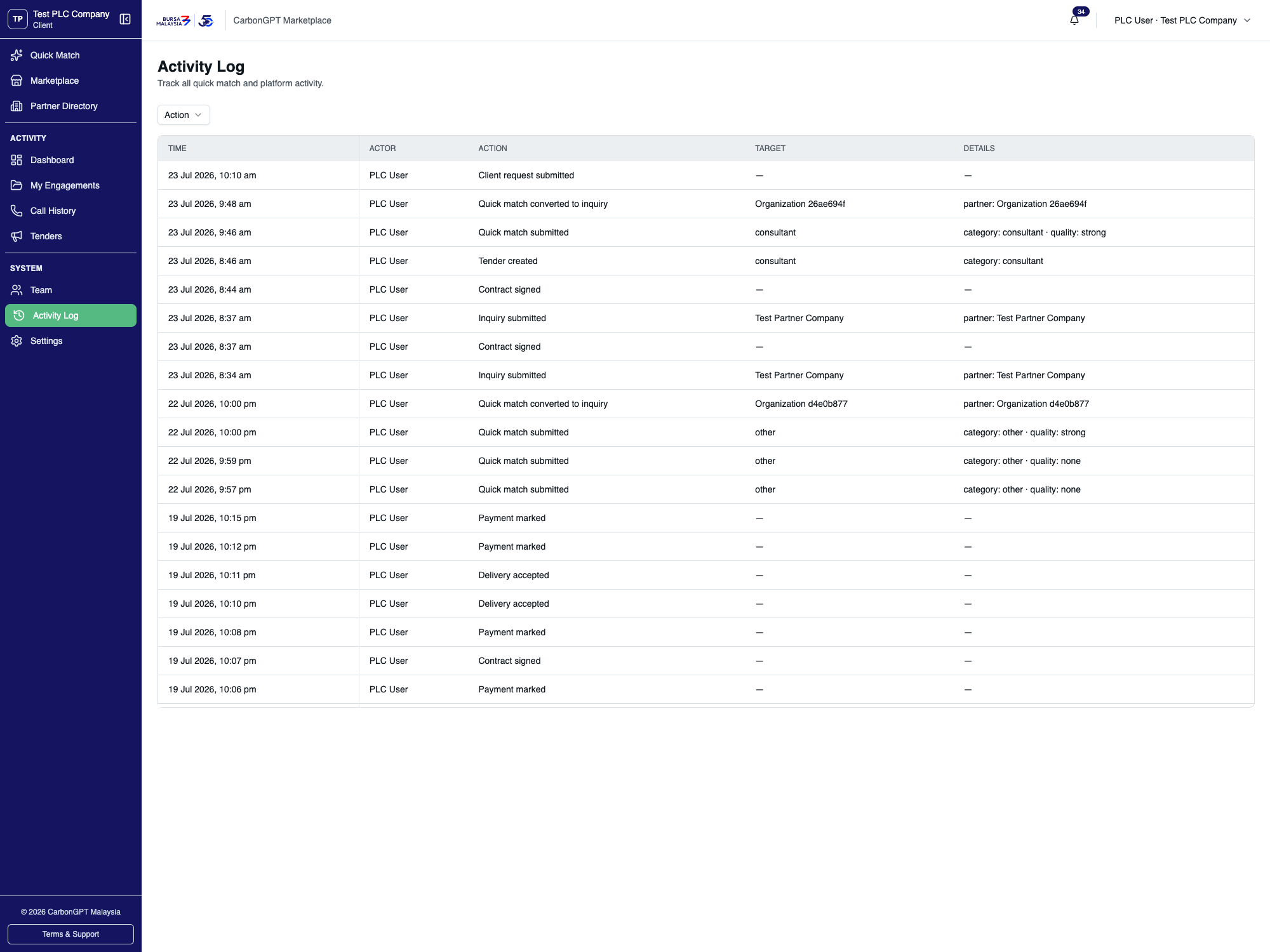
The most recent entry — a client request just filed from an engagement's Delivery step (asking the partner to revise a deliverable) — appears at the top, alongside entries for inquiries, contract signing, payments, deliveries, tender creation, and quick match activity, each with the acting user and a plain-language description.
01 The most recent entry — a client request just filed from an engagement's Delivery step (asking the partner to revise a deliverable) — appears at the top, alongside entries for inquiries, contract signing, payments, deliveries, tender creation, and quick match activity, each with the acting user and a plain-language description.
Overview
Notifications

The organization's notification inbox.
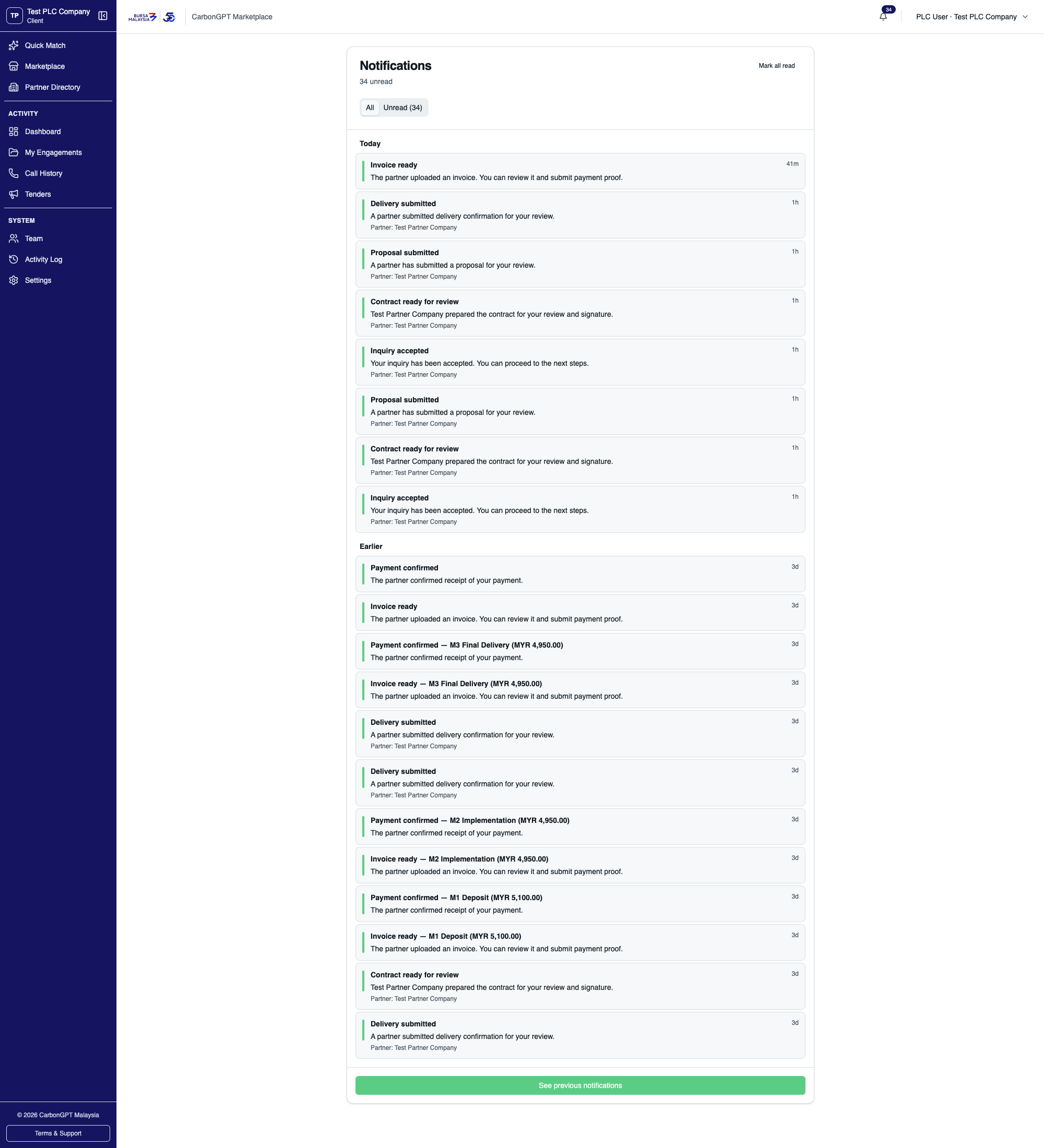
Notifications are split into Today and Earlier sections, each entry showing a title, message, and a partner name where relevant. A mark-all-read action sits at the top, and a button at the bottom loads older notifications.
01 Notifications are split into Today and Earlier sections, each entry showing a title, message, and a partner name where relevant. A mark-all-read action sits at the top, and a button at the bottom loads older notifications.
Appendix
Glossary

Tender: a posted brief that any matching partner can bid on (also called "Opportunity" in some older docs).

Quick Match: an AI-assisted alternative to browsing — describe a need in free text and get ranked partner recommendations.

Marketplace: the service-listing browse experience — distinct from the Partner Directory, which browses by partner profile instead.

Manual settlement: the partner and PLC confirm payment directly with each other by bank transfer.

Escrow: a built but not-yet-active settlement mode where payment proof is verified before funds are released.

Free engagement: price = 0, skips the payment step entirely.

Converted (Quick Match): the PLC selected a recommendation and a real inquiry was created from it.